
How to Send Manus Into a Meeting on Your Behalf
Learn how to send Manus into a meeting so it can run the follow-up work after the call, not just return a summary of what was said.

Updated 12 November 2026.
Manus runs multi-step work on its own, so the interesting case is not what it hears in the meeting but what it does afterwards without being asked again.
On 12 November 2026 Anthropic shipped Claude Meetings, where Claude joins a Google Meet call as a visible participant and builds notes and artifacts while people talk, in beta on Team and Enterprise plans. It gave everyone a clear picture of what an in-meeting agent looks like. It also showed the limits of building that as a feature: one platform, one vendor's plans, output in one place.
A call that ends in six follow-up tasks is a good fit for an agent that can carry out a plan rather than return a summary. This guide is how to get the same shape with Manus, on Zoom, Google Meet and Microsoft Teams, without waiting for Manus to ship a meetings feature of its own.
You can give an AI agent like Manus the ability to join live meetings by connecting it to a voice infrastructure API. This lets the agent record, transcribe, and even participate in conversations happening on Zoom, Google Meet, or Microsoft Teams. What matters is giving the agent a standard set of tools it can use to control a meeting bot on your behalf.
This has become practical because of standardized agent-to-tool protocols. The Model Context Protocol (MCP) is an open specification that lets any agent discover and use a set of actions, like joining a call or sending a chat message. By pointing Manus to a MeetStream MCP server, you give it a full suite of meeting-related capabilities without writing any integration code.
At MeetStream, we run the infrastructure that has powered over 80,000 bots across more than a million meeting minutes. Our platform is designed to be the voice infrastructure for AI agents, giving them a seat at the table in any meeting. This guide walks through the exact steps to connect Manus to MeetStream and send a bot into a meeting.
In this guide we will cover what you need, the three setup steps, and the rights and permissions involved. Let's get into it.
What You Will Need
Before you start, make sure you have the following ready:
- A Manus account: You will need access to the Custom MCP Servers integration.
- A MeetStream API key: You can get a free API key from the MeetStream dashboard.
- A meeting link: A valid URL for a Zoom, Google Meet, or Microsoft Teams meeting you can join for testing.
Step 1: Get Your MeetStream API Key
First, you need a MeetStream API key to authorize requests. Each key is unique to your account, so you can manage and revoke access as needed.
- Sign up or log in to your MeetStream account at
app.meetstream.ai. - Navigate to the API Keys section in the dashboard.
- Generate a new key and copy it to your clipboard. You will need this in the next step.
Keep this key secure, as it grants access to deploy bots on your behalf.
Step 2: Connect Manus to the MeetStream MCP Server
Next, you will configure Manus to use MeetStream's hosted MCP server. This server exposes all the available meeting tools, such as create_bot and get_transcript, in a format Manus can understand.
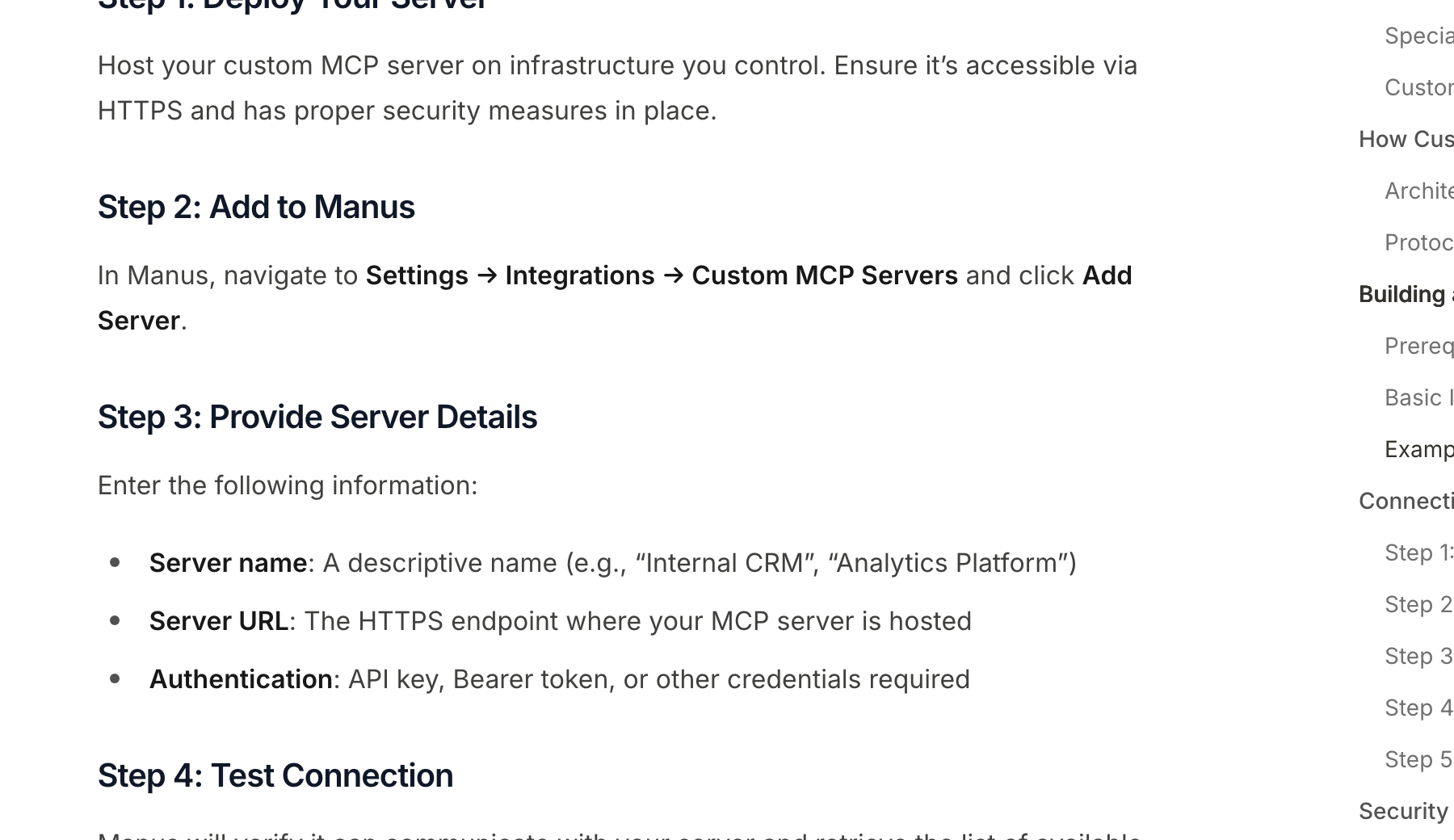
Here are the steps to add the server in Manus:
- In your Manus workspace, navigate to Settings, then Integrations.
- Find and select Custom MCP Servers, then click Add Server. Vendor menus can change, so check the official Manus documentation for the latest steps.
- Fill in the server details:
- Server Name: Give it a memorable name, like
MeetStream. - Server URL: Enter MeetStream's hosted MCP server URL:
https://mcp.meetstream.ai/mcp - Authentication: Select Bearer Token and paste your MeetStream API key from Step 1 into the token field.
- Server Name: Give it a memorable name, like
- Save the configuration. Manus will test the connection to ensure it can reach the server and retrieve the list of available tools.
A quick security note: when you paste your API key as a Bearer Token into a connector's settings, it may be visible to administrators of your Manus workspace and could be stored in logs. Using a dedicated key for this integration allows you to revoke it later without affecting other services.
Step 3: Send a Bot Into a Meeting with a Prompt
With the connection established, you can now instruct Manus to use the MeetStream tools in any task. The agent understands the function of each tool and can chain them together to complete a request.
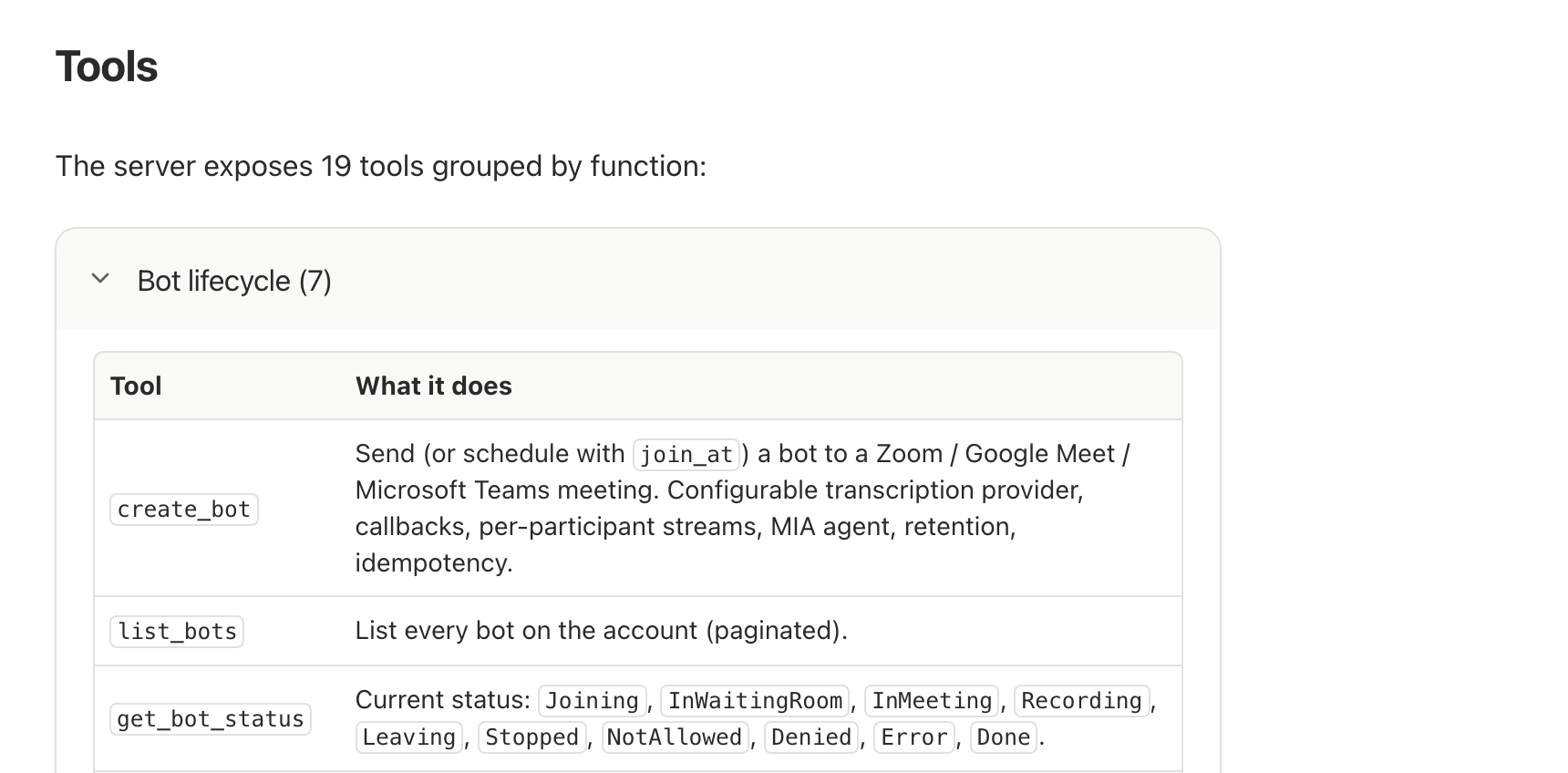
For example, you can use a prompt like this:
Use the MeetStream tool to send a bot named 'Note Taker' to https://meet.google.com/abc-def-ghi. Wait for the meeting to end, then give me the full transcript.
When Manus processes this prompt, it identifies the tools needed to fulfill the request. Under the hood, it makes a sequence of calls to the MCP server.
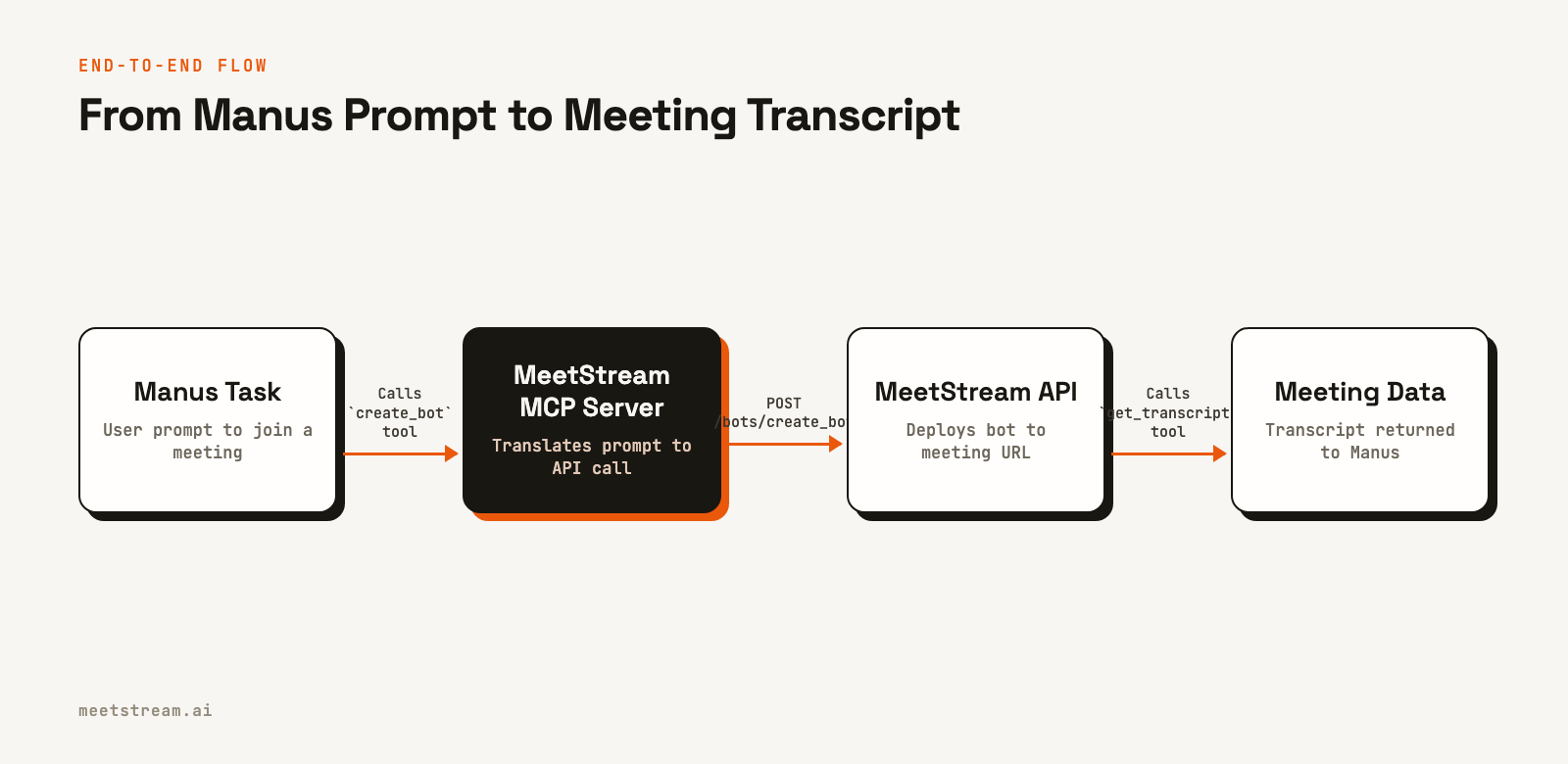
Here’s how it works:
- Tool Call 1:
create_botManus calls the
create_bottool with the parameters extracted from your prompt:bot_nameandmeeting_link. The MCP server translates this into a direct API call to the MeetStream platform.curl -X POST "https://api.meetstream.ai/api/v1/bots/create_bot" \ -H "Authorization: Token <YOUR_API_KEY>" \ -H "Content-Type: application/json" \ -d '{ "meeting_link": "https://meet.google.com/abc-def-ghi", "bot_name": "Note Taker", "recording_config": {"transcript": {"provider": {"meetstream": {}}}} }'MeetStream's infrastructure spins up a new bot instance and begins the process of joining the specified meeting. The API returns a unique
bot_id, which Manus stores for the next step. - Tool Call 2:
get_transcriptYour prompt included "Wait for the meeting to end" and "give me the full transcript." Manus uses the
get_transcripttool for this, passing thebot_idfrom the previous step and awaitparameter. This tells the MCP server to poll the bot's status and only return once the transcript is ready.
Once the meeting concludes and the transcript is processed, the tool returns the full text to Manus, which then presents it to you as the final result of the task.
Understanding Rights and Permissions
When you send a bot into a meeting on your behalf, several layers of permissions come into play. It's important to understand them to ensure the bot can join and operate as expected.
1. Agent and API Permissions
Your MeetStream API key grants the ability to create and manage bots. The connection you configured in Manus gives the agent permission to use that key. Anyone who can instruct your Manus agent can potentially deploy a bot.
2. Meeting Platform Permissions
The bot joins as a distinct participant. Its ability to enter the meeting is subject to the platform's rules:
- Waiting Rooms: If the meeting has a waiting room, the host must manually admit the bot.
- Zoom: Zoom needs no setup: send the meeting link with your MeetStream API key. Your own Zoom app is optional and adds per-participant camera video, signed-in joins and live bot video. An On-Behalf-Of (OBF) token is only for optional joins with that app, and it requires an authorized user to already be in the call. You can learn more about how Zoom OBF works.
- Recording Consent: On Zoom, the bot must be granted recording permission by the host or a co-host.
3. Legal and Ethical Considerations
You should always inform all participants that a bot is present and recording the conversation. The bot's name, like "Note Taker," helps make its purpose clear, but it does not replace the need for explicit consent where required by law or company policy.
How MeetStream Provides the Infrastructure
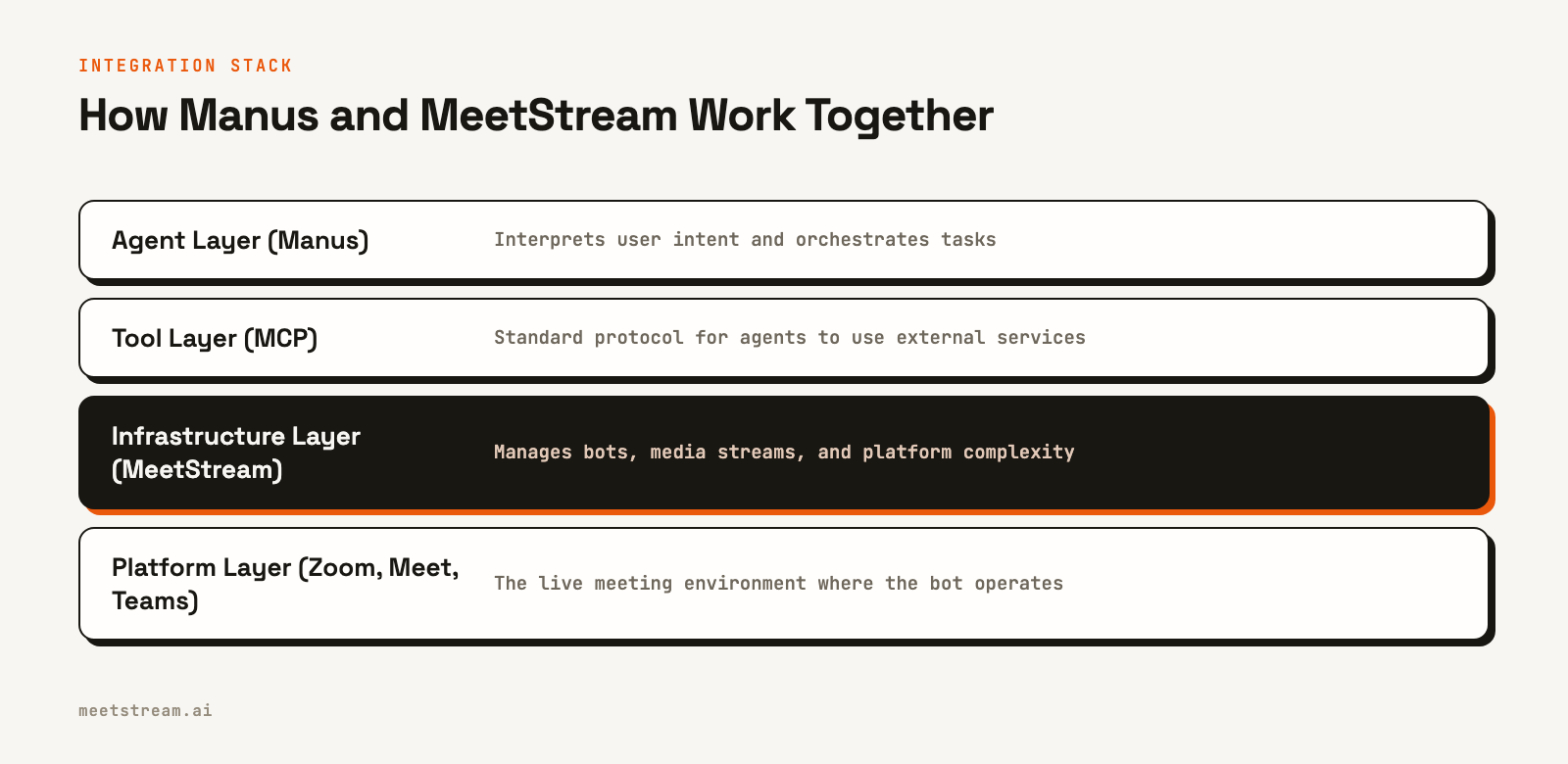
MeetStream acts as the agent-first voice infrastructure that bridges the gap between AI agents and live conversations. The MCP server is just the entry point. When Manus calls the create_bot tool, our platform handles the complex backend work.
This includes deploying a bot instance from a managed cluster, handling each platform's join rules (Zoom OAuth is only for optional signed-in joins), capturing low-latency audio and video streams, and processing the data. We manage the scaling and reliability needed to run thousands of concurrent bots, so the agent can simply request an action and get a result. This lets you focus on what your agent does with the meeting data, not the mechanics of getting it.
For more advanced use cases, you can attach a MIA voice agent configuration to the bot, allowing it to speak and respond in real time during the meeting.
Letting Manus act while the call runs
Manus is built to carry out tasks, so the useful in-meeting role is often silent. Instead of speaking, the agent listens for decisions and turns them into tickets, tasks or follow-up emails while the call is still running.
Our voice agents runtime has an action mode for exactly this: no voice and no chat, only calls to your tools through MCP servers or custom functions, with an allow-list so it can only touch what you choose.
Conclusion
Connecting Manus to MeetStream via MCP gives your agent a powerful set of tools for interacting with live meetings. By following the steps to add the server and authenticate with your API key, you can send a bot into any Zoom, Google Meet, or Teams call with a simple natural language prompt. This integration lets you automate note-taking, analysis, and other tasks that depend on having access to what was said. See the full API reference at docs.meetstream.ai.
Sources and further reading
Frequently Asked Questions
Does the bot join the meeting from my computer?
No, the bot joins from MeetStream's cloud infrastructure. Once you send the API request via Manus, our servers handle deploying the bot and connecting it to the meeting, so you do not need to be present or have any software running locally.
What happens if the bot can't join the meeting?
If a bot fails to join, for example because it was denied entry from a waiting room or faced an authentication issue, the get_bot_status tool will report a terminal status like NotAllowed or Denied. You can build workflows in your agent to handle these failure cases, such as notifying you of the issue.
Can the bot do more than just transcribe?
Yes. The MCP server exposes tools for sending chat messages, displaying an image as the bot's video feed, and getting a list of participants. For interactive use cases, you can use MeetStream to deploy a full voice agent that can listen and speak in the meeting.
Is this the same as Claude Meetings?
No. Claude Meetings is Anthropic's own feature, in beta on Team and Enterprise plans, where Claude joins a Google Meet call and writes notes and artifacts into claude.ai. This guide connects Manus to meeting infrastructure instead, so it works on Zoom, Google Meet and Microsoft Teams and the output lands wherever you decide.
Can Manus join a Zoom or Microsoft Teams meeting?
Not by itself. No general assistant has a way into a call on its own. It can through a meeting bot API. With MeetStream, Zoom needs no setup: send the meeting link with your MeetStream API key. Zoom's On Behalf Of token rule from March 2026 applies to Meeting SDK apps, so on MeetStream it matters only for optional signed-in joins with your own Zoom app.


