
How to Send Gemini CLI Into a Meeting
Learn how to send a meeting bot from Gemini CLI so it joins Zoom, Google Meet and Teams from your terminal and brings back the transcript.

Updated 12 November 2026.
Gemini CLI lives in the terminal, which is where a lot of this work actually starts: you are already in a shell when you realise you will miss the call.
On 12 November 2026 Anthropic shipped Claude Meetings, where Claude joins a Google Meet call as a visible participant and builds notes and artifacts while people talk, in beta on Team and Enterprise plans. It gave everyone a clear picture of what an in-meeting agent looks like. It also showed the limits of building that as a feature: one platform, one vendor's plans, output in one place.
It is Google's own model, and Google Meet is where most of these meetings happen, but the CLI has no way into a call on its own. This guide is how to get the same shape with Gemini CLI, on Zoom, Google Meet and Microsoft Teams, without waiting for Gemini CLI to ship a meetings feature of its own.
You can connect Google's Gemini CLI to a live meeting by registering the MeetStream MCP server as a tool. This gives the agent the ability to deploy a bot into a Zoom, Google Meet, or Microsoft Teams call to record, transcribe, and return the conversation. The connection is made with a single command and uses a standard API key for authentication.
Large language model agents are effective at processing text, but they are disconnected from the live conversations where important decisions happen. Giving an agent like Gemini access to a meeting turns it from a text processor into an active participant that can provide summaries, extract action items, and feed real-world context back into your workflows. MeetStream provides the agent-first voice infrastructure to make this possible, deploying bots that join, hear, and act in meetings on an agent's behalf.
In this guide we will cover what you need, the three setup steps, how the flow works end to end and the permissions to think about. Let's get into it.
What You'll Need
Before you start, make sure you have these three items ready:
- Gemini CLI installed: You need a working installation of the Gemini command-line interface.
- A MeetStream API key: You can get a free key from the MeetStream dashboard. Each key is unique to a user and can be revoked at any time.
- A meeting link: A valid URL for a Google Meet, Zoom, or Microsoft Teams meeting.
Step 1: Get Your MeetStream API Key
Your API key authenticates your requests to the MeetStream platform. It tells our system that you are authorized to create and manage meeting bots.
- Log in to your MeetStream account at
app.meetstream.ai. - Navigate to the "API Key" section in the main menu.
- Copy your key. Keep it secure, as you would with any credential.
This key will be used in the next step to authorize the connection from Gemini CLI.
Step 2: Connect Gemini CLI to the MeetStream MCP Server
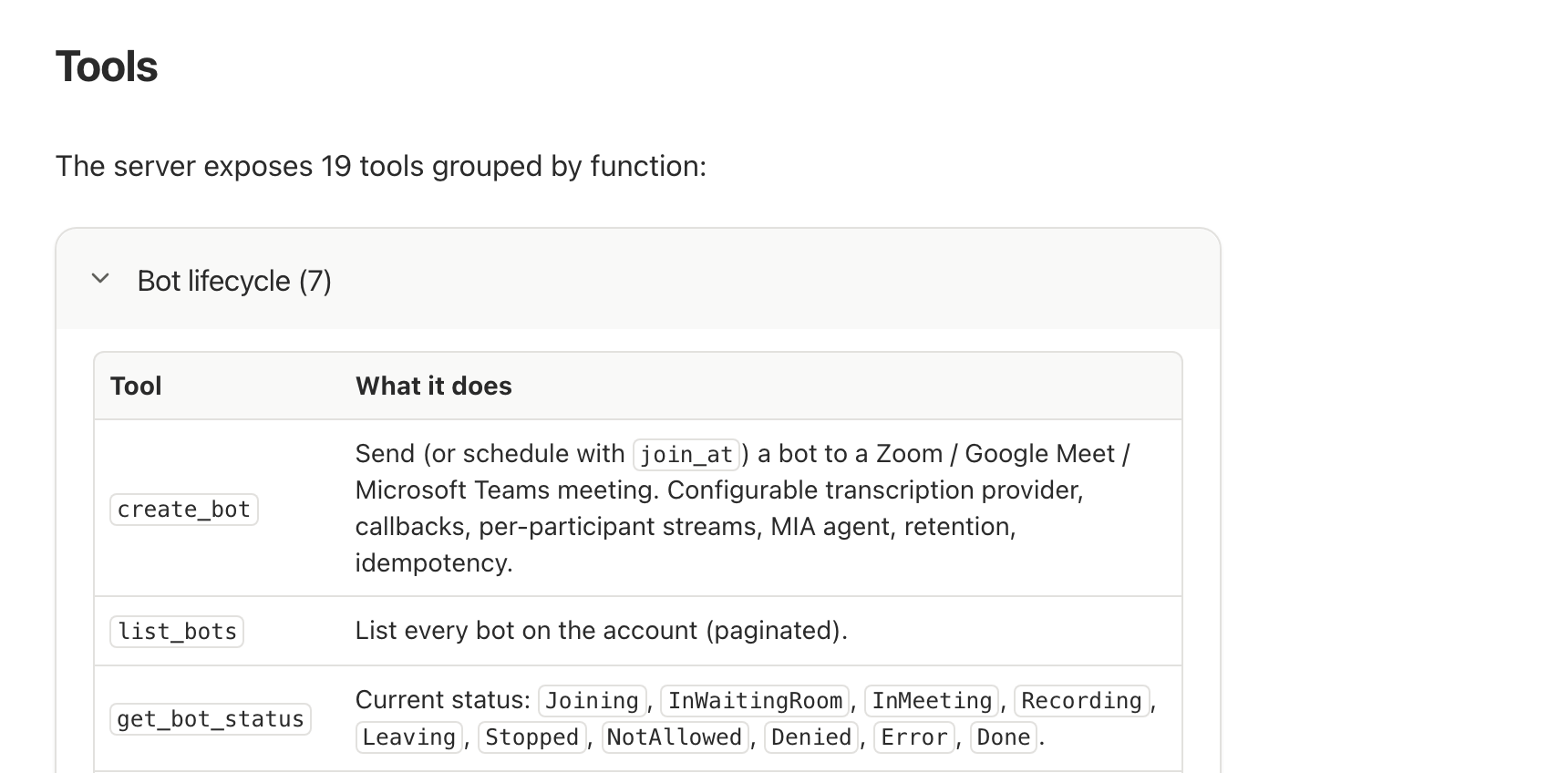
The MeetStream MCP (Model Context Protocol) server exposes a set of tools that agents can use, like creating a bot or fetching a transcript. You need to register this server with your Gemini CLI instance. You can do this with a single command or by editing the settings file directly.
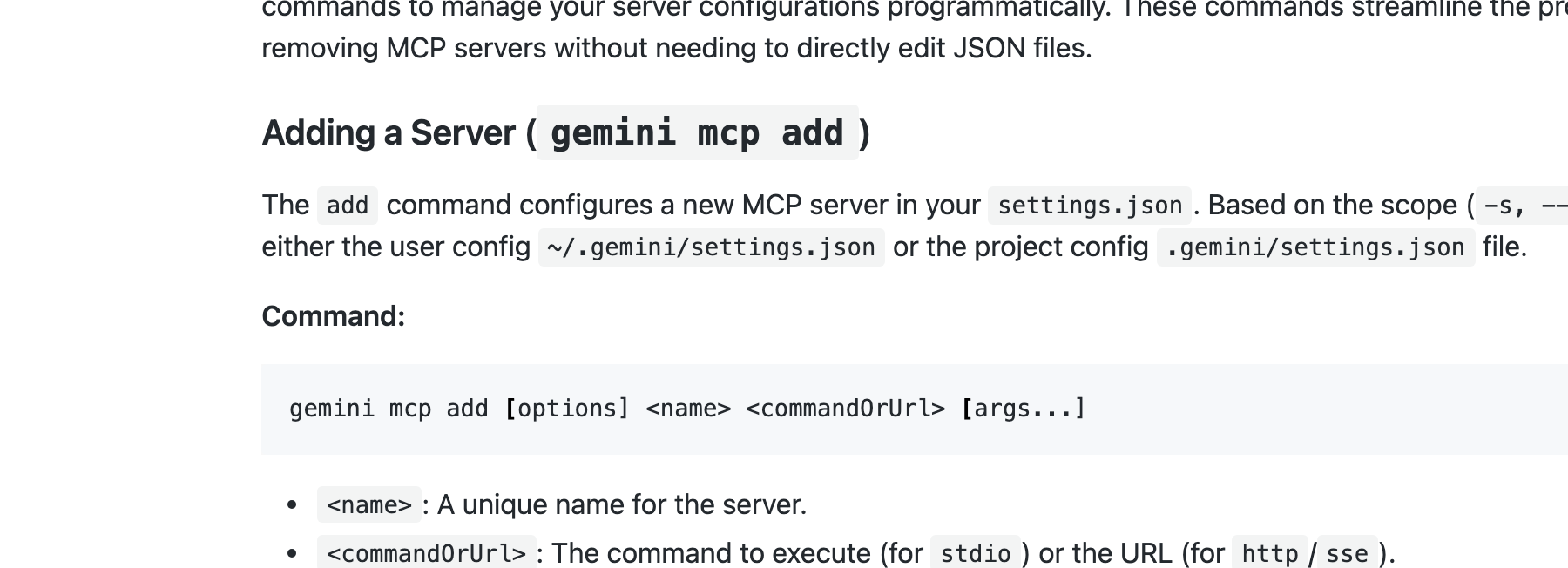
A key detail is that the MCP server uses a Bearer token for authentication, while our core REST API uses a Token prefix. The commands below use the correct Bearer format for the MCP server.
Option A: Use the Gemini CLI Command
This is the most direct method. Open your terminal and run the following command, replacing YOUR_API_KEY with the key you copied in the previous step.
gemini mcp add --transport http meetstream https://mcp.meetstream.ai/mcp --header "Authorization: Bearer YOUR_API_KEY"This command registers a new MCP server named meetstream that uses streamable HTTP for communication. It also configures the necessary authorization header to be sent with every tool call.
Option B: Edit the settings.json File
Alternatively, you can add the server configuration directly to your Gemini settings file. Locate the file at ~/.gemini/settings.json (for user-level settings) or .gemini/settings.json (for workspace-level settings) and add the following block to the mcpServers object:
{
  "mcpServers": {
    "meetstream": {
      "httpUrl": "https://mcp.meetstream.ai/mcp",
      "headers": {
        "Authorization": "Bearer YOUR_API_KEY"
      }
    }
  }
}
After adding the server, you can verify it's configured correctly by running /mcp inside the Gemini CLI. You should see meetstream in the list of available servers and its associated tools, including create_bot and get_transcript.
Step 3: Send a Bot into a Meeting with a Prompt
With the MCP server connected, you can now instruct Gemini to perform actions in a meeting. The agent will translate your natural language prompt into a sequence of tool calls.
Use a prompt like the following, replacing the placeholder with your actual meeting link:
"Send a bot named 'Note Taker' to https://meet.google.com/abc-def-ghi, wait for the meeting to end, and then give me the full transcript."
The first time you run a command that uses the MeetStream tool, Gemini will ask for your confirmation. This is because the default trust setting is false, providing a layer of security. Once you approve it, Gemini will execute the following steps:
- Call
create_bot: It sends a request to the MeetStream MCP server, which calls our API to deploy a bot with the name "Note Taker" into the specified Google Meet call. The API returns a uniquebot_id. - Poll
get_bot_status: The agent periodically checks the bot's status using thebot_id, waiting for it to change fromInMeetingto a terminal state likeStopped. - Call
get_transcript: Once the meeting is over and the transcript has been processed, the agent calls this tool with thebot_idto retrieve the full text. - Return the result: Gemini CLI prints the complete transcript directly in your terminal.
This entire workflow is handled by the agent, abstracting away the underlying API calls.
How It Works: The End-to-End Flow
Understanding the data flow helps clarify what is happening behind the scenes. The process involves four main components: your local Gemini CLI, the hosted MeetStream MCP server, the core MeetStream API, and the meeting bot itself.
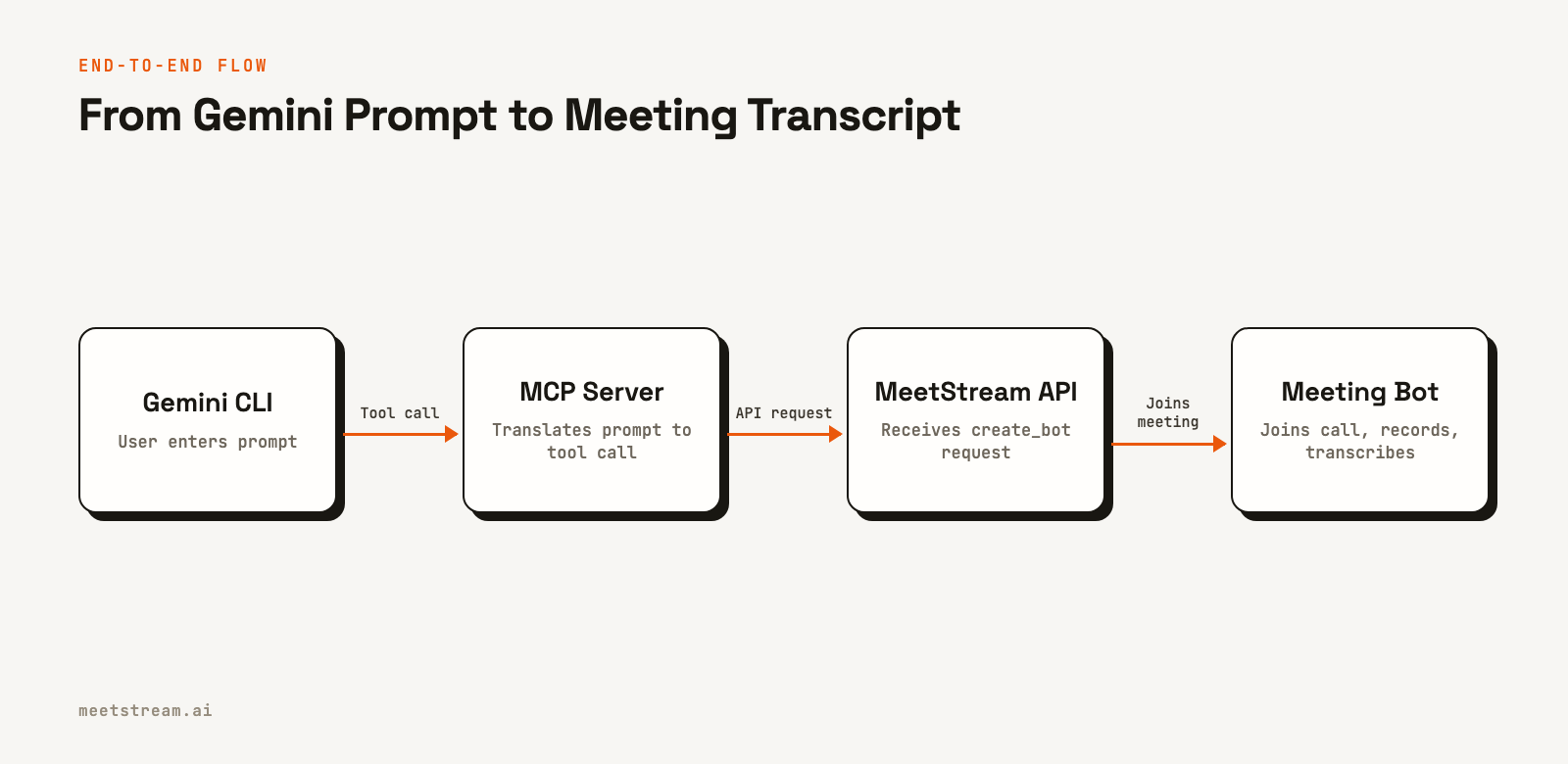
When you issue a prompt, Gemini CLI identifies the intent and matches it to an available tool from the MeetStream MCP server. It then makes a secure HTTPS request to the MCP server, which validates your API key and translates the request into a formal call to the main Meeting Bot API. Our infrastructure then handles the complex task of deploying and managing the bot, which joins the call as a distinct participant. After the call, the audio is processed, transcribed, and made available for the agent to retrieve.
Permissions and Security Considerations
Giving an AI agent access to meetings requires a clear understanding of the permissions involved. Access is managed at multiple layers to ensure security and control.
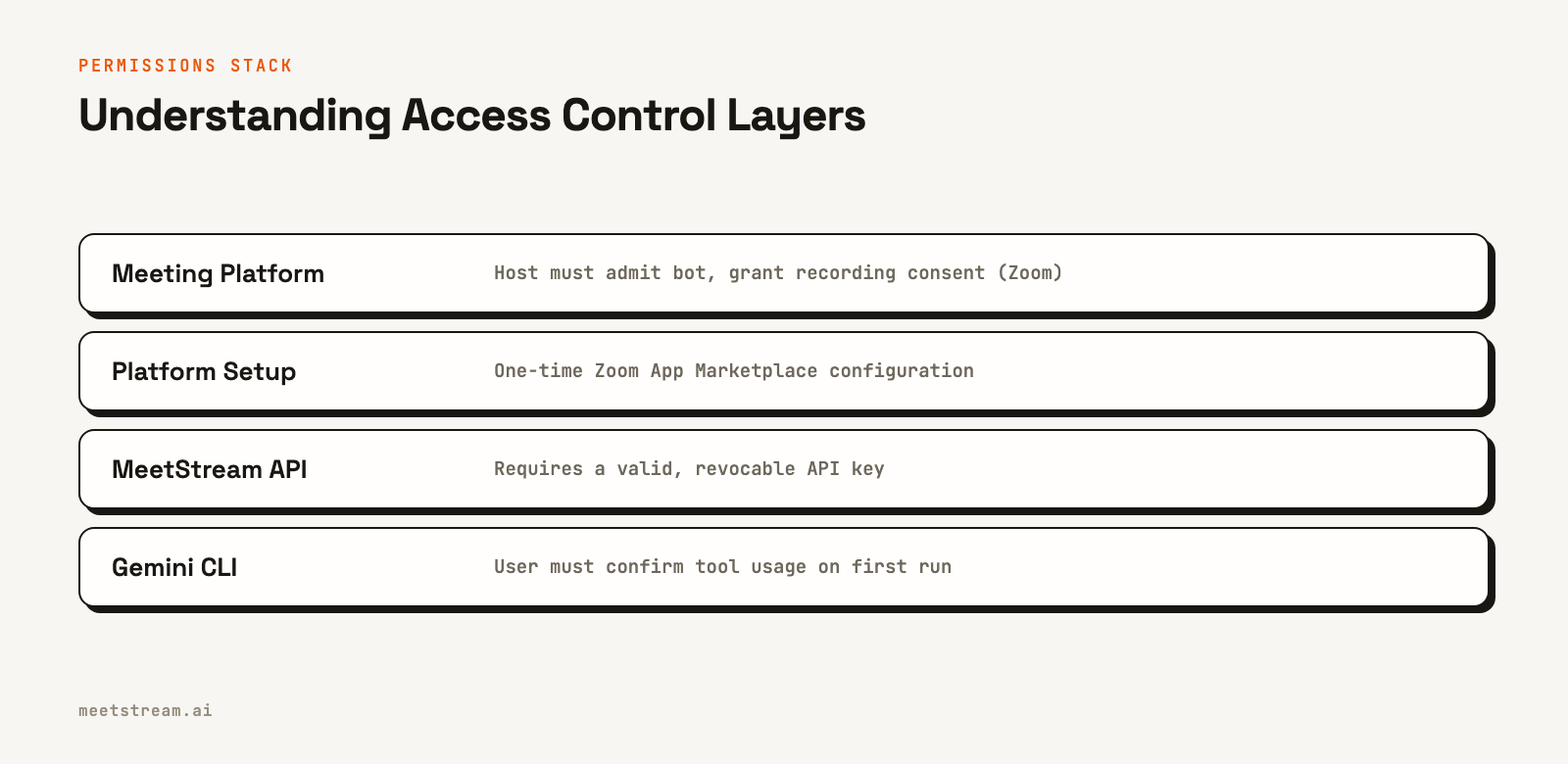
- Agent-Side Approval: Gemini CLI requires you to approve the use of a new tool set. This prevents the agent from calling external services without your explicit consent.
- MeetStream API Key: All actions are authenticated through your personal API key. You can revoke this key at any time from the MeetStream dashboard, immediately cutting off access. We recommend against placing keys directly in shared configuration files.
- Meeting Host Controls: The bot is subject to the rules of the meeting platform. If a waiting room is enabled, the host must manually admit the bot. On Zoom, the host must also grant permission for the bot to record. The bot cannot bypass these native controls.
- Platform-Specific Setup: Google Meet, Microsoft Teams and Zoom need no extra setup: no Zoom Marketplace app, no SDK keys, no OAuth, no tokens. OBF or ZAK tokens are only for optional signed-in joins with your own Zoom app.
Finally, always inform participants that the meeting is being recorded or transcribed by an automated tool to comply with privacy and consent regulations.
How MeetStream Enables Agents in Meetings
MeetStream is designed as infrastructure for AI agents. While you can use our API directly to create your first meeting bot, the MCP server provides a higher-level interface tailored for agents like Gemini. It exposes our core capabilities, such as joining meetings, transcription, and real-time audio streaming, as simple tools an agent can understand and use.
Our platform handles the difficult parts of real-time media processing and scaling across different meeting providers. This allows you to focus on building intelligent applications, not on managing bot infrastructure. Whether you are building a simple post-call transcription bot or a sophisticated AI voice agent that can speak in the meeting, MeetStream provides the connection to the live conversation.
From a terminal command to a live participant
Because Gemini CLI runs in a terminal, it suits scripts: a cron job can send a bot to every standup and pull the transcripts into a folder before anyone asks. That is dispatch, though, not taking part in the call.
For an agent that answers while people are still talking, stream the live transcript to your own service and reply through the bot. Google's realtime models are one of the options in our voice agents runtime, and in pipeline mode Gemini can be the model behind an agent that waits for its wake phrase.
Conclusion
By connecting Gemini CLI to the MeetStream MCP server, you give your agent a way into live meetings. That covers a lot of ground, from pulling a summary after the call to extracting structured data from what was said. The combination of a powerful LLM and real-time meeting access is a practical step toward building more useful and context-aware AI applications.
See the full API reference at docs.meetstream.ai.
Sources and further reading
Frequently Asked Questions
How does the bot appear in the meeting?
The bot joins as a separate participant with the display name you provide in the prompt, such as "Note Taker". It does not impersonate you or join from your account. Other participants will see it in the participant list just like any other person.
What happens if the bot can't join the meeting?
If a bot is blocked by a waiting room, denied entry, or faces an error, its status will be updated. The get_bot_status tool will return states like NotAllowed, Denied, or Error, which the agent can use to report the failure back to you.
Can I give the agent more advanced instructions?
Yes. The MCP server exposes other tools, such as send_chat_message to post a message in the meeting chat or send_image to make the bot display a specific image as its video feed. You can chain these commands in your prompts to create more complex interactions.
Is this the same as Claude Meetings?
No. Claude Meetings is Anthropic's own feature, in beta on Team and Enterprise plans, where Claude joins a Google Meet call and writes notes and artifacts into claude.ai. This guide connects Gemini CLI to meeting infrastructure instead, so it works on Zoom, Google Meet and Microsoft Teams and the output lands wherever you decide.
Can Gemini CLI join a Zoom or Microsoft Teams meeting?
Not by itself. No general assistant has a way into a call on its own. It can through a meeting bot API. With MeetStream, Zoom needs no setup: send the meeting link with your MeetStream API key. Zoom's On Behalf Of token rule from March 2026 applies to Meeting SDK apps, so on MeetStream it matters only for optional signed-in joins with your own Zoom app.


