
Download Zoom Recordings via API: Cloud Recording vs Bot Capture

You can download Zoom recordings programmatically in two ways: by using Zoom's Cloud Recording API to access recordings stored on their servers, or by sending a meeting bot to capture media directly from inside the call. The native Zoom API requires you to have authorized access to the host's account and works only after a meeting ends. A bot-based API joins as a participant, giving you access to media from any meeting you can join, often in real time.
This architectural choice is important. If you are building a product for users on Zoom accounts you control, the native API is a direct path. But if your application serves customers across many different Zoom accounts, managing individual OAuth credentials for each becomes complex. A bot API provides a single, uniform method to get recordings, requiring only a meeting URL.
At MeetStream, we see this as part of a larger shift. The goal is not just to record meetings, but to build agents that can act within them. Our platform is designed as voice infrastructure for these agents. A bot joins as a participant that can hear the room, speak, and perform actions mid-meeting. Capturing a recording is one of the many outputs this infrastructure provides, alongside real-time audio streams and live transcripts.
This article compares the Zoom Cloud Recording API with the bot capture method for downloading recordings. We will cover the technical implementation of the bot approach, including API calls, webhook handling, and code examples for retrieving video and audio files.
Zoom Cloud Recording API: The Native Path
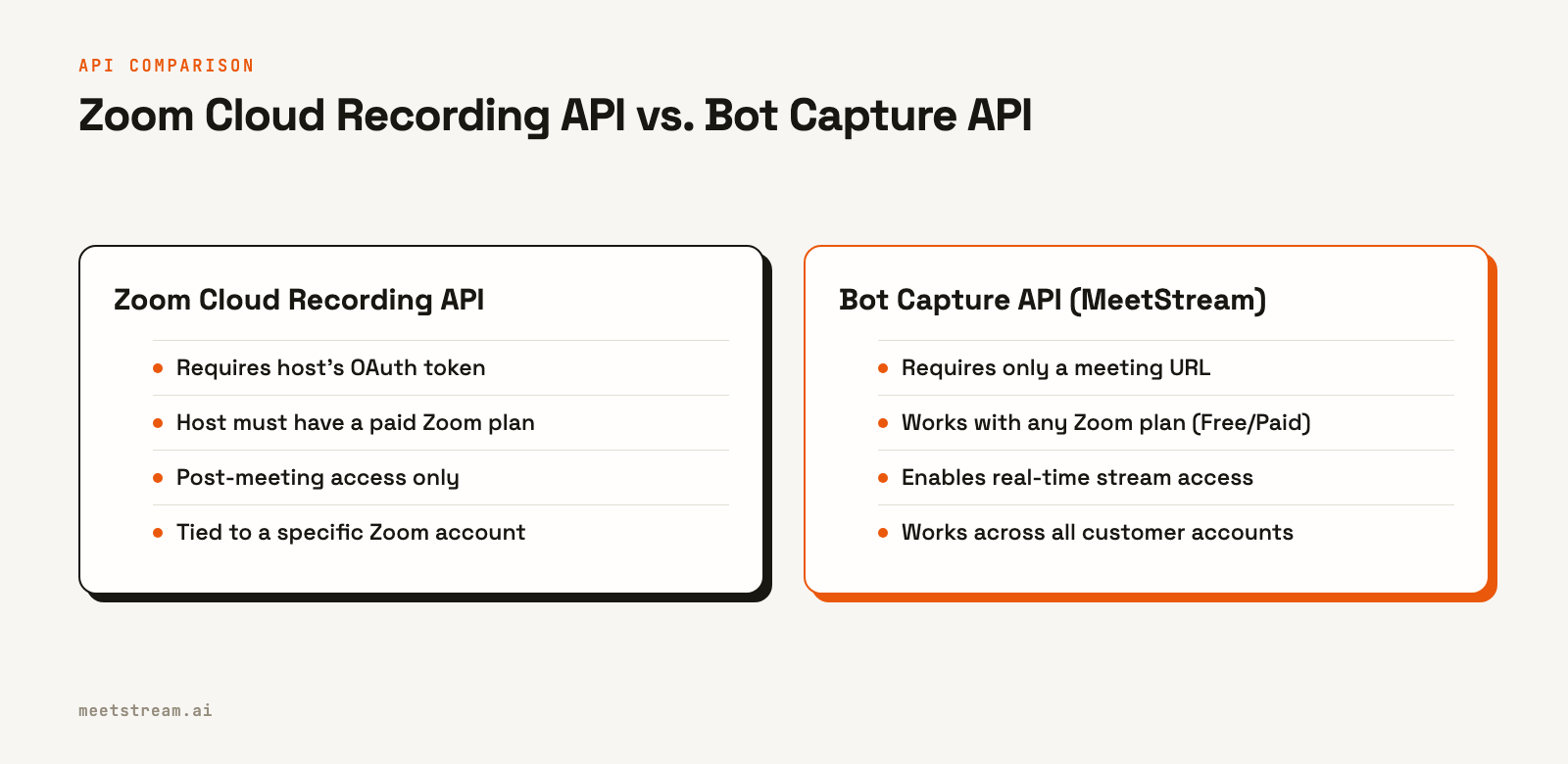
Zoom's native method for programmatic recording access is the Cloud Recording API. When a licensed user who is the host of a meeting records to the cloud, the resulting files are stored on Zoom's infrastructure. To download these files, your application must have the recording:read scope for that user's account, obtained through an OAuth 2.0 flow.
The workflow involves listing a user's recordings and then fetching the download URLs for the specific files, such as the MP4 video or M4A audio. This approach is tightly integrated with Zoom's ecosystem and is a good fit if your application exclusively serves users whose accounts you can authenticate against directly.
There are a few limitations to consider. The host must have a paid Zoom plan, as free accounts do not have the cloud recording feature. Access is asynchronous; the recordings only become available for download sometime after the meeting has concluded. Most importantly, this method does not work for meetings hosted by users who have not installed and authorized your OAuth application.
Bot-Based Capture: The Participant Path
An alternative is to use a bot that joins the meeting as a participant and captures the media from its own perspective. This decouples the recording process from the host's account. The bot is a client in the meeting, just like a human attendee. It receives the same audio and video streams and records them on separate infrastructure.
This model is the foundation for building AI voice agents. The bot is not just a passive recorder; it's an active presence. Since it has access to live audio, it can perform real-time analysis, generate live transcripts, or even speak back into the meeting. The post-meeting recording is an artifact of this live participation.
With a single API call to an endpoint like MeetStream's, you can send a bot to any Zoom meeting URL. The bot handles joining, capturing the media, and processing it. Once the recording is ready, your application receives a webhook and can download the files. This works regardless of the host's Zoom plan and without requiring any credentials for their account. Since we started, our infrastructure has processed over 1,000,000 meeting minutes this way.
Comparison: Zoom API vs. Bot API
The primary difference between the two methods is the point of access. The Zoom API provides access at the account level, post-meeting. A bot API provides access at the participant level, during the meeting. This leads to different capabilities and requirements.
A bot can capture more granular data. On Zoom, a bot using the Meeting SDK can capture fully isolated audio and video streams for each participant. On Google Meet and Microsoft Teams, the streams are speaker-attributed rather than fully separated. Zoom's Cloud Recording API, in contrast, typically provides a composite recording of the active speaker or gallery view.
Authentication is also a key differentiator. The bot approach requires a one-time setup of a Zoom App in your account to allow bots to join meetings, often using an OBF token flow for security. After that, you can record meetings hosted by any of your users. The native API requires a distinct OAuth token from every single user whose recordings you want to access.
Implementation: Downloading Recordings with a Bot API
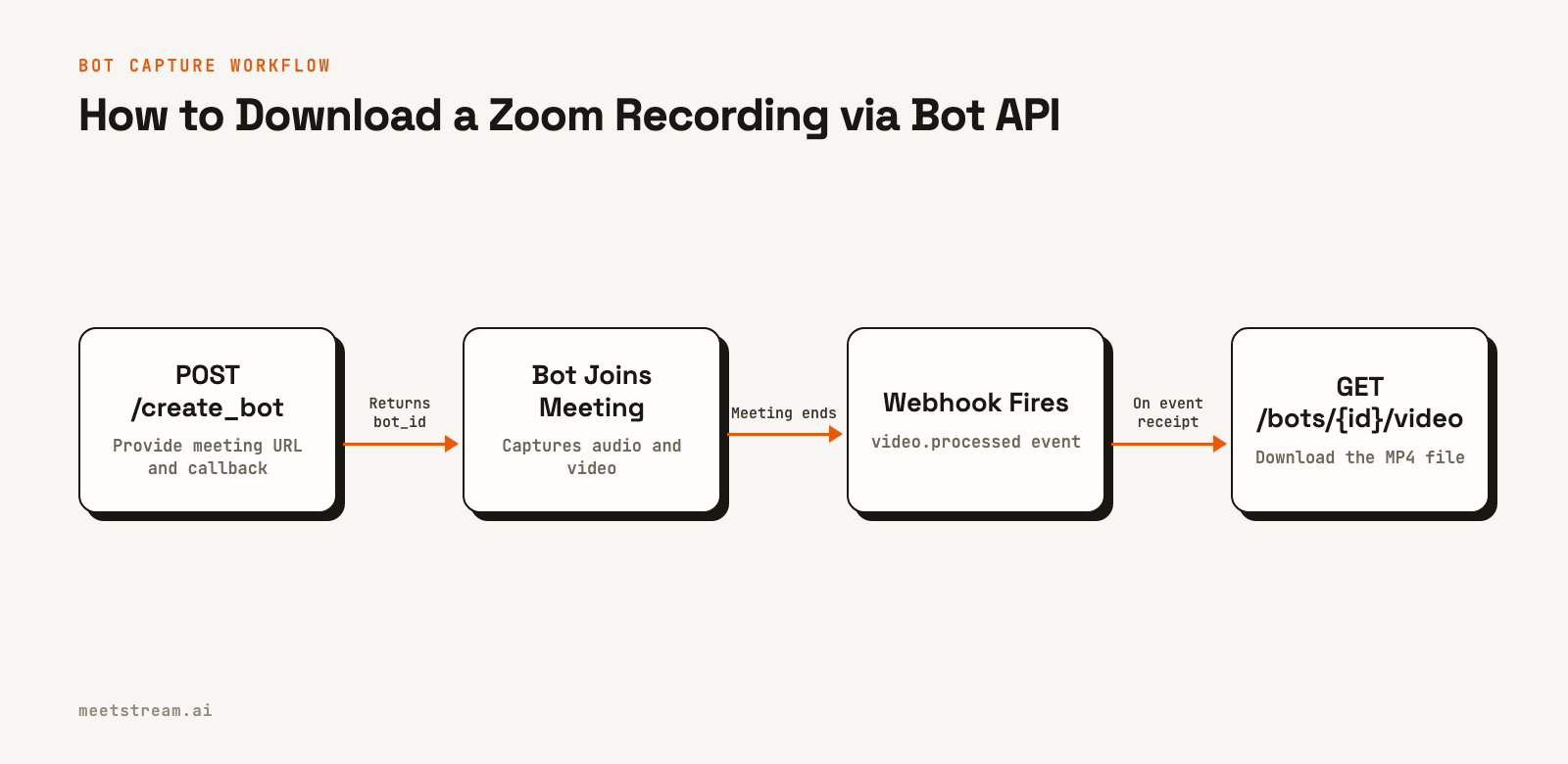
The process of downloading a Zoom recording with the MeetStream API involves three steps: deploying the bot, handling a webhook event when the recording is ready, and then fetching the file.
Step 1: Deploy the Recording Bot
You start by making a POST request to the create_bot endpoint. You need to provide the meeting_link and a callback_url for receiving webhooks. To capture video, set video_required to true.
curl -X POST "https://api.meetstream.ai/api/v1/bots/create_bot" \
  -H "Authorization: Token <YOUR_API_KEY>" \
  -H "Content-Type: application/json" \
  -d '{
    "meeting_link": "https://zoom.us/j/123456789",
    "bot_name": "Recording Bot",
    "callback_url": "https://yourapp.com/webhooks/meetstream",
    "video_required": true,
    "recording_config": {
      "retention": {
        "type": "timed",
        "hours": 72
      }
    }
  }'
The API responds with a 201 Created status. The response body contains the bot_id, which you will use to identify this session.
{
  "bot_id": "604c0a0b-973d-4eb1-a5bf-2c7513f6bbe0",
  "transcript_id": null,
  "meeting_url": "https://zoom.us/j/123456789",
  "status": "Active"
}
Store the bot_id in your database. It is the key for retrieving the recording artifacts later.
Step 2: Handle Webhook Events
After the meeting ends and the recording has been processed, MeetStream will send a POST request to the callback_url you provided. You should listen for the video.processed and audio.processed events. Your webhook handler should quickly return a 2xx status code to acknowledge receipt and then queue the download task to run in the background.
{
  "bot_event": "video.processed",
  "bot_id": "604c0a0b-973d-4eb1-a5bf-2c7513f6bbe0",
  "bot_status": "Stopped",
  "message": "Video processing is complete",
  "status_code": 200,
  "timestamp": "2026-04-02T15:05:10+00:00",
  "custom_attributes": {}
}
The key to check is bot_event. When its value is video.processed, the MP4 file is ready for download.
Step 3: Download the Recording Files
With the bot_id from the webhook, you can now make a GET request to the video or audio download endpoints. The Python code below shows a simple Flask application that handles the webhook and downloads the files. It uses streaming to efficiently handle large files without high memory usage.
import requests
import os
from flask import Flask, request, jsonify

app = Flask(__name__)

API_KEY = os.getenv("MEETSTREAM_API_KEY")
BASE_URL = "https://api.meetstream.ai/api/v1"
HEADERS = {"Authorization": f"Token {API_KEY}"}
OUTPUT_DIR = "/data/recordings"

os.makedirs(OUTPUT_DIR, exist_ok=True)

@app.route('/webhooks/meetstream', methods=['POST'])
def webhook_handler():
    data = request.json
    event = data.get('bot_event')
    bot_id = data.get('bot_id')

    if not bot_id:
        return jsonify({'error': 'Missing bot_id'}), 400

    if event == 'audio.processed':
        download_artifact(bot_id, 'audio', 'mp3')
    elif event == 'video.processed':
        download_artifact(bot_id, 'video', 'mp4')

    # Acknowledge the webhook immediately
    return jsonify({'status': 'received'}), 200

def download_artifact(bot_id: str, artifact_type: str, extension: str):
    """Downloads a recording artifact and saves it to disk."""
    get_url_endpoint = f"{BASE_URL}/bots/{bot_id}/get_{artifact_type}"
    output_path = os.path.join(OUTPUT_DIR, f"{bot_id}.{extension}")

    try:
        # Step 1: Get the presigned download URL from the MeetStream API
        response = requests.get(get_url_endpoint, headers=HEADERS)
        response.raise_for_status()
        data = response.json()
        download_url = data.get(f"{artifact_type}_url")

        if not download_url:
            print(f"Could not get download URL for {artifact_type} for bot {bot_id}")
            return

        # Step 2: Download the file from the presigned URL
        with requests.get(download_url, stream=True) as r:
            r.raise_for_status()
            with open(output_path, 'wb') as f:
                for chunk in r.iter_content(chunk_size=8192):
                    f.write(chunk)

        size_mb = os.path.getsize(output_path) / (1024 * 1024)
        print(f"Saved {artifact_type}: {output_path} ({size_mb:.1f} MB)")
    except requests.exceptions.RequestException as e:
        print(f"Failed to download {artifact_type} for bot {bot_id}: {e}")

if __name__ == '__main__':
    app.run(port=5001)
Tradeoffs and What to Watch For
When using a bot, the recording reflects the bot's perspective as a participant. If the meeting host enables a waiting room, your bot will need to be admitted. The video quality of the recording is also dependent on the network conditions of the participants; a bot cannot record a higher quality stream than what is being sent.
The recording_config.retention parameter is also important. It defines how long MeetStream stores the recording files. Ensure your download process is reliable and runs within this window. For critical recordings, download them immediately upon receiving the webhook and store them in your own durable storage like Amazon S3 or Google Cloud Storage.
Finally, for workflows that only need audio and a transcript, set video_required: false in your initial request. This reduces processing time and storage costs, as only the audio track will be captured and processed.
How MeetStream Fits In
MeetStream provides the managed infrastructure to deploy, scale, and operate meeting bots. Our API handles the complexities of connecting to Zoom, Google Meet, and Microsoft Teams. Your application makes one API call to deploy a bot, then receives structured data and media files via webhooks. This lets you focus on building features for your users, not on managing real-time media infrastructure.
Conclusion
To download Zoom recordings via API, you can use Zoom's native Cloud Recording API if you have host credentials, or a bot-based API for a more flexible approach. The bot method works for any meeting you can join, independent of the host's account. The workflow involves sending a bot, handling a video.processed webhook, and then making a GET request to download the MP4 file. This participant-level capture is the foundation for building more advanced in-meeting AI agents.
See the full API reference at docs.meetstream.ai or explore the Meeting Bot API.
Frequently Asked Questions
How do I download a Zoom recording via API without host credentials?
Use a bot-based recording API like MeetStream. You send a bot into the meeting as a participant using just the meeting URL. The bot captures the media, and you download the recording from the bot API without needing the host's Zoom account credentials.
What format is the Zoom recording download?
Bot-based APIs typically provide video recordings as MP4 files and audio-only recordings as MP3 files. With MeetStream, the video is an MP4 file. The audio is available for download from the presigned URL returned by the audio endpoint.
How long are Zoom recordings available for download?
With a bot API, availability is determined by the retention policy you set. In MeetStream, you specify the retention period in hours in the create_bot request. You must download the file to your own storage within this window before it is deleted.
Can I download recordings from Zoom meetings I did not host?
Yes, a recording bot can join and record any meeting it is invited to, regardless of who the host is. As long as the bot can enter the meeting (i.e., it is admitted from the waiting room), it can capture the recording. This is a key advantage over Zoom's native API.
How large are the Zoom recording files from the API?
File size varies with meeting duration and activity. As a general guide, a one-hour video recording is often between 200MB and 400MB. It is important to use streaming downloads in your code to handle these file sizes efficiently without consuming excessive memory.


