
Send Chat Messages in a Zoom Meeting via API

To send a chat message to a live Zoom meeting via API, you first deploy a bot into the call as a participant, then use a second API endpoint to send the message through that bot. The initial API call needs the meeting URL and a name for the bot. The response provides a unique bot_id, which you use to control the bot and send chat messages.
This API-driven approach is necessary because Zoom's standard REST APIs do not support interacting with a live meeting's chat. Accessing in-meeting chat requires a direct integration with the Zoom Meeting SDK, which involves building, hosting, and scaling a client application. This is a significant engineering task for what should be a simple action. A meeting bot API provides a higher-level abstraction that manages this complexity.
MeetStream is an agent-first platform that provides this voice and chat infrastructure for meetings. Our unified API allows you to build interactive AI voice agents that can join any Zoom, Google Meet, or Microsoft Teams call. These agents can listen, speak, and act, including sending and receiving chat messages. This turns chat from a simple text feature into a control surface for in-meeting applications.
This guide covers the API calls for sending and retrieving messages in a live Zoom meeting, with code examples for each step. Let's get into it.
Why Zoom's Native APIs Fall Short for Live Chat
Developers often assume Zoom's REST API can control every aspect of a meeting. While it is useful for managing users, scheduling meetings, and retrieving post-meeting data like cloud recordings, it has a critical limitation: it cannot interact with a meeting that is in progress. Sending a chat message, muting a participant, or starting a recording are all real-time actions that are outside its scope.
Live meeting interaction is the domain of the Zoom Meeting SDK. Unlike a REST API, the SDK is a library that you integrate into your own application, effectively making your app a full-fledged Zoom client. To send a chat message using the SDK, you must build an application that can authenticate, join the meeting, maintain a persistent connection, and handle the entire session lifecycle.
This approach introduces several challenges. You become responsible for the infrastructure to run these SDK clients, which can be complex to manage, especially in a containerized environment like Docker. You also have to handle authentication, such as Zoom OBF tokens, and platform-specific event handling. This is a substantial amount of work just to send a "Hello, world!" message to a meeting.
How a Meeting Bot API Works
A meeting bot API provides a simpler architectural pattern. Instead of building your own SDK client, you use a managed service that runs the low-level integration for you. The entire process is simplified into a sequence of standard REST API calls.
Here's how it works in practice:
- Deploy the Bot: You make a single
POSTrequest to an endpoint like/bots/create_bot. You provide the Zoom meeting link and a name for your bot. - Receive a Bot ID: The API immediately responds with a unique
bot_id. This ID is the handle you will use to interact with this specific bot instance. - Control the Bot: You can now use this
bot_idin other API calls to perform actions. To send a chat message, you would call a/bots/{bot_id}/send_messageendpoint.
This model abstracts away the entire infrastructure problem. The service handles spinning up the bot, managing its connection to Zoom, and translating your simple HTTP requests into the corresponding SDK actions. The same API can also be used to interact with Google Meet and Microsoft Teams, providing a single point of integration.
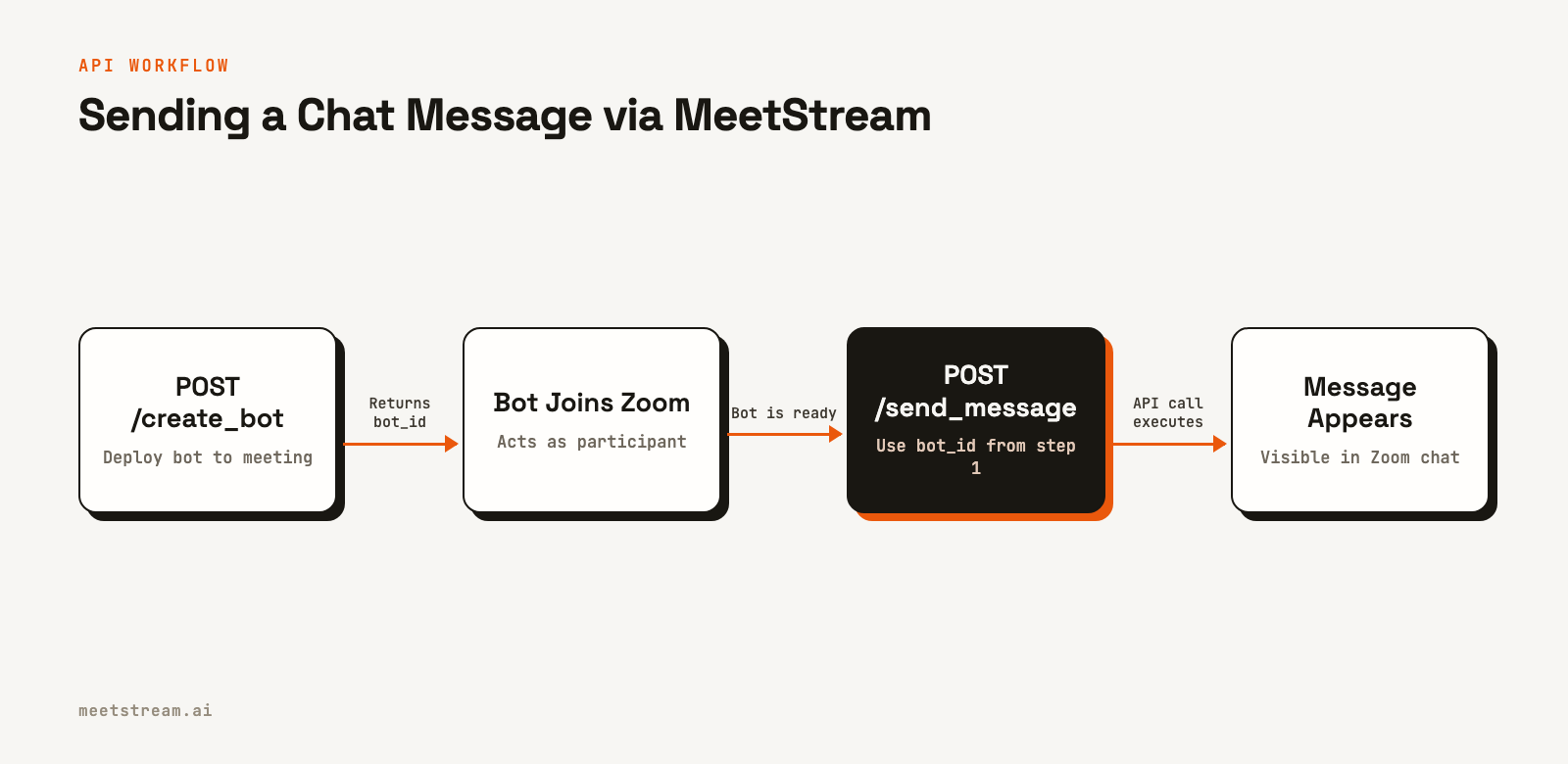
Sending a Chat Message with the API
Let's walk through the two API calls required to send a message to a live Zoom meeting using MeetStream. First, we need to get a bot into the call. Then, we use the ID of that bot to send the message.
Step 1: Deploy a Bot to the Meeting
The first step is a POST request to the /bots/create_bot endpoint. You need to provide your API key in the authorization header, the meeting link, and a display name for the bot.
curl -X POST "https://api.meetstream.ai/api/v1/bots/create_bot" \
  -H "Authorization: Token <YOUR_API_KEY>" \
  -H "Content-Type: application/json" \
  -d '{
    "meeting_link": "https://us02web.zoom.us/j/1234567890",
    "bot_name": "Help Assistant"
  }'
The API will respond with a 201 Created status and a JSON payload containing the bot_id. This confirms that the bot is being deployed into your meeting.
{
  "bot_id": "604c0a0b-973d-4eb1-a5bf-2c7513f6bbe0",
  "transcript_id": null,
  "meeting_url": "https://us02web.zoom.us/j/1234567890",
  "status": "Active"
}
Store the bot_id (604c0a0b-973d-4eb1-a5bf-2c7513f6bbe0 in this example), as you will need it for the next step.
Step 2: Send the Message
With the bot_id, you can now send a message using the /bots/{bot_id}/send_message endpoint. This is also a POST request. The message content is passed in the JSON body.
curl -X POST "https://api.meetstream.ai/api/v1/bots/604c0a0b-973d-4eb1-a5bf-2c7513f6bbe0/send_message" \
  -H "Authorization: Token <YOUR_API_KEY>" \
  -H "Content-Type: application/json" \
  -d '{
    "message": "Hello from the API! How can I help?"
  }'
If the request is successful, the message "Hello from the API! How can I help?" will instantly appear in the Zoom meeting chat, sent from the "Help Assistant" bot. You can call this endpoint multiple times to carry on a conversation or send notifications.
Reading the Meeting Chat History
In addition to sending messages, your application may need to read what other participants are saying. This is useful for building command-driven bots or agents that react to keywords. You can retrieve the full chat history for a meeting with a GET request to the /bots/{bot_id}/get_chats endpoint.
curl -X GET "https://api.meetstream.ai/api/v1/bots/604c0a0b-973d-4eb1-a5bf-2c7513f6bbe0/get_chats" \
  -H "Authorization: Token <YOUR_API_KEY>"
The response is a JSON array of chat objects, each containing the message content, sender, and timestamp. This provides a complete log of the conversation up to the point of the API call.
{
  "chats": [
    {
      "message": "Can you share the link to the design file?",
      "sender": "Jane Doe",
      "timestamp": "2026-10-27T14:35:12.345Z"
    },
    {
      "message": "Hello from the API! How can I help?",
      "sender": "Help Assistant",
      "timestamp": "2026-10-27T14:35:45.678Z"
    }
  ]
}
A few things to keep in mind: this endpoint provides a snapshot of the chat history. To get new messages, you need to poll the endpoint periodically. For most use cases, polling every 5-10 seconds provides a near-real-time experience without hitting API rate limits.
Real-World Use Cases for Chat Automation
Programmatic access to in-meeting chat enables a variety of applications that can assist participants during a live call. The ability to both read and write to the chat is key.
- Command-driven Bots: A bot can listen for messages that start with a specific trigger, like
/summaryor/help. When it detects a command, it can perform an action, such as generating a meeting summary and posting it back to the chat. - Automated Q&A: An agent can monitor the chat for questions. It can either answer them directly by posting a reply or log them in an external system like Notion or a CRM for follow-up after the meeting.
- Real-time Notifications: An application can send alerts directly into a meeting. For example, a CI/CD system could post a message like "Production deployment has started" to a team's daily standup call.
- Interactive Agents: A more advanced agent can use chat to present options to users. For instance, an agent could post, "I've detected an action item. Should I assign it to David? (yes/no)" and wait for a response in the chat to proceed. This is a core pattern for building a live meeting chat agent.
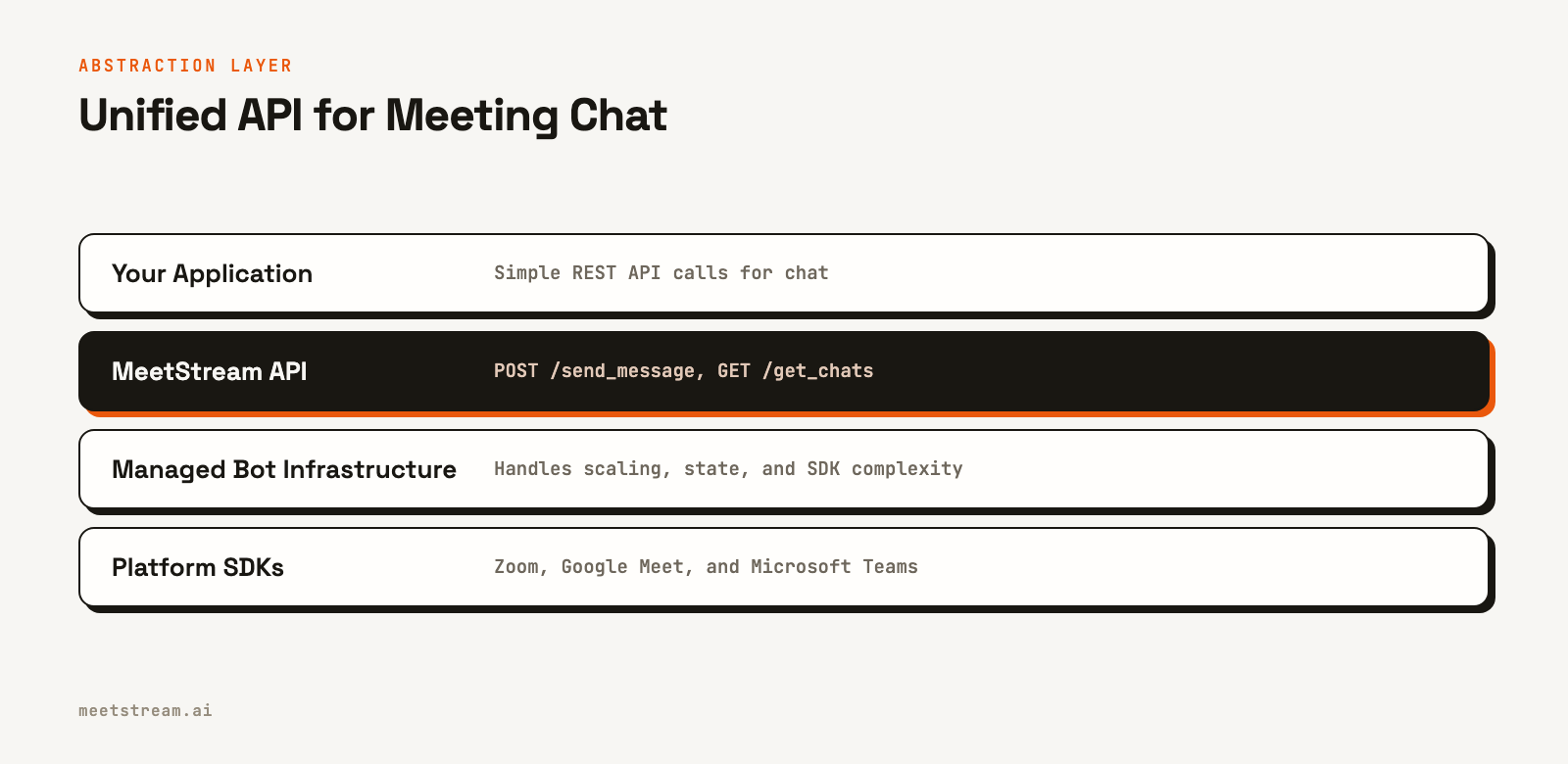
How MeetStream Simplifies Chat Integration
Building reliable chat interaction for Zoom meetings requires solving for more than just the API calls. You need to manage bot admission, handle different authentication schemes, and scale your infrastructure to support multiple concurrent meetings. MeetStream is designed to handle these operational details.
Our platform provides a single, consistent Zoom meeting bot API that works across different meeting configurations. We manage the complexities of Zoom authentication and waiting rooms, ensuring your bot can join meetings reliably. We also operate the infrastructure that has processed over one million meeting minutes, so you can scale from one bot to thousands without changing your code.
Because the same API works for Zoom, Google Meet, and Microsoft Teams, you can build your chat integration once and deploy it across all major platforms. This saves significant development time and lets you focus on your application's core logic instead of low-level meeting infrastructure.
Conclusion
While Zoom's native REST API does not support live interaction, you can easily send chat messages in a Zoom meeting via API by using a higher-level platform like MeetStream. By abstracting the complexity of the Zoom Meeting SDK into simple HTTP endpoints, you can deploy a bot and start sending and receiving chat messages with just a few lines of code. This API-first approach is faster to implement and easier to maintain than building and hosting your own SDK-based client. See the full API reference at docs.meetstream.ai.
Frequently Asked Questions
How do I send a private chat message to one participant?
The MeetStream API does not currently support sending private messages to a specific participant. All messages sent via the send_message endpoint are posted to the main meeting chat, visible to everyone, depending on the host's settings.
Can I get a real-time stream of chat messages?
MeetStream's API for reading chat is based on polling the get_chats endpoint. There is not a persistent WebSocket or webhook for streaming individual chat messages in real time. For most interactive use cases, polling this endpoint every few seconds is sufficient.
What happens if the meeting host has disabled chat?
If the host has disabled chat for participants, API calls to the send_message endpoint will fail with an error. Your application should handle this possibility, as chat permissions can be changed by the host at any time during the meeting.
Does this API work for Zoom webinars?
The MeetStream API is designed for standard Zoom meetings. Support for Zoom Webinars is a separate feature and may have different capabilities or limitations regarding chat interaction. Please check the documentation for the most current platform support.


