
Build a Meeting Agent That Generates Designs Live
Learn how to build an AI meeting agent that generates designs on command during live meetings, then shares the finished images directly in meeting chat.

A meeting agent that generates designs live requires capturing real-time audio, transcribing it to text, and passing structured commands to an image generation model. The agent joins a call, listens for specific instructions like "Hey MIA, create a poster," and sends the transcribed text to a service like Canva. The resulting design can then be shared with participants in the meeting chat, turning a conversation into a concrete asset without leaving the call.
This pattern shows how agent-first voice infrastructure works in practice. Most meeting bots deliver notes after a call ends. An interactive agent, however, can join as a participant, hear the room, and take action mid-meeting. This tutorial builds an agent that does exactly that. You will deploy a bot that joins a Zoom, Google Meet, or Teams call, listens for a wake word, turns a spoken brief into a Canva design request, and drops the finished poster links into the chat while the conversation is still happening.
The core of this project is a secure bridge between the public-facing meeting agent and a local, authenticated design tool. We will build this bridge using Node.js, connect it to MeetStream's MIA (MeetStream Infrastructure Agent), and use the Model Context Protocol (MCP) to interact with Canva's API. The same architecture works for integrating other tools, like Figma or a project management app, into a live meeting.
The Challenge of Real-Time Tool Use in Meetings
Connecting a large language model (LLM) to external tools is a common pattern. Doing it securely and reliably inside a live meeting introduces specific problems. The agent needs to act on behalf of a user, which means handling authentication. Exposing a private API key or an OAuth token directly to a cloud-based agent is not a secure or scalable approach.
The agent also needs to understand conversational context. It should not try to generate a design from every sentence spoken in the meeting. It needs a clear trigger, like a wake word, to know when to act. Finally, the interaction needs to be useful. An agent that just says "I will generate that for you" without returning a result is worse than no agent at all. The entire loop, from voice command to shared artifact, must complete within the meeting.
A Three-Part Architecture for In-Meeting Actions
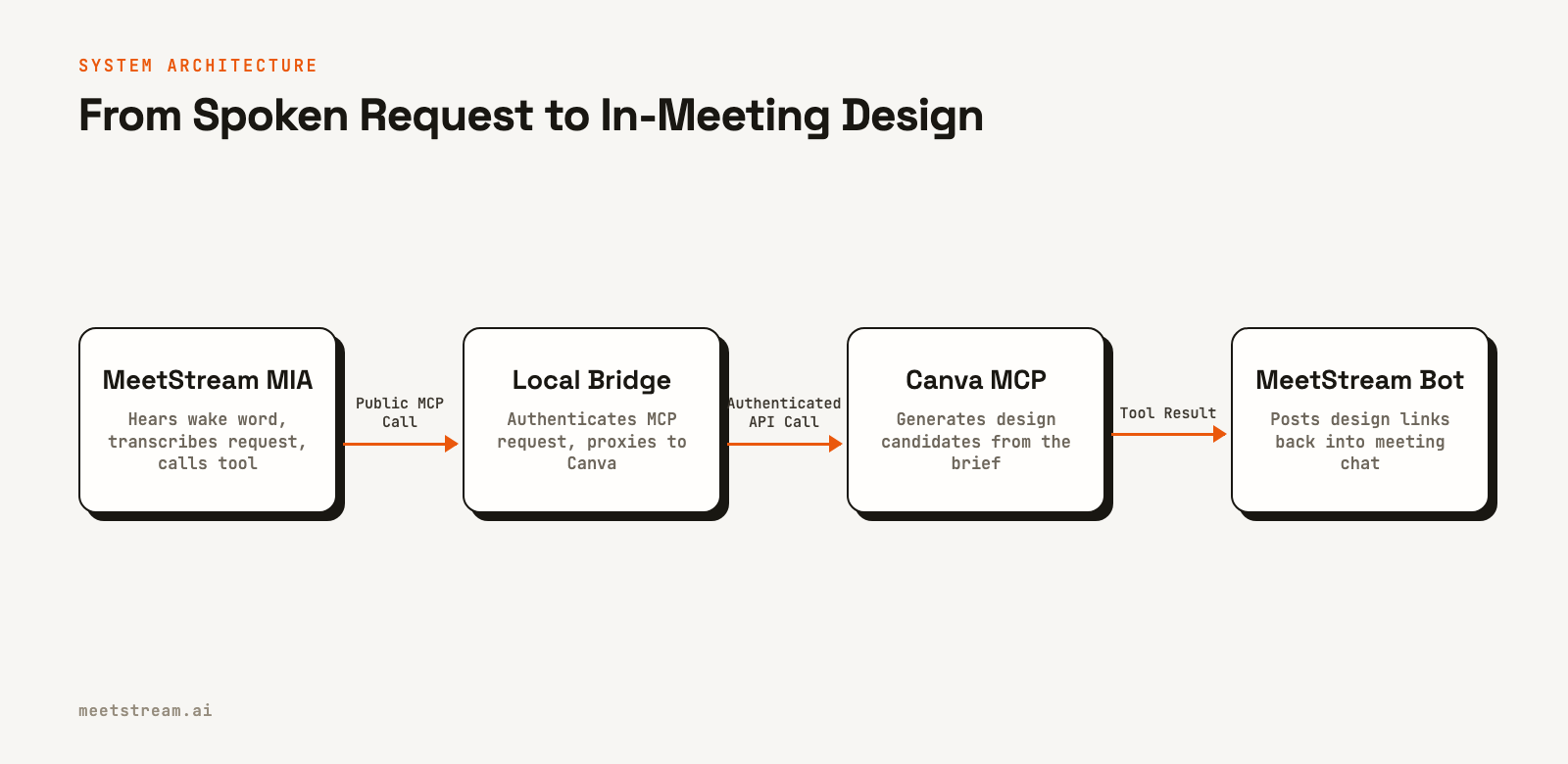
The system is split across three environments to manage security and responsibility. MeetStream handles the meeting infrastructure, Canva owns design generation, and a small, local application acts as a secure bridge between them. This separation is the key to the design.
Here is the data flow for a single request:
- A participant says, "Hey MIA, create a poster for our tech meetup."
- The MeetStream MIA agent, running in the cloud, detects the wake word and transcribes the request using a real-time speech-to-text engine.
- The agent's LLM formulates a structured tool call for
generate-designbased on the system prompt and the user's request. - MIA sends this tool call as a public HTTPS request to a secure bridge server that you control.
- Your local Node.js bridge receives the request, validates its custom auth header, and forwards it to the Canva API using a locally stored OAuth token.
- The Canva MCP server generates the design and returns URLs for the results.
- The bridge sends these URLs back to MIA, which then instructs the bot to post them in the meeting chat.
The local bridge application never touches audio processing or LLM logic. MeetStream never holds the Canva OAuth token. This architecture allows the agent to use a powerful, authenticated tool without exposing credentials.
How to Build the Live Design Agent
This step-by-step guide uses a sample project from MeetStream Labs. You will need Node.js 20 or newer, Docker Desktop, an ngrok account, a Canva account, and a MeetStream API key.
1. Project Setup
First, clone the repository and install the dependencies.
git clone https://github.com/meetstream-ai/labs
cd labs/MIA-poster-design
npm install
cp .env.example .env
The project has a minimal set of dependencies: @ngrok/ngrok to expose the local server, dotenv for configuration, and mcp-remote to handle Canva's MCP transport and OAuth flow. Fill in the required values in the .env file, including your MeetStream API key, a saved agent configuration ID, a meeting link, and your ngrok auth token.
2. Authenticate Canva Locally
The bridge needs to authenticate with Canva on your behalf. Run the check script to start the process.
npm run check:canvaThe first time you run this, mcp-remote will open a browser window for Canva's OAuth flow. Sign in with the Canva account that will own the generated designs. A successful authentication creates a session file in a .mcp-auth directory in your user's home folder. The Docker configuration mounts this directory, so you only need to authenticate once.
3. Build the Secure Bridge
The bridge connects the public MeetStream agent to the local Canva process. It's a simple Node.js HTTP server that listens for POST requests on an /mcp endpoint. When a request arrives, it first checks for a secret header to ensure the call is coming from your agent.
To avoid confusion with MeetStream's own Authorization: Token <key> scheme, we will use a custom header, X-Mcp-Secret.
// In canvaBridge.js
function authorized(header, secret) {
  const actual = Buffer.from(header || '');
  const expected = Buffer.from(secret);

  if (actual.length !== expected.length) {
    return false;
  }
  return timingSafeEqual(actual, expected);
}

// In the request handler
const secret = mcpSecret(process.env.MEETSTREAM_API_KEY);
if (!authorized(request.headers['x-mcp-secret'], secret)) {
  response.writeHead(401).end('Unauthorized');
  return;
}
The secret is derived from your MeetStream API key, creating a stable credential. You can generate the required value by running npm run show:mcp-credential. You will add this header to your agent configuration in the MeetStream dashboard.
The bridge also scopes the integration down to a single tool. It inspects incoming MCP requests and rejects any call to a tool other than generate-design. This creates a security boundary and helps the LLM focus on the intended task.
4. Configure the MIA Agent
In the MeetStream dashboard, create or edit a MIA agent configuration. This is where you define the agent's behavior, including the prompt, the LLM it uses, and the tools it can access.
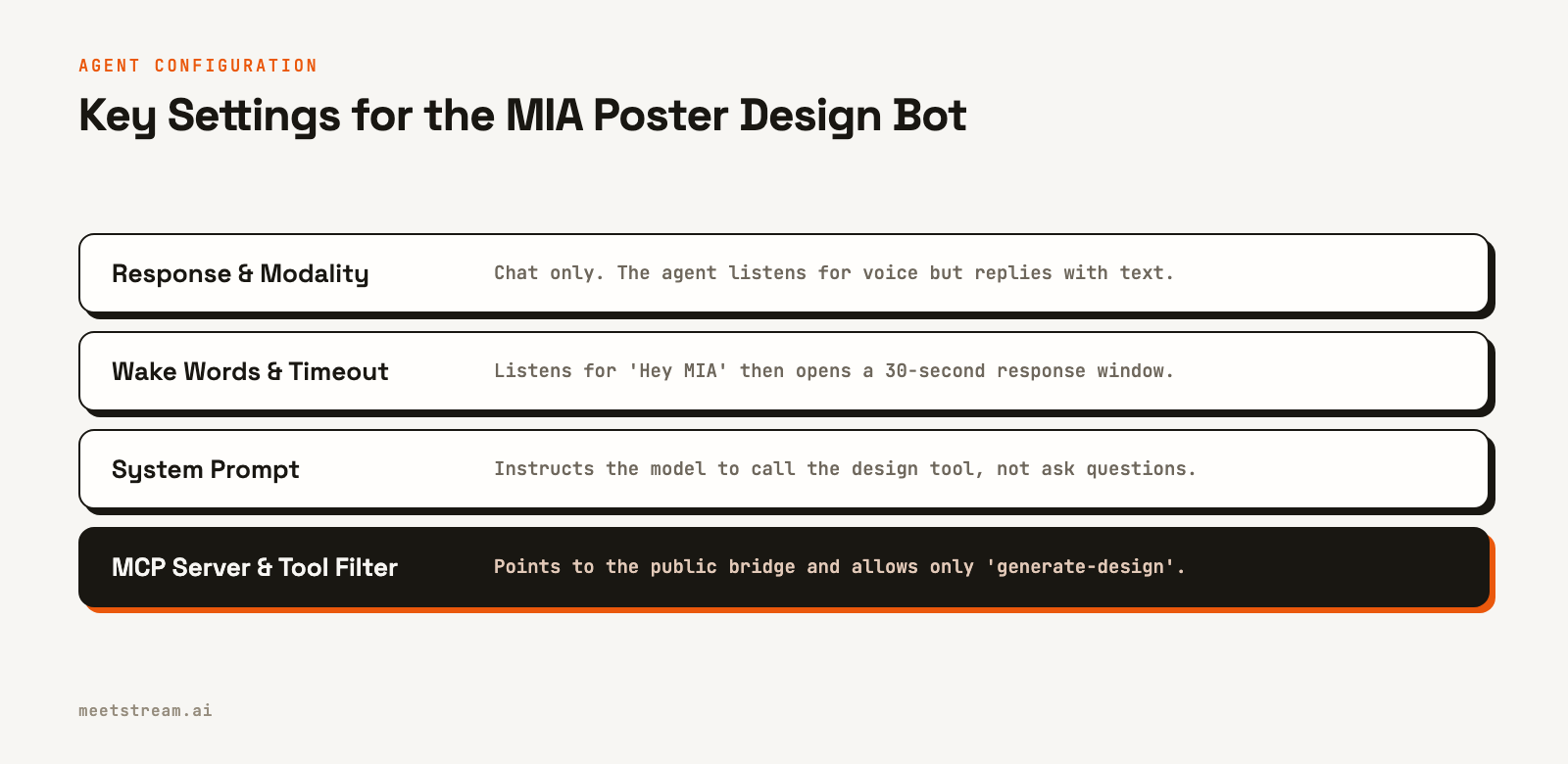
Use the following settings:
- Mode: Pipeline
- Model: OpenAI
gpt-4.1-mini - Response Type: Chat
- Wake Words: Enabled, with phrases like "Hey MIA"
- MCP URL: The public ngrok URL for your bridge's
/mcpendpoint. - MCP Header: Set the header name to
X-Mcp-Secretand the value to the output of theshow:mcp-credentialscript. - Allowed Tools: Add only
generate-design.
The system prompt is critical. It must instruct the model to call the generate-design tool as soon as it has enough information, and to include strong art direction in the request. A good prompt prevents the agent from getting stuck in a loop of asking clarifying questions.
5. Deploy and Run the Agent
The project uses Docker Compose for a reproducible environment. The compose.yaml file configures the Node.js service, passes in the environment variables, and mounts the Canva OAuth directory.
To run the full application:
docker compose up --buildThis command starts the local bridge, creates the public ngrok tunnel, validates your MIA agent configuration against the local project, and finally deploys the bot into the meeting specified in your .env file. You should see a "Bot is listening" message in your console, and the "MIA Poster Design Bot" will appear in the meeting's participant list.
Using the Agent in a Live Meeting
Once the bot has joined the call, you can interact with it using voice. Unmute your microphone and state your request clearly, starting with a wake word.
For example: "Hey MIA, create three poster concepts for a developer conference on September 15th. The headline is 'Build the Future' and the style should be dark and geometric."
The agent will process this request and, after a short delay for generation, post links to the Canva designs in the meeting chat. The response includes links to both the editable Canva design and a thumbnail image for a quick preview.
The agent is designed to be non-verbal, responding only in chat. This is more suitable for sharing links and avoids interrupting the conversation with spoken URLs. If more than 30 seconds pass after you say the wake word, the listening window closes and you will need to say it again.
Tradeoffs and Security Considerations
This implementation makes several design choices with specific tradeoffs. It uses MIA's Pipeline mode, which is better for tool-using chat agents, over Real-Time mode, which is optimized for low-latency voice conversation. The agent's output is chat, not voice, because URLs are better consumed as text.
The security model relies on a few key principles:
- Secrets stay local: Your MeetStream API key, ngrok token, and Canva OAuth session are never passed beyond your local machine.
- Authenticated endpoint: The public
/mcpendpoint is protected by a secret header, preventing unauthorized use. - Minimal capability: The bridge and the agent are configured to use only one specific tool, limiting the potential attack surface.
This project uses an owner-only OAuth flow suitable for a personal tool or internal demo. A multi-tenant application would require a more complex per-user authorization system.
How MeetStream Enables In-Meeting Actions
MeetStream provides the core infrastructure that makes this kind of real-time interaction possible. The AI Voice Agents platform handles the complex parts of getting an AI into a meeting, allowing you to focus on the agent's logic and the tools it uses.
Specifically, MeetStream provides:
- Unified Bot Deployment: A single API call to create a bot that can join Zoom, Google Meet, or Microsoft Teams.
- Real-Time Audio: Low-latency access to the meeting's audio stream for transcription.
- Managed Agent Infrastructure: A hosted environment for running MIA agents with features like wake-word detection, LLM integration, and tool-calling via MCP servers.
- In-Meeting Controls: APIs to send messages to the meeting chat, enabling the agent to communicate its results.
By building on this platform, you can create sophisticated agents that act as participants, not just as post-call processors.
Conclusion
This tutorial demonstrates a powerful pattern: a meeting agent that moves from conversation to action within a live call. The architecture separates concerns, keeping credentials secure while enabling a cloud-based agent to use authenticated tools. While this example focuses on design generation with Canva, the same principles apply to integrating any external API, from creating a ticket in Jira to updating a record in a CRM.
By enabling agents to act in real time, we change their role from passive recorders to active collaborators. See the full API reference at docs.meetstream.ai.
Frequently Asked Questions
How do I build an AI agent that generates a design during a meeting?
Combine a hosted meeting bot with wake-word detection, a system prompt that triggers a tool call, and a secure bridge to the design API. The meeting bot handles audio and transcription, while the bridge authenticates the request and forwards it to the design tool.
Can a meeting bot call external tools like Canva in real time?
Yes. A meeting agent can use Model Context Protocol (MCP) to call a tool's API over HTTPS during the call. This allows a spoken request to trigger a tool call and return a result within the same conversation.
How does the agent know when to act on a spoken request?
The agent uses a wake word to open a listening window. It does not process every sentence. Once triggered, it uses the transcribed speech from that window as the input for its task.
What is the best way to integrate design tools with a meeting agent?
Scope the integration to a single, specific tool. Filter the capabilities exposed to the LLM to prevent it from calling the wrong function, and enforce that restriction at the execution layer for security.
Why use a local bridge instead of calling the API directly from the agent?
A local bridge keeps sensitive credentials like OAuth tokens off the cloud-based agent. The agent makes a public, authenticated call to the bridge, which then adds the private credentials to call the final API.