
Hermes Agent Meeting Integration: Join Calls With MeetStream

Connecting a Hermes Agent to a live meeting lets it answer questions in real time, using its existing tools and memory. The agent can join a call, listen to the conversation, and when a participant asks, "Hey Hermes, what did we decide about the launch date?", the answer appears in the meeting chat seconds later. This is what a successful Hermes Agent meeting integration looks like.
The main challenge is that a reasoning engine like Hermes Agent does not know how to join a Zoom call, Google Meet, or Microsoft Teams meeting. Each platform has its own protocols for authentication, audio capture, and chat. This forces developers to either build complex meeting infrastructure from scratch or abandon live meeting access for their agents.
MeetStream provides the agent-first voice infrastructure for meetings. Our API handles the platform-specific work of getting an AI agent into a call as a participant, where it can hear the room, speak, and act. A small bridge service connects MeetStream to your Hermes Agent, turning a transcribed sentence into a request your agent can process, and then routes the answer back into the meeting.
Why Connecting an Agent to Meetings is Hard
Most teams have already invested significant time in their Hermes Agent. It has access to private tools, a knowledge base, and perhaps a custom memory layer or model routing logic. Rebuilding this entire stack inside a meeting-specific pipeline just to get live access is not a practical use of engineering resources.
The core problem is transport. Zoom, Google Meet, and Microsoft Teams each have different SDKs, bot frameworks, and authentication requirements. A Hermes Agent Microsoft Teams integration is a different project from a Zoom integration. Building and maintaining three separate integrations is a substantial undertaking.
Additionally, a meeting assistant that responds to every spoken sentence quickly becomes disruptive. A reliable integration needs a mechanism to invoke the agent deliberately, like a wake word, and to manage follow-up questions without losing context or interrupting the flow of conversation.
The Bridge Pattern for Meeting Integration
The most effective approach is a bridge: a small, dedicated service that sits between MeetStream and your Hermes Agent. This service is the only component that needs to understand both systems. It receives real-time transcripts from MeetStream, filters them for a wake word, and forwards valid questions to the Hermes Agent's existing API.
This architecture keeps responsibilities clearly separated. MeetStream handles everything about the meeting: joining the call, managing the connection, transcribing audio, and providing a transport to send messages back. The Hermes Agent handles everything about the answer: reasoning, tool use, and memory access. The bridge just translates between them.
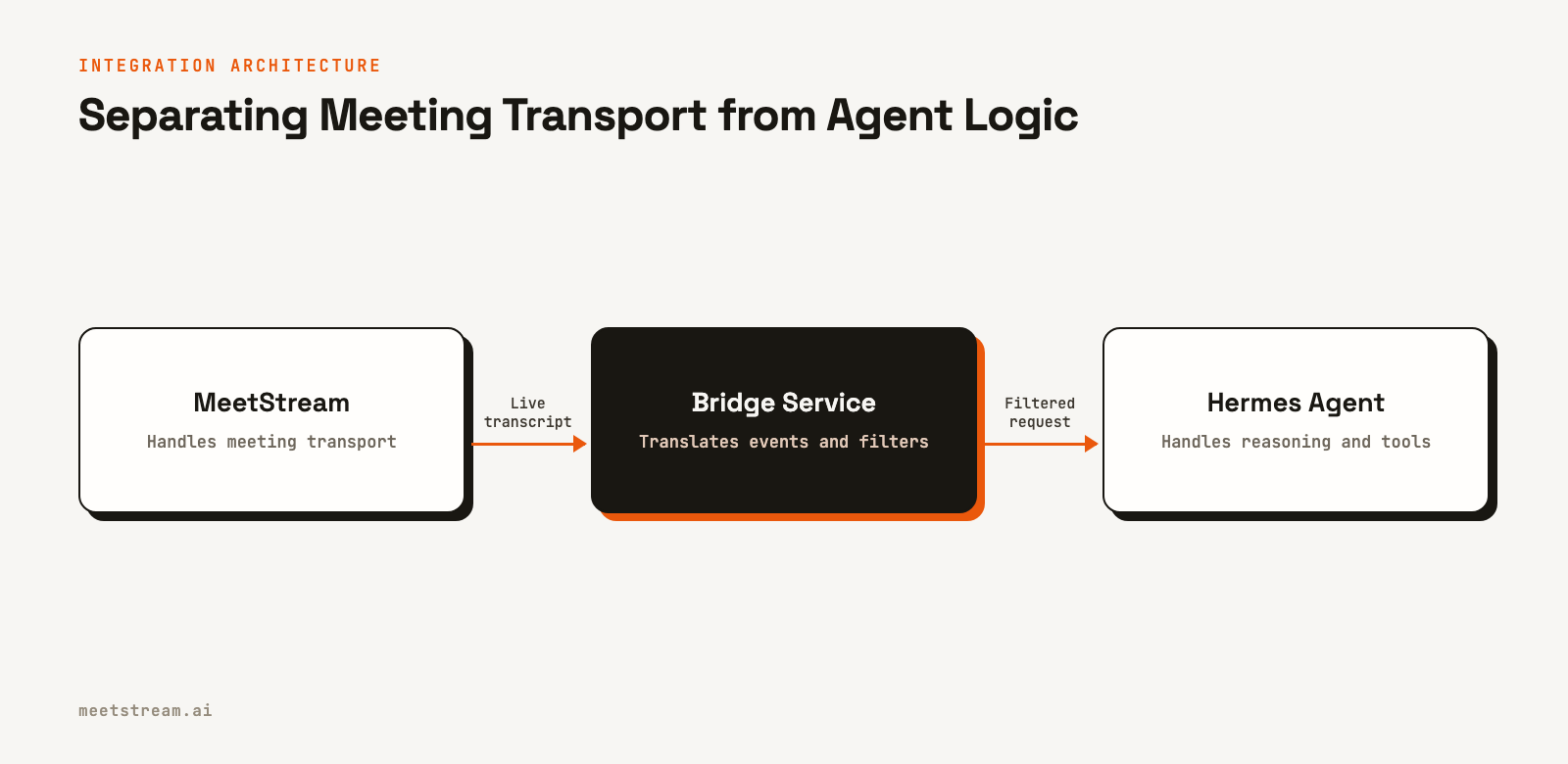
This pattern is not specific to Hermes. Any external agent that exposes an OpenAI-compatible API can be connected using the same bridge architecture. This makes it a reusable solution for bringing custom AI agents into live meetings.
How to Connect Hermes Agent to MeetStream
This guide walks through setting up a Node.js bridge to connect your Hermes Agent to live meetings. The agent will join a call, listen for a wake word, and post answers in the meeting chat.
Project Setup
You will need the following:
- Node.js 20.12 or newer
- A MeetStream API key
- An ngrok authtoken for local development
- A Google Meet, Zoom, or Microsoft Teams meeting link
- A running Hermes Agent gateway with an API key
First, clone the example repository and set up the environment file.
git clone https://github.com/meetstream-ai/labs.git
cd labs/<mia-hermes-bridge-directory>
npm install
npm run setup
Next, add your meeting details and API keys to the .env file.
MEETING_URL=https://meet.google.com/abc-defg-hij
MEETSTREAM_API_KEY=your_meetstream_key
NGROK_AUTHTOKEN=your_ngrok_token

HERMES_GATEWAY_URL=http://127.0.0.1:8642/v1
If you leave HERMES_API_KEY out of the .env file, the bridge will automatically read the API_SERVER_KEY from your ~/.hermes/.env file. This practice keeps your Hermes Agent key within its own installation.
Step 1: Start and Configure Hermes Agent
The Hermes Agent needs to be running and exposing its authenticated, OpenAI-compatible API. A standard local setup listens on port 8642.
hermes gateway install
hermes gateway status
If your agent is running on a different port, update the HERMES_GATEWAY_URL in your .env file to match. The bridge will first attempt to use the POST /v1/responses endpoint and will fall back to POST /v1/chat/completions if needed.
Step 2: Start the Bridge and Join a Meeting
Before starting, you can run a read-only check to validate your connections to MeetStream and Hermes Agent.
npm run doctor
Once validated, start the bridge service.
npm start
This command starts the Node.js server, opens an ngrok tunnel to expose it publicly, creates a MIA (MeetStream Infrastructure Agent) configuration, and sends a request to the MeetStream API to have a bot join your meeting. If the meeting has a waiting room, you will need to admit the bot, named "Hermes Meeting Agent".
Step 3: Create the Bot with an Agent Configuration
Under the hood, the bridge script makes a create_bot API call. It passes the ID of a MIA configuration via the agent_config_id field. This tells MeetStream to use a specific setup for the bot. The request also includes URLs for webhooks, which direct the real-time transcripts to your bridge service.
{
  "meeting_link": "https://meet.google.com/abc-defg-hij",
  "bot_name": "Hermes Meeting Agent",
  "agent_config_id": "your_mia_config_id",
  "callback_url": "https://your-public-bridge/webhooks/meetstream",
  "live_transcription_required": {
    "webhook_url": "https://your-public-bridge/webhooks/meetstream/transcription"
  }
}
The agent_config_id attaches the meeting agent configuration, while the webhook URLs route the live data to your bridge for processing.
Step 4: Process Transcripts and Send Responses
With the bot in the meeting, the data flow is fully operational. MeetStream transcribes the audio and sends finalized text to your bridge. The bridge checks for a wake word. If found, it forwards the query to your Hermes Agent. When Hermes returns a text response, the bridge uses a MeetStream control command to post the answer in the meeting chat.
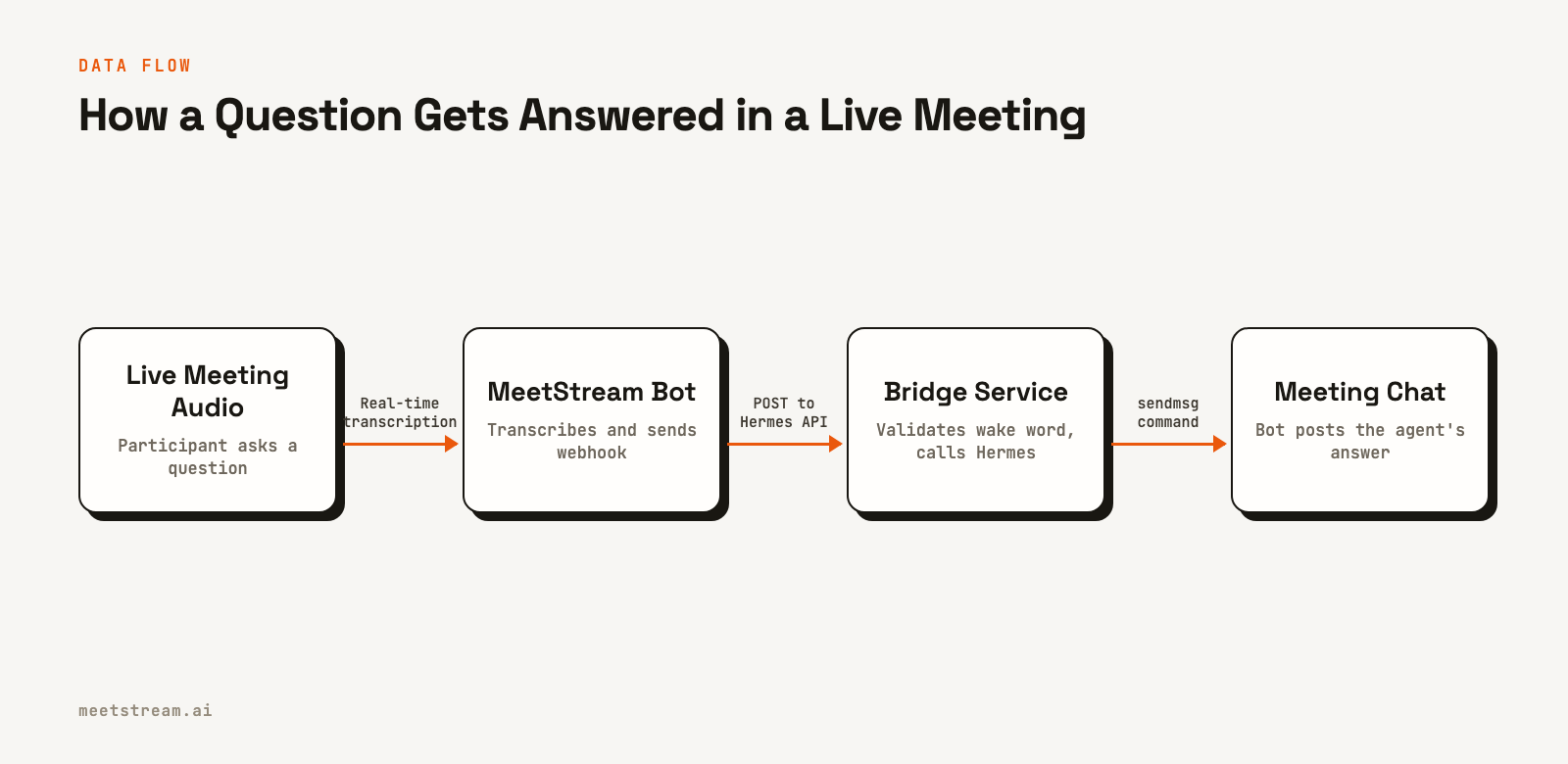
This entire process requires no platform-specific code in your Hermes Agent and no agent-specific logic within MeetStream. The bridge handles all translation.
Real-World Implementation Details
When moving from a local setup to a production environment, there are a few practical considerations for your Hermes Agent meeting integration.
Wake Words and Follow-up Questions
The bridge applies wake words after receiving a complete, transcribed sentence from MeetStream. The default phrases include "hey hermes" and "okay bot". It is important to keep this logic separate from any wake word settings in the MeetStream dashboard; for this pattern, the bridge should be the only component filtering requests.
The bridge also queues follow-up questions. If a second question is asked while the agent is processing the first, it is held and processed in order. This prevents lost requests and is especially useful for agents that use tools, which can introduce latency.
Deploying to Production
For production, replace the ngrok tunnel with a permanent, publicly accessible HTTPS endpoint for your bridge service. You should also manage your MeetStream and Hermes Agent credentials using a secret manager or environment variables, never committing them to source control.
Handling Common Issues
If the bot joins but never responds, run npm run doctor to check the connection to your Hermes Agent. Ensure the HERMES_GATEWAY_URL is correct. If a wake phrase gets no response, try saying the phrase and question clearly in a single sentence, then pausing. If the bot is stuck in a waiting room, the meeting host must admit it before it can receive audio.
How MeetStream Enables Agent Integration
MeetStream's API is designed to be the infrastructure layer for AI voice agents in meetings. By providing a single, unified API for Zoom, Google Meet, and Microsoft Teams, it abstracts away the complexity of individual platforms. You write your integration once, using the bridge pattern, and it works across all major meeting providers.
The API provides the necessary components: a way to get a bot into a call, a real-time transcript stream via webhooks, and a control channel for sending messages or audio back into the meeting. This thin, well-defined surface area is what allows for a clean separation between meeting transport and agent intelligence, enabling you to connect your existing Hermes Agent without modification.
Conclusion
Integrating a Hermes Agent into live meetings does not require rebuilding your agent or becoming an expert in multiple meeting SDKs. By using a bridge service with MeetStream's agent-first infrastructure, you can connect your existing agent to Zoom, Google Meet, and Teams with a single integration. This pattern keeps your agent's logic separate from meeting transport, allowing you to bring its unique capabilities into real-time conversations.
To get started with your own Hermes Agent meeting integration, see the full API reference at docs.meetstream.ai.
Frequently Asked Questions
Can Hermes Agent listen and speak during live meetings?
Yes. This integration allows the agent to listen via real-time transcripts and respond in chat. The bridge can be configured to use a text-to-speech service and send audio back, allowing the agent to speak its answers aloud in the meeting.
How does Hermes Agent access real-time meeting audio?
The agent does not access raw audio directly. MeetStream handles audio capture and transcription, sending finalized text segments to the bridge via a webhook. The Hermes Agent only processes the transcribed text, which simplifies the integration.
What is the best meeting bot API for Hermes Agent?
MeetStream is designed specifically for this use case. It provides the necessary infrastructure to connect an existing, external agent like Hermes to multiple meeting platforms through a single, unified API, rather than requiring separate, platform-specific integrations.
How can Hermes Agent use live transcripts and participant data?
The bridge service forwards the speaker's name along with their transcribed text. This gives the Hermes Agent context, like `[Priya] What was the decision on the launch?`. The agent can then use its existing tools and memory to act on this information.
Does Hermes Agent need to run in the cloud?
No. For development, the Hermes Agent can run on your local machine. The bridge service only needs network access to it. In a production environment, you would typically deploy both the agent and the bridge to a cloud provider.