
Zoom Cloud Recording API: How to Fetch Recordings

You can automate Zoom meeting recordings by using an API to send a bot into the meeting to capture audio and video. This programmatic approach gives your application direct control over the recording process, from joining the call to receiving the final media files. It provides a reliable alternative to user-initiated recording or platform-specific cloud features, giving you direct access to raw meeting data for post-processing.
This model is part of a broader shift towards using AI agents as active participants in meetings. Instead of just pulling a finished recording from Zoom's cloud storage, an agent-first infrastructure like MeetStream allows your bot to join, hear the room, and capture media streams directly. This foundation is what enables both simple recording and more advanced, real-time applications.
The native Zoom Cloud Recording API requires a Pro account and works by pulling recordings made by account owners. To record meetings hosted by your customers, you need to build a Zoom Marketplace app, pass a security review, and implement an OAuth 2.0 consent flow for each user. A bot-based API offers a simpler path by treating the recorder as just another participant.
This guide provides a technical reference for using a bot to fetch Zoom recordings. We will cover the bot lifecycle, correct webhook payload examples, and a complete Python implementation for a webhook handler that retrieves recordings and transcripts.
How a Bot API Differs from the Zoom Cloud Recording API
The main difference is the direction of data flow. The Zoom Cloud Recording API uses a pull model: Zoom stores the recording on its servers, and you request it after the meeting ends using the host's credentials. A bot API uses an event-driven push model: the bot captures data during the meeting and notifies your system via webhooks when artifacts are ready.
This distinction has practical consequences. With the pull model, you need API credentials with read access to the specific Zoom account where the meeting was hosted. With the bot model, you just need the meeting URL. This makes it much easier to build recording features that work across different customer environments without complex authentication setups for each one.
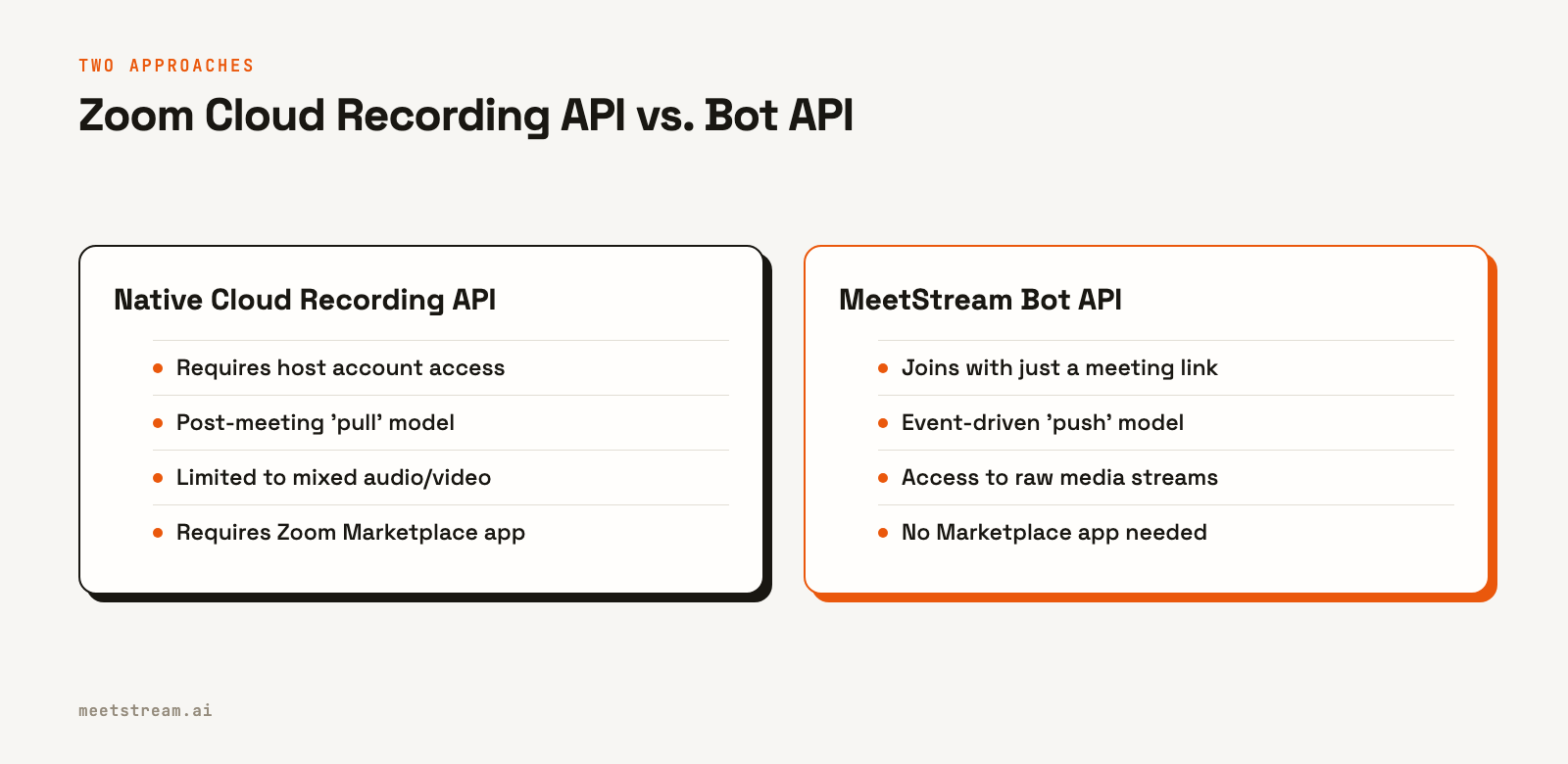
A bot also gives you access to the raw media streams. While Zoom's native API delivers a final, mixed recording, a bot can capture audio and video directly. On Zoom, this allows for fully isolated per-participant audio streams. This level of access is necessary if you're building applications that analyze who said what, like sales coaching or compliance monitoring tools.
To join a Zoom meeting programmatically, a bot needs an On-Behalf-Of (OBF) token. This requires a one-time Zoom Marketplace app setup on your end, but not for each of your customers. After that, every bot deployment is a single API call.
The Bot Lifecycle and Webhook Events
Every bot you deploy moves through a defined set of states, and your application is notified of each transition via webhooks. Building a reliable recording system means handling these events correctly.
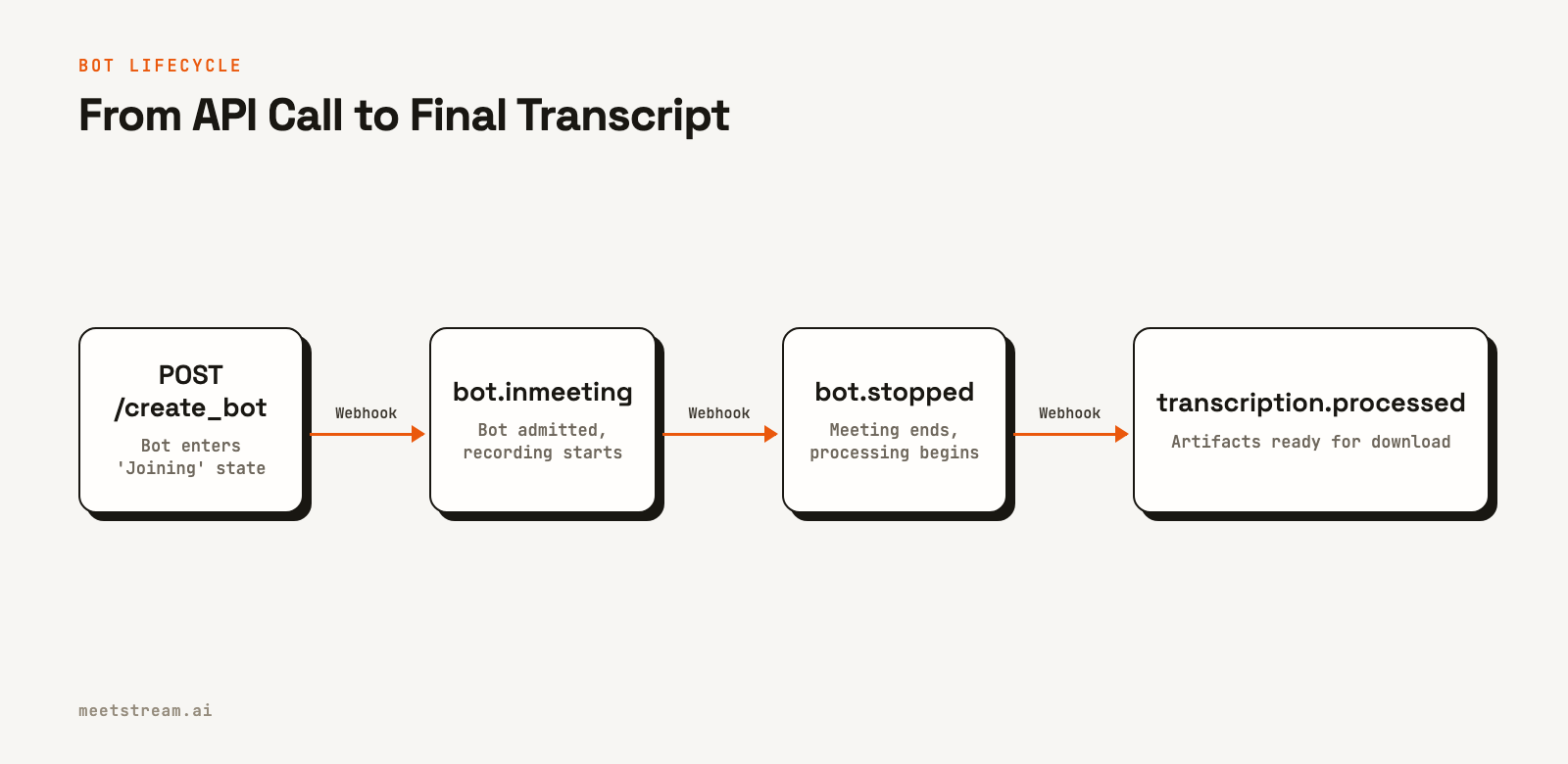
When you call the create_bot endpoint, the bot enters a Joining state. Once admitted to the meeting, it transitions to InMeeting, and you receive a bot.inmeeting webhook. This is your signal that recording has started. When the meeting ends, a terminal event is fired.
It is important to handle the different terminal events your webhook handler might receive:
bot.stopped: A clean exit. The meeting ended, the bot was removed via API, or anautomatic_leavecondition was met. This is the successful path.bot.kicked: removed from the meeting by host or participant.bot.denied: host denied the join request.bot.notallowed: not admitted before the waiting-room timeout.bot.failed: An infrastructure error occurred. The payload'smessagefield will contain more details.
After a bot.stopped event, you will receive a sequence of processing webhooks, typically audio.processed, video.processed (if requested), and finally transcription.processed as each artifact becomes available for download.
Deploying a Zoom Recording Bot
The create_bot endpoint is used to send a bot to a meeting. You provide the meeting URL and a callback_url for webhooks. Here is a cURL example that requests a recording, a transcript from MeetStream's in-house engine, and sets a 48-hour data retention policy.
curl -X POST "https://api.meetstream.ai/api/v1/bots/create_bot" \
  -H "Authorization: Token <YOUR_API_KEY>" \
  -H "Content-Type: application/json" \
  -d '{
    "meeting_link": "https://zoom.us/j/123456789",
    "bot_name": "Recorder",
    "callback_url": "https://yourapp.com/webhooks/meetstream",
    "video_required": true,
    "recording_config": {
      "transcript": {
        "provider": {
          "meetstream": {}
        }
      },
      "retention": {"type": "timed", "hours": 48}
    },
    "automatic_leave": {
      "waiting_room_timeout": 300,
      "everyone_left_timeout": 60
    }
  }'
The API will respond with a bot_id and a transcript_id. You should store both of these, as they are used to retrieve the final artifacts and correlate webhook events with the correct session.
Handling Webhook Payloads
Your callback_url will receive HTTP POST requests with a JSON body for each lifecycle event. The key field to inspect is bot_event, which tells you which event has occurred. Webhook delivery is best-effort; non-2xx responses from your server are not retried, so your handler should respond quickly and be idempotent.
Here are examples of the key payloads for a recording workflow:
// bot.inmeeting: Recording has started
{
  "bot_event": "bot.inmeeting",
  "bot_id": "604c0a0b-973d-4eb1-a5bf-2c7513f6bbe0",
  "bot_status": "InMeeting",
  "message": "Bot joined the meeting",
  "status_code": 200,
  "timestamp": "2026-02-27T07:11:51+00:00",
  "custom_attributes": {}
}

// bot.stopped: Meeting has ended cleanly
{
  "bot_event": "bot.stopped",
  "bot_id": "604c0a0b-973d-4eb1-a5bf-2c7513f6bbe0",
  "bot_status": "Stopped",
  "message": "Bot has stopped.",
  "status_code": 200,
  "timestamp": "2026-02-27T08:01:44+00:00",
  "custom_attributes": {}
}

// transcription.processed: Transcript is ready for download
{
  "bot_event": "transcription.processed",
  "bot_id": "604c0a0b-973d-4eb1-a5bf-2c7513f6bbe0",
  "bot_status": "Stopped",
  "message": "Transcription has been processed.",
  "status_code": 200,
  "timestamp": "2026-02-27T08:06:55+00:00",
  "custom_attributes": {}
}
Notice the bot_id is present in every event, allowing you to associate incoming webhooks with the session you initiated. The custom_attributes object, which you can set in your create_bot call, is also echoed in every webhook, which is useful for storing your internal identifiers.
Python Implementation for a Webhook Handler
This Flask application provides a complete webhook handler. It listens for events, logs the bot's progress, and fetches the final transcript once it's ready. For production, you would replace the in-memory dictionary with a persistent database.
import requests
from flask import Flask, request, jsonify
import logging

app = Flask(__name__)
logging.basicConfig(level=logging.INFO)

API_KEY = "YOUR_API_KEY"
BASE_URL = "https://api.meetstream.ai/api/v1"
HEADERS = {"Authorization": f"Token {API_KEY}"}

# In-memory store for demonstration. Use a database in production.
sessions = {}

@app.route('/webhooks/meetstream', methods=['POST'])
def webhook_handler():
    payload = request.json
    event_type = payload.get('bot_event')
    bot_id = payload.get('bot_id')

    logging.info(f"Received webhook: {event_type} for bot_id: {bot_id}")

    if not bot_id:
        return jsonify({'error': 'Missing bot_id'}), 400

    if event_type == 'bot.inmeeting':
        sessions[bot_id] = {'status': 'recording'}
        logging.info(f"Bot {bot_id} is now in the meeting and recording.")

    elif event_type in ['bot.stopped', 'bot.denied', 'bot.notallowed', 'bot.failed']:
        handle_terminal_event(payload)

    elif event_type == 'transcription.processed':
        # The create_bot call returns a transcript_id.
        # You should store it alongside the bot_id.
        # For this example, we assume it's stored in your DB.
        transcript_id = get_transcript_id_for_bot(bot_id)
        if transcript_id:
            fetch_transcript(bot_id, transcript_id)
        else:
            logging.warning(f"No transcript_id found for bot {bot_id}")

    # Respond immediately with 2xx to acknowledge receipt
    return jsonify({'status': 'received'}), 200

def handle_terminal_event(payload):
    bot_id = payload['bot_id']
    event_type = payload['bot_event']
    message = payload.get('message', 'No message provided.')

    if bot_id in sessions:
        sessions[bot_id]['status'] = 'processing'

    if event_type == 'bot.stopped':
        logging.info(f"Bot {bot_id} stopped cleanly. Awaiting artifacts.")
    else:
        logging.warning(f"Bot {bot_id} stopped with event '{event_type}': {message}")
        # Add alerting or specific error handling here

def fetch_transcript(bot_id, transcript_id):
    url = f"{BASE_URL}/transcript/{transcript_id}/get_transcript"
    try:
        response = requests.get(url, headers=HEADERS)
        response.raise_for_status()  # Raises an HTTPError for bad responses (4xx or 5xx)

        transcript = response.json()
        if bot_id in sessions:
            sessions[bot_id]['status'] = 'complete'
            sessions[bot_id]['transcript'] = transcript

        logging.info(f"Successfully fetched transcript for bot {bot_id}")
        # Add your downstream processing logic here
        # e.g., queue_summarization(transcript)

    except requests.exceptions.RequestException as e:
        logging.error(f"Failed to fetch transcript {transcript_id}: {e}")
        if bot_id in sessions:
            sessions[bot_id]['status'] = 'fetch_failed'

def get_transcript_id_for_bot(bot_id):
    # Placeholder: In a real app, you'd fetch this from your database
    # where you stored the response from the initial create_bot call.
    # return db.get_session(bot_id).transcript_id
    return "YOUR_STORED_TRANSCRIPT_ID"
How MeetStream Fits In
MeetStream provides the scalable infrastructure for deploying these bots, delivering webhooks, processing media, and storing artifacts. The API is designed to be minimal: one endpoint to create bots, another to remove them, and a set of endpoints to retrieve data. The same integration works for Zoom, Google Meet, and Microsoft Teams, which simplifies development if you need to support multiple meeting platforms. Our focus is on providing the agent-first voice infrastructure so you can focus on the application layer.
Conclusion
Using a bot provides a flexible and reliable way to fetch recordings from Zoom meetings without needing host credentials or a complex Zoom Marketplace app approval for your customers. The process is event-driven: you call the Zoom Cloud Recording API alternative, create_bot, with a callback URL, then handle a sequence of webhooks that signal the bot's progress. By branching your logic on the bot_event field, you can reliably manage the entire recording lifecycle and retrieve the final audio, video, and transcript for your application.
See the full API reference at docs.meetstream.ai.
Related guides
- Download Zoom Recordings via API: Cloud Recording vs Bot Capture
- Meeting Bot API for Zoom, Google Meet & Teams
Frequently Asked Questions
How does a bot API differ from the Zoom Cloud Recording API?
Zoom's native API requires host-level credentials to pull recordings from Zoom's cloud storage after a meeting. A bot API sends a participant into the live meeting to capture media directly, requiring only a meeting link. This makes the bot approach better for recording meetings across many different Zoom accounts you don't control.
What webhook events are important for recording?
The key events are bot.inmeeting, which confirms recording has started, and a terminal event like bot.stopped, which signals the meeting has ended. After the terminal event, you will receive audio.processed, video.processed, and transcription.processed as each artifact becomes ready for download.
How do I get the transcript from a recording?
After you receive the transcription.processed webhook, make a GET request to /api/v1/transcript/{transcript_id}/get_transcript. The transcript_id is returned in the initial create_bot API response and should be stored by your application.
Can I record only audio from a Zoom meeting?
Yes. In your create_bot API call, set the video_required parameter to false. The bot will only capture audio, which reduces processing time and cost. This is ideal for applications focused on transcription and voice analysis.
What happens if the bot is removed from the meeting?
If a host removes the bot, your webhook handler will receive a bot.kicked event. The recording will cover the period from when the bot joined until it was removed. The media processing pipeline will run on this partial recording, and you will still receive the corresponding artifacts.


