
Send Meeting Notes to Notion Automatically: API Integration Guide

You can automatically send meeting notes to Notion by using a meeting bot API to capture and transcribe a call, then formatting the output for a Notion database via its API. This process involves dispatching a bot to a meeting link, receiving the transcript through a webhook, and then making a POST request to Notion's API to create a new page with the notes.
This automation is possible because modern platforms provide the necessary components. MeetStream is the agent-first voice infrastructure for meetings. Our unified API lets you deploy agents that can join any Zoom, Google Meet, or Microsoft Teams call to hear, speak, and act. These agents generate structured data like transcripts, which a simple worker service can then push into a Notion database.
Many engineering teams use Notion as a central knowledge base for project plans, technical specs, and user research. The one manual step is often getting the contents of a meeting into the right Notion page. This usually involves someone copying and pasting notes, a summary, or a transcript after the call ends. This is slow, error-prone, and means the knowledge is not available immediately.
This guide shows how to build a system that automates this entire workflow. We will walk through the architecture, model the data in Notion, and provide code examples for connecting the MeetStream and Notion APIs.
Why Automate Meeting Notes to Notion?
The core problem with meeting data is that it is unstructured and ephemeral. A critical decision made on a call is lost unless someone writes it down. Automating the capture and transfer of this data into a structured system like Notion has several direct benefits.
First, it creates a reliable system of record. Every important conversation, from a sales demo to a post-mortem, is captured and stored in a searchable, linkable format. Second, it saves developer and product manager time. Instead of spending 15 minutes after each call cleaning up and sharing notes, the team can focus on the action items the meeting produced. Finally, it makes meeting insights available faster, enabling quicker follow-ups and better-informed decisions.
Building this integration turns a passive documentation tool into an active part of your operational workflow. It connects the place where work is discussed, the meeting, with the place where work is tracked, Notion.
Core Architecture: Control Plane and Execution Layer
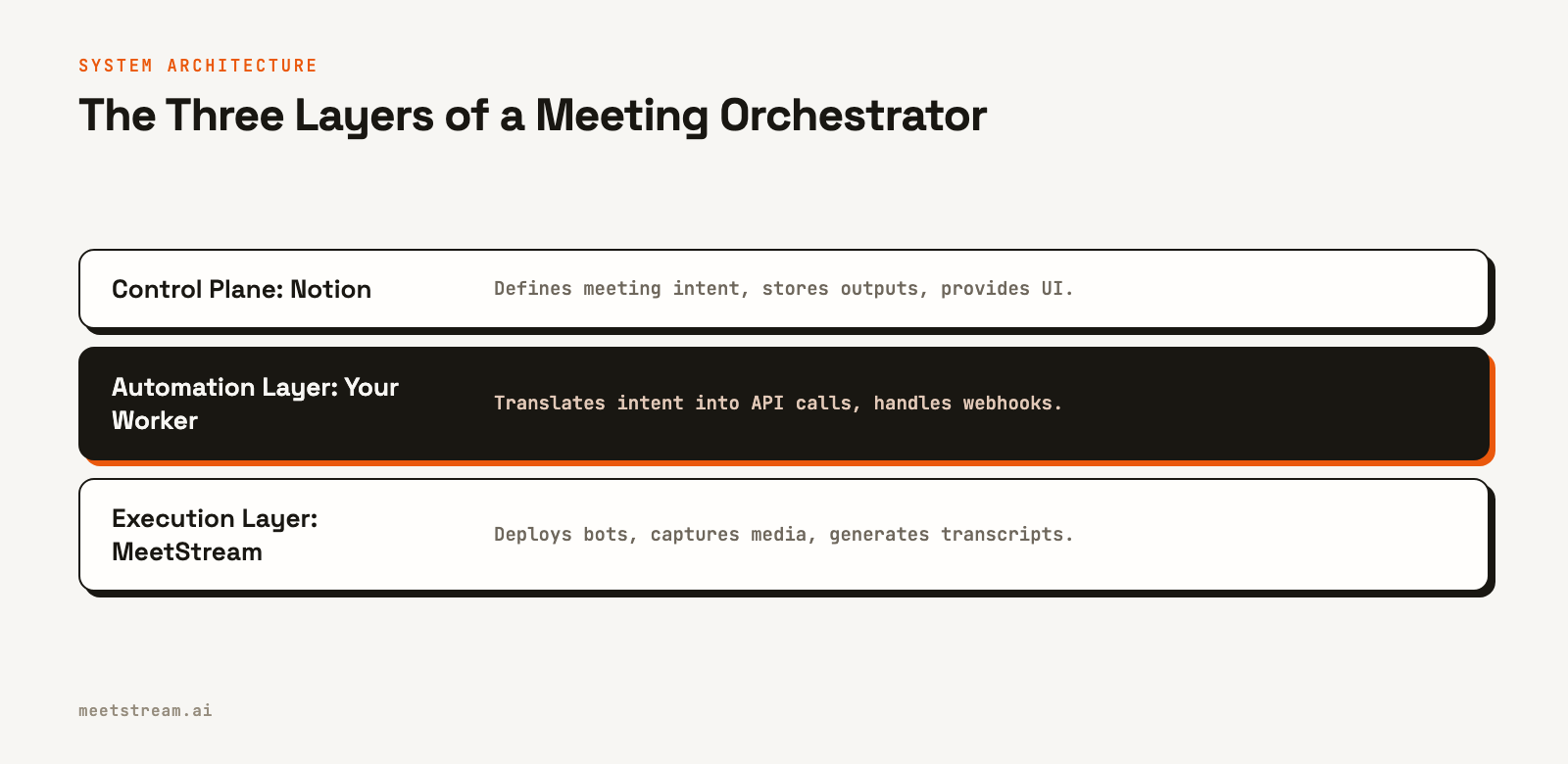
A reliable meeting-to-Notion pipeline consists of three components: a control plane, an automation layer, and an execution layer. Separating these concerns makes the system easier to build, debug, and extend.
The control plane is where you define intent. A Notion database is a good fit for this. Each row can represent a meeting, with properties for the meeting link, owner, and the desired action, such as "Record and Transcribe". This gives non-technical users a simple interface to control the system.
The execution layer does the heavy lifting of interacting with the meeting platform. This is MeetStream's role. Our API handles joining the call, managing the bot's lifecycle, capturing audio, and running transcription. It abstracts away the complexity of dealing with different SDKs for Zoom, Google Meet, and Teams.
The automation layer, or worker, is the glue between the two. This is a service you write, for example in Python or Node.js. It listens for changes in the Notion control plane, makes the corresponding API calls to MeetStream, and then handles webhook events from MeetStream to write data back into Notion.
Building the Integration: A Step-by-Step Guide
Let's walk through the implementation. This guide uses Python for the code examples, but the concepts apply to any language. You will need API keys for both MeetStream and Notion.
Step 1: Set Up the Notion Database
First, create a new database in Notion to act as your control plane. It needs properties to store the meeting details and track the automation status. A good starting schema includes:
- Meeting Name (Title): The name of the meeting.
- Meeting Link (URL): The Zoom, Meet, or Teams link for the bot to join.
- Status (Select): Options like "Pending", "Scheduled", "In Progress", "Completed", "Error".
- MeetStream Bot ID (Text): To store the ID returned by the MeetStream API.
- Transcript ID (Text): To store the transcript ID for later retrieval.
- Error Message (Text): To log any issues from the automation.
Create a Notion integration in your workspace settings to get an API token. Share the database with your new integration to give it permission to read and write pages.
Step 2: Trigger Bot Creation from Notion
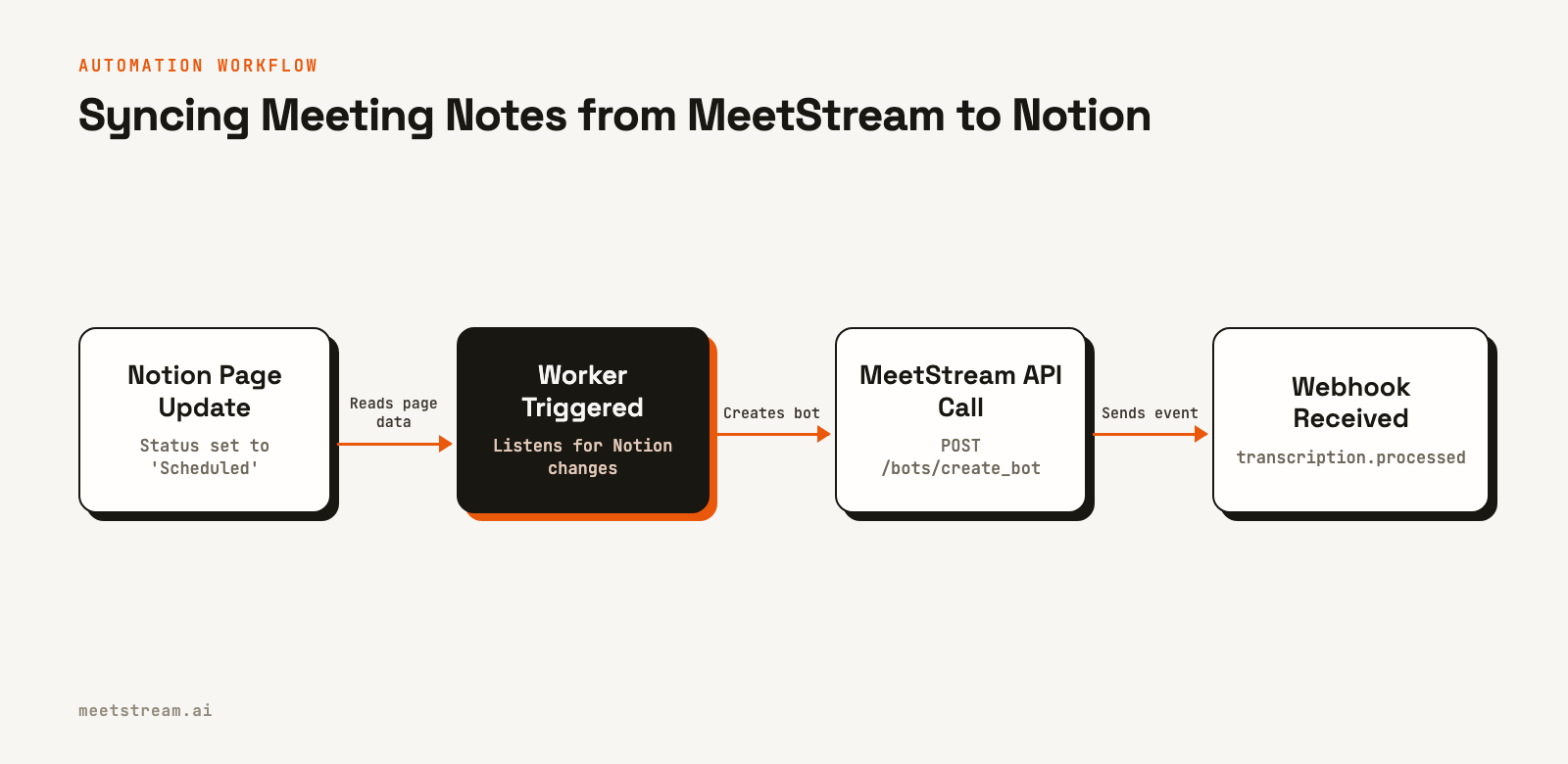
Your worker needs to detect when a new meeting should be recorded. A simple approach is to have it poll the Notion database for pages with a "Scheduled" status that do not have a "MeetStream Bot ID" yet. When it finds one, it calls the MeetStream API to create a bot.
The API call needs the meeting link and a callback_url where MeetStream will send webhook events. You also specify a transcription provider in the recording_config.
import requests
import os

MEETSTREAM_API_KEY = os.environ.get("MEETSTREAM_API_KEY")
YOUR_WEBHOOK_URL = "https://your-worker.com/webhooks/meetstream"

def create_meetstream_bot(meeting_link):
    url = "https://api.meetstream.ai/api/v1/bots/create_bot"
    headers = {
        "Authorization": f"Token {MEETSTREAM_API_KEY}",
        "Content-Type": "application/json"
    }
    payload = {
        "meeting_link": meeting_link,
        "bot_name": "Notion Notetaker",
        "callback_url": YOUR_WEBHOOK_URL,
        "recording_config": {
            "transcript": {
                "provider": {
                    "meetstream": {}
                }
            }
        }
    }
    response = requests.post(url, headers=headers, json=payload)
    response.raise_for_status()
    return response.json()

# In your main loop:
# notion_page = get_scheduled_page_from_notion()
# if notion_page:
#     meeting_link = notion_page["properties"]["Meeting Link"]["url"]
#     bot_data = create_meetstream_bot(meeting_link)
#     update_notion_page_with_ids(
#         page_id=notion_page["id"],
#         bot_id=bot_data["bot_id"],
#         transcript_id=bot_data["transcript_id"]
#     )
After a successful API call, your worker should update the Notion page with the returned bot_id and transcript_id and set the status to "In Progress".
Step 3: Handle Webhooks from MeetStream
MeetStream uses webhooks to notify your application about events in the bot's lifecycle. Your worker needs an endpoint to receive these POST requests. The most important event for this workflow is transcription.processed, which signals that the full transcript is ready.
Your webhook handler should be lightweight. It should acknowledge the request with a 2xx status code immediately and then queue the processing to happen asynchronously. This prevents timeouts and handles retries gracefully.
from flask import Flask, request, jsonify

app = Flask(__name__)

@app.route("/webhooks/meetstream", methods=["POST"])
def meetstream_webhook_handler():
    payload = request.json
    event_type = payload.get("bot_event")

    if event_type == "transcription.processed":
        bot_id = payload.get("bot_id")
        # Find the Notion page using the bot_id
        # Queue a job to fetch the transcript and update Notion
        print(f"Transcription ready for bot: {bot_id}")
    elif event_type == "bot.failed":
        bot_id = payload.get("bot_id")
        error_message = payload.get("message")
        # Find the Notion page and update its status to "Error"
        print(f"Bot failed: {bot_id}, Reason: {error_message}")

    return jsonify({"status": "received"}), 200

if __name__ == "__main__":
    app.run(port=5000)
Step 4: Fetch the Transcript and Send to Notion
When the transcription.processed event is received, your worker uses the transcript_id it stored earlier to fetch the full, diarized transcript from MeetStream. The Notion API allows you to append content blocks to a page, which is a clean way to add the transcript.
The transcript from MeetStream is a structured object with speaker labels and timestamps. You can format this for readability before sending it to Notion.
def get_transcript(transcript_id):
    url = f"https://api.meetstream.ai/api/v1/transcript/{transcript_id}/get_transcript"
    headers = {"Authorization": f"Token {MEETSTREAM_API_KEY}"}
    response = requests.get(url, headers=headers)
    response.raise_for_status()
    return response.json()

def format_transcript_for_notion(transcript_data):
    # Formats transcript into Notion block format
    # Example: "00:05 - Priya: Hello everyone."
    blocks = []
    for segment in transcript_data:
        speaker = segment.get("speaker", "Unknown")
        text = segment.get("transcript", "")
        start_seconds = segment.get("start_time", 0)
        minutes, seconds = divmod(start_seconds, 60)
        timestamp = f"{int(minutes):02}:{int(seconds):02}"

        blocks.append({
            "object": "block",
            "type": "paragraph",
            "paragraph": {
                "rich_text": [{
                    "type": "text",
                    "text": { "content": f"{timestamp} - {speaker}: {text}" }
                }]
            }
        })
    return blocks

# After receiving the webhook:
# transcript_data = get_transcript(transcript_id)
# notion_blocks = format_transcript_for_notion(transcript_data)
# append_blocks_to_notion_page(page_id, notion_blocks)
# update_notion_page_status(page_id, "Completed")
This completes the loop. A meeting scheduled in Notion is automatically recorded, transcribed, and the notes are appended back to the original Notion page.
Real-World Applications
This basic architecture can be extended for specific use cases. For a sales team, you could add a step that uses a large language model to summarize the transcript, extract action items, and push the summary to a CRM. The Notion page would serve as the canonical record of the call that links to all related systems.
For engineering teams, this system can automatically document incident response calls. When a PagerDuty alert creates a meeting, the link can be added to a new Notion page. The bot joins, transcribes the discussion, and provides a complete record for the post-mortem, ensuring no details about the resolution are lost.
What to Watch Out For
When building a production system, there are a few details to consider. First, make your worker resilient. APIs can fail, so implement retries with exponential backoff for your calls to both MeetStream and Notion. Use the custom_attributes field in the create bot request to store the Notion page ID, which makes it easier to associate webhook events with the correct Notion page.
For security, validate webhook authenticity. Webhooks sent to a per-bot callback_url, as used in this guide, are not signed. When authenticated delivery is required, we recommend using a workspace webhook endpoint, which you can create in the MeetStream dashboard. These are signed using a secret key, allowing you to verify that the request is from MeetStream. Store your API keys and webhook secrets securely using a service like AWS Secrets Manager or HashiCorp Vault.
Finally, consider how to handle very long meetings. The Notion API has limits on request size. For multi-hour calls, you may need to batch the transcript and send it in several "append blocks" requests rather than all at once.
How MeetStream Enables This Workflow
This automated workflow is possible because MeetStream provides a simple, reliable meeting bot API that works across all major platforms. Instead of building and maintaining separate integrations for Zoom, Google Meet, and Microsoft Teams, you interact with a single, unified API.
Our infrastructure is built to manage bots at scale, handling the complexities of joining meetings, capturing clean audio, and processing it efficiently. The event-driven nature of our webhooks makes it straightforward to build reactive systems like the one described here. By providing the core voice infrastructure, MeetStream lets you focus on building the application logic that delivers value to your users, like the cleanly integration with Notion.
Conclusion
By connecting Notion's flexible databases with MeetStream's powerful meeting API, you can build a custom orchestrator that automates the entire lifecycle of your meeting notes. This turns meetings from isolated events into structured, actionable data inside your team's primary workspace. The result is a more efficient workflow and a more complete system of record for your organization's most important conversations.
See the full API reference at docs.meetstream.ai.
Frequently Asked Questions
How do I send a meeting summary to Notion instead of a full transcript?
To send a summary, your worker would first fetch the full transcript from MeetStream. Then, it would make a call to a language model API, like OpenAI's or Anthropic's, with a prompt to summarize the text. Finally, it would send the summarized text to the Notion API.
Can this integration handle meetings scheduled in Google Calendar?
Yes. You can connect your Google Calendar account in the MeetStream app to have bots automatically join scheduled events. Alternatively, your worker can use the Google Calendar API to find upcoming meetings and programmatically create MeetStream bots for them using the join_at parameter.
What permissions does the Notion integration need?
The Notion integration requires read and write permissions for the specific database you are using as a control plane. It also needs permission to read, insert, and update content within the pages of that database. It is best practice to grant the most limited permissions necessary.
How do I handle speaker diarization in the Notion notes?
The MeetStream transcript API provides speaker labels for each segment. As shown in the Python example, you can format the output to include the speaker's name next to their dialogue, for example, "Priya: Let's discuss the new feature." This makes the transcript much easier to read and understand in Notion.


