
Zoom Recorder API: Capture Audio and Video Streams Programmatically

A good API for recording Zoom meetings programmatically dispatches a bot to join and capture the call. The MeetStream API sends an AI agent into Zoom, Google Meet, and Microsoft Teams meetings to record audio and video streams. This approach provides access to both post-call recordings and real-time audio, which is useful for building applications like AI notetakers and sales coaching tools.
A developer can send a bot into any meeting with a single POST request to the /bots/create_bot endpoint. The request requires the meeting_link and a bot_name, and authentication uses an Authorization: Token <YOUR_API_KEY> header. This makes the initial integration to start recording very direct.
Getting audio and video out of a Zoom meeting can be complex. Zoom's own APIs often require elevated permissions and a Server-to-Server OAuth setup that assumes you own the account. If you need per-participant audio streams or real-time audio access during the meeting, a meeting bot that joins as a participant is a more flexible alternative. It works regardless of who hosts the meeting and gives you access to media streams from inside the call.
This article covers both modes: post-call recording for complete meeting capture, and real-time audio streaming for applications that need to process audio as the meeting happens. Both use the same Zoom recorder API and bot deployment model.
Post-Call Video and Audio Capture
Post-call recording captures the full meeting and makes audio and video files available via API after the meeting ends. This is the right approach when you need the complete recording for storage, summarization, or high-accuracy transcription.
To enable recording, you include the recording_config object in your request. Setting video_required: true captures both audio and video. The recording_config block also controls transcription settings and data retention.
curl -X POST "https://api.meetstream.ai/api/v1/bots/create_bot" \
  -H "Authorization: Token <YOUR_API_KEY>" \
  -H "Content-Type: application/json" \
  -d '{
    "meeting_link": "https://zoom.us/j/123456789",
    "bot_name": "Meeting Recorder",
    "callback_url": "https://yourapp.com/webhooks/meetstream",
    "video_required": true,
    "recording_config": {
      "transcript": {
        "provider": {
          "deepgram": {}
        }
      },
      "retention": {
        "type": "timed",
        "hours": 72
      }
    }
  }'
When the meeting ends, your callback_url receives a sequence of webhook events. A bot.stopped event signals the bot has left the call. After that, asynchronous processing begins, firing events like audio.processed, video.processed, and transcription.processed as each artifact becomes ready.
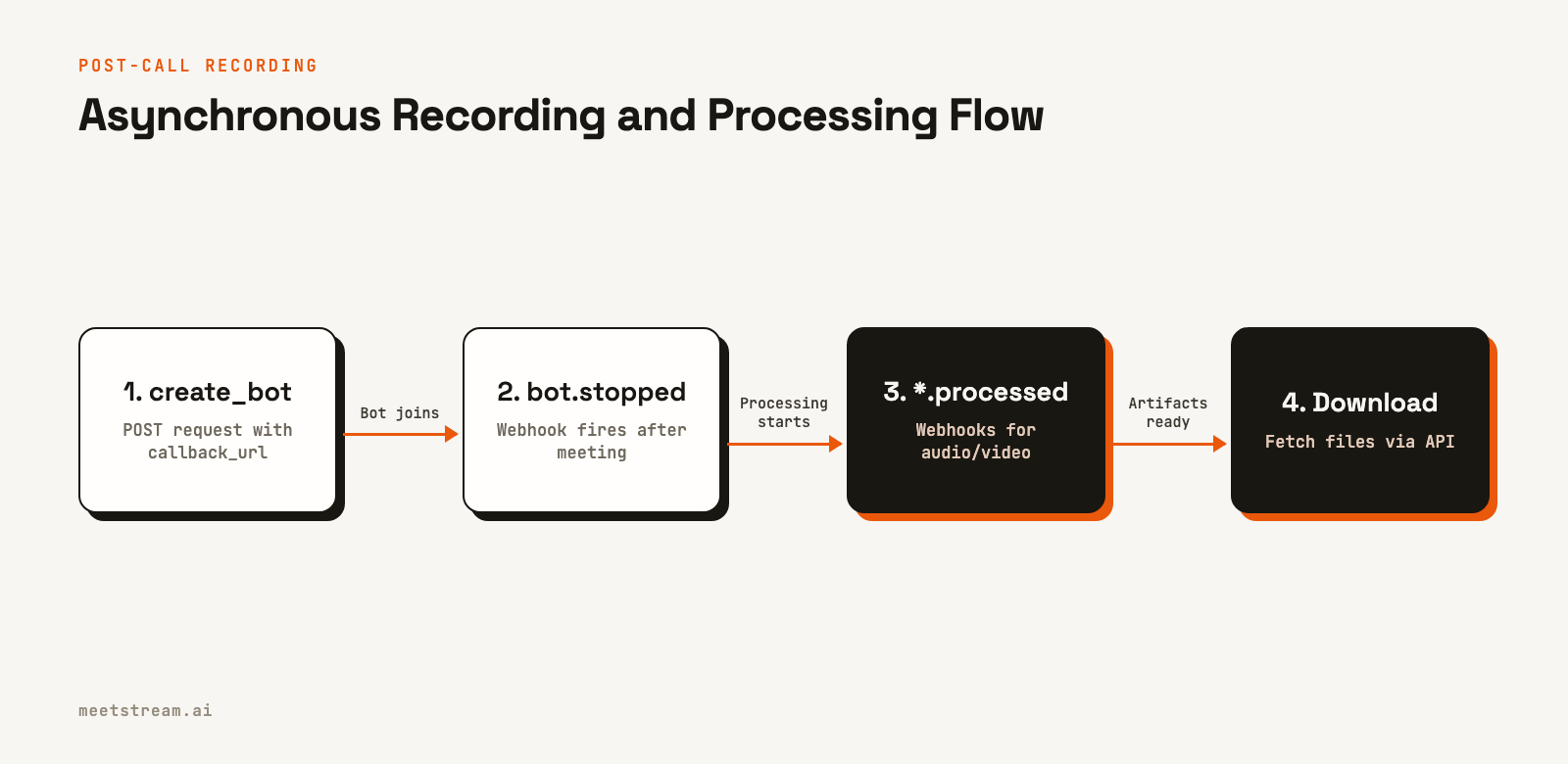
The webhook payload for a completed video processing job looks like this. The key field to check is bot_event.
{
  "bot_event": "video.processed",
  "bot_id": "604c0a0b-973d-4eb1-a5bf-2c7513f6bbe0",
  "bot_status": "Stopped",
  "message": "Video processing completed",
  "status_code": 200,
  "timestamp": "2026-04-02T15:08:30+00:00",
  "custom_attributes": {}
}
After receiving this event, the video file is available for download through the API. The video is a composite recording from the bot's perspective, showing the active speaker view with audio mixed to a single track. If you only need audio, setting video_required: false skips video capture, which reduces processing time.
Real-Time Audio Streaming via WebSocket
For applications that need to process audio as the meeting progresses, live audio streaming via WebSocket is the correct path. This is the foundation for real-time transcription, live meeting intelligence, and voice agent interactions that must act on what is being said before the meeting ends.
You can enable it with the live_audio_required parameter, passing your WebSocket server URL.
curl -X POST "https://api.meetstream.ai/api/v1/bots/create_bot" \
  -H "Authorization: Token <YOUR_API_KEY>" \
  -H "Content-Type: application/json" \
  -d '{
    "meeting_link": "https://zoom.us/j/123456789",
    "bot_name": "Live Monitor",
    "live_audio_required": {
      "websocket_url": "wss://yourapp.com/ws/audio"
    }
  }'
Once the bot is in the meeting, MeetStream connects to your WebSocket URL as a client and begins streaming binary frames. Each frame contains a header with speaker metadata followed by raw PCM audio data.
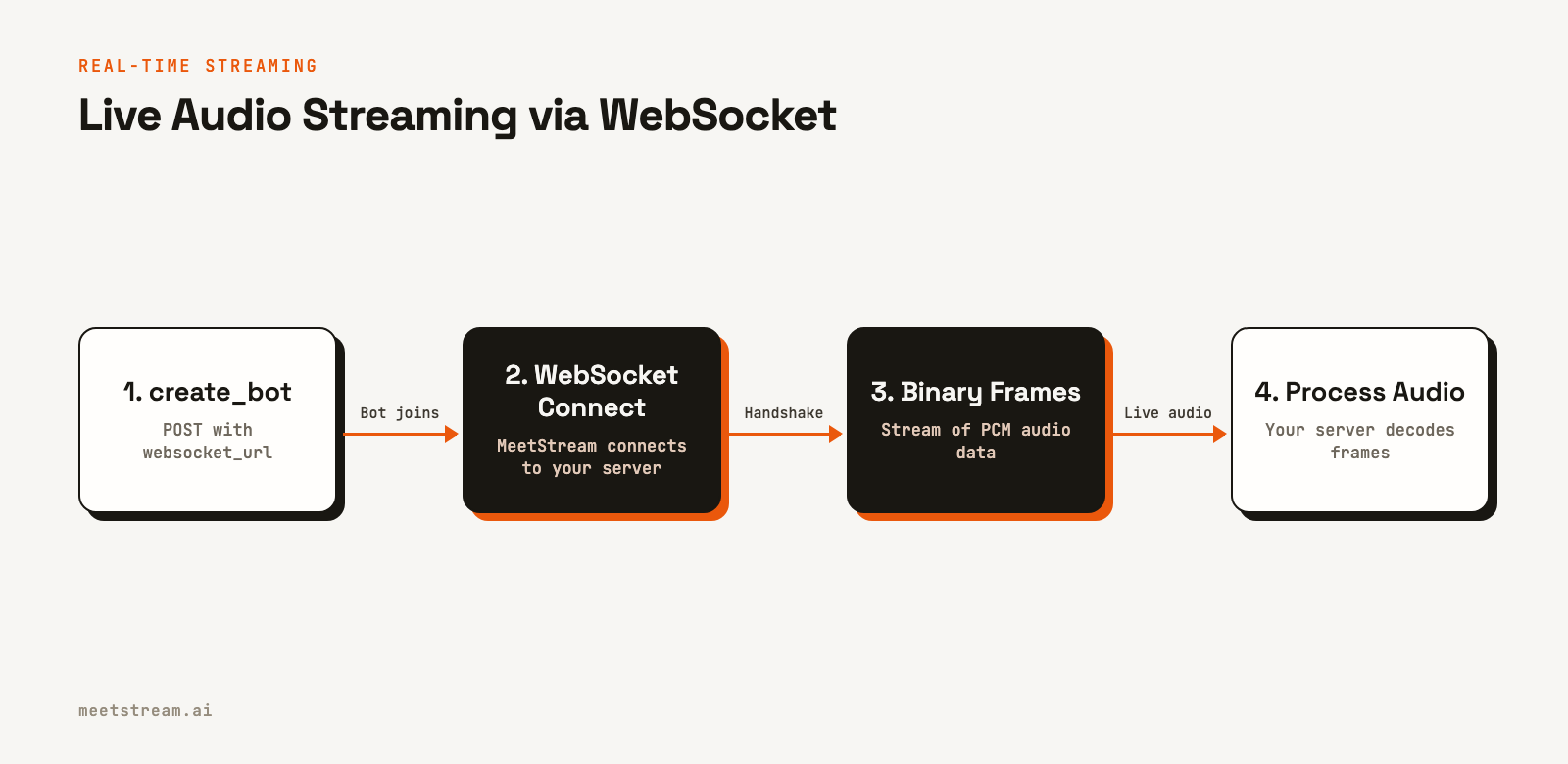
Binary Frame Format for the PCM Stream
The audio stream uses a binary frame format. The audio specification is PCM16 little-endian, 48kHz sample rate, and mono channel. Each frame header contains a msg_type, speaker_id, and speaker_name.
Here is a Python WebSocket server that receives and decodes the audio stream. The header uses 2-byte length prefixes for the speaker ID and name.
import asyncio
import json
import struct
from websockets.server import serve

def parse_frame_header(data: bytes) -> tuple[int, str, str, bytes]:
    """
    Parse the binary frame header.
    Returns: (msg_type, speaker_id, speaker_name, audio_payload)

    Header layout:
    - 1 byte: msg_type (0x01 for audio)
    - 2 bytes: speaker_id length (uint16, little-endian)
    - N bytes: speaker_id (UTF-8)
    - 2 bytes: speaker_name length (uint16, little-endian)
    - M bytes: speaker_name (UTF-8)
    - Remaining: PCM audio data
    """
    offset = 0

    msg_type = data[offset]
    offset += 1

    speaker_id_len = struct.unpack_from('<H', data, offset)[0]
    offset += 2
    speaker_id = data[offset:offset + speaker_id_len].decode('utf-8')
    offset += speaker_id_len

    speaker_name_len = struct.unpack_from('<H', data, offset)[0]
    offset += 2
    speaker_name = data[offset:offset + speaker_name_len].decode('utf-8')
    offset += speaker_name_len

    audio_payload = data[offset:]
    return msg_type, speaker_id, speaker_name, audio_payload

async def audio_handler(websocket):
    print("WebSocket client connected")
    try:
        # The first message is a JSON text handshake.
        handshake_message = await websocket.recv()
        if isinstance(handshake_message, str):
            handshake_data = json.loads(handshake_message)
            if handshake_data.get("type") == "ready":
                bot_id = handshake_data.get("bot_id")
                print(f"Handshake successful for bot_id: {bot_id}")
            else:
                print(f"Unexpected handshake: {handshake_data}")
                return
        else:
            print("Expected a text handshake message first, but received binary.")
            return

        # Subsequent messages are binary audio frames.
        async for message in websocket:
            if isinstance(message, bytes):
                msg_type, speaker_id, speaker_name, audio_data = parse_frame_header(message)
                if speaker_name != "NoSpeaker":
                    print(f"Received {len(audio_data)} bytes of audio from {speaker_name} ({speaker_id})")
                # Your audio processing logic here
    except Exception as e:
        print(f"Connection closed with error: {e}")

async def main():
    async with serve(audio_handler, "localhost", 8765):
        await asyncio.Future()  # run forever

if __name__ == "__main__":
    asyncio.run(main())
This stream provides speaker-attributed audio. Each frame identifies which participant is speaking, which allows for accurate, real-time speaker diarization. This is important for applications like conversation intelligence that analyze who said what.
Combining Real-Time and Post-Call Capture
You can use both live_audio_required and recording_config in the same create_bot request. The real-time WebSocket stream delivers audio as the meeting happens, while the post-call recording produces a complete audio or video file and transcript after the meeting ends. This is useful when you want live features like in-meeting alerts and also a permanent archive for later analysis.
{
  "meeting_link": "https://zoom.us/j/123456789",
  "bot_name": "Full Capture Bot",
  "callback_url": "https://yourapp.com/webhooks/meetstream",
  "video_required": true,
  "live_audio_required": {
    "websocket_url": "wss://yourapp.com/ws/audio"
  },
  "recording_config": {
    "transcript": {
      "provider": { "assemblyai": {} }
    }
  }
}
Tradeoffs of Post-Call vs. Real-Time
Post-call recording is simpler to implement. It produces high-quality artifacts because the transcription provider can process the full audio at once, and it requires no persistent WebSocket server infrastructure on your end. The tradeoff is latency. You cannot act on meeting content until after the meeting ends and processing completes.
Real-time streaming has low latency but is more complex. You need a WebSocket server that stays connected for the duration of every meeting. Streaming transcription models also tend to have lower accuracy than post-call models because of their shorter context windows. For most recording and archival use cases, post-call is the right choice. For real-time coaching, voice agents, or live transcript displays, real-time streaming is necessary.
How MeetStream Fits In
MeetStream provides both recording modes through a single meeting bot API. The bot handles Zoom-side authentication, including Zoom OBF tokens, and stream capture. You provide a callback URL for webhooks or a WebSocket URL for real-time streams, and MeetStream handles the media delivery. The same API works for Google Meet and Microsoft Teams, so you can support multiple platforms with one integration.
Conclusion
Using a Zoom recorder API involves two main paths: post-call recording for complete artifacts with higher transcription quality, and real-time WebSocket streaming for applications that process audio during the meeting. The post-call path uses video_required and recording_config, with artifacts retrieved after processing webhooks fire. The real-time path uses live_audio_required, delivering binary PCM frames with per-speaker headers. For most meeting recording use cases, post-call is simpler and produces better results. For live features, real-time streaming is the right tool.
See the full API reference at docs.meetstream.ai.
Frequently Asked Questions
What audio format does the Zoom recorder API return?
Post-call audio files are available for download after the audio.processed webhook fires. Real-time audio via the live_audio_required WebSocket stream is delivered as binary frames containing raw PCM16 little-endian data at a 48kHz sample rate.
How do I capture separate audio streams per speaker in Zoom?
On Zoom, MeetStream can provide fully isolated audio streams for each participant. For real-time processing, the WebSocket audio stream delivers frames tagged with speaker metadata. This allows you to buffer audio by speaker_id on your server to process each participant's audio separately.
Can I do real-time transcription and post-call recording simultaneously?
Yes. You can include live_audio_required for a real-time stream and recording_config for a post-call recording in the same API call. This allows you to build live features while also creating a high-quality archive of the meeting for later use.
What is the video format for Zoom recording downloads?
Video files are delivered in a standard format like MP4. The video captures the composite meeting view from the bot's perspective, including the active speaker or shared screen. You can retrieve it via the API after receiving the video.processed webhook event.
How do I know when the Zoom recording is ready to download?
Use webhooks to determine when files are ready. The audio.processed event signals the audio file is available, and video.processed signals the video file is available. Do not attempt to download artifacts before receiving the corresponding event.


