
How to Build a Microsoft Teams Meeting Bot (2026 Guide)

Building a bot to join a Microsoft Teams meeting and interact with participants requires one of two approaches: direct browser automation or a dedicated meeting bot API. Microsoft’s own APIs, like the Graph API, are designed for post-meeting data access, not for deploying live, interactive participants into an ongoing call.
This leaves developers with a choice. The do-it-yourself path involves using a tool like Playwright or Puppeteer to script a headless browser, simulating a real user joining the meeting. This gives you direct access to the meeting environment but is brittle and requires constant maintenance. The alternative is to use a third-party API that manages the browser infrastructure for you, providing a stable endpoint to deploy and control bots.
At MeetStream, we've processed over a million meeting minutes, and we see many teams start with browser automation before migrating to an API. The primary driver is reliability. A small change in the Teams front-end can break a browser automation script, while a managed API handles these changes behind the scenes.
This guide provides a complete, practical walkthrough of the browser automation method using Node.js and Playwright. We'll cover the full process from setup to scraping live captions, and then discuss the tradeoffs and when to consider an API-based approach for building more advanced, interactive AI voice agents.
Why Is Building a Teams Bot Complex?
Unlike Zoom, which offers a Meeting SDK for building custom clients, Microsoft Teams does not provide a simple, public API for a bot to programmatically join a live meeting as an active participant. The official path for building Teams integrations is the Microsoft Bot Framework, which is powerful but complex. It requires setting up an Azure Bot resource, registering it with Teams, and handling a specific application lifecycle tied to the Microsoft ecosystem.
This framework is primarily designed for chat-based bots within Teams channels, not for participants that can join arbitrary meetings via a URL and access real-time media streams. While Azure Communication Services (ACS) offers some capabilities, integrating it for this purpose is a significant project in itself.
Because of these limitations, browser automation has become the default method for developers who need a bot to join a Teams call, listen, and capture data. The bot acts just like a human user: it opens a browser, navigates to the meeting link, enters a name, and interacts with the web interface. This approach bypasses the need for complex Azure integrations but introduces its own set of challenges, primarily related to reliability and maintenance.
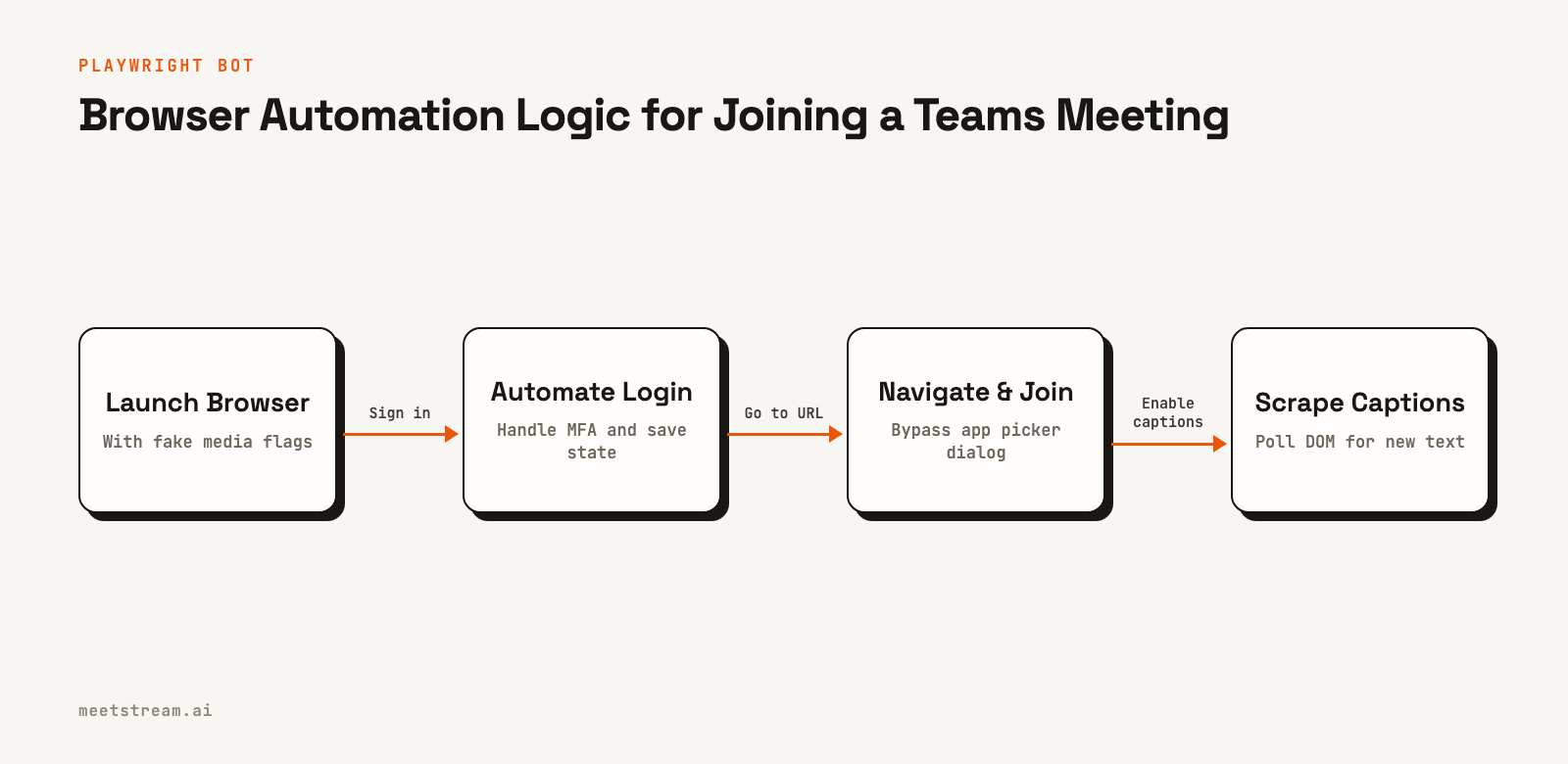
The Browser Automation Approach with Playwright
The core idea is to write a script that controls a Chromium browser, instructing it to perform the same sequence of actions a person would. We use Playwright, a modern browser automation library from Microsoft, because it offers a reliable API for handling the specific challenges of modern web apps like Teams, such as dynamic content and permission prompts.
The script needs to handle several distinct stages:
- Authentication: The bot must sign in to a valid Microsoft account. This flow needs to be automated, and the resulting session cookies must be saved to avoid re-authenticating on every run.
- Joining the Meeting: The script navigates to the meeting URL, bypasses the "Open in app" dialog, fills out the pre-join screen, and handles lobby or waiting room scenarios.
- Media Permissions: The browser must be launched with specific flags to grant microphone and camera permissions automatically, preventing pop-ups that would stall the script.
- Data Capture: Once in the meeting, the script must enable live captions and then periodically check the HTML document object model (DOM) for new text to scrape.
This process is fundamentally screen scraping. It depends on specific CSS selectors and element IDs in the Teams web client. When Microsoft updates its front-end, these selectors can change, which will break the bot until the script is updated.
Step-by-Step: Building the Bot with Playwright
This tutorial walks through a complete Node.js script to join a Teams meeting and save the transcript. Before starting, you will need Node.js (v18+), a new Microsoft account for the bot, and a Teams meeting link for testing. It is important to use a dedicated account, as repeated automated logins can trigger security flags on a personal account.
Step 1: Project Setup
First, create a new project directory and initialize a Node.js project. Then, install Playwright and its browser dependencies.
mkdir teams-bot
cd teams-bot
npm init -y
npm install playwright
npx playwright install chromium
Next, create the main file for your bot's code.
touch bot.jsStep 2: Browser Launch and Authentication
The first part of the script handles launching a browser with the correct permissions and signing into the Microsoft account. We'll save the authentication state to a file (`auth.json`) so the bot doesn't have to log in every time it runs.
const { chromium } = require('playwright');
const fs = require('fs');

const MS_EMAIL = 'your-bot-account@outlook.com';
const MS_PASSWORD = 'your-bot-password';
const AUTH_FILE = 'auth.json';

async function signIn(page) {
  console.log('Signing in to Microsoft account...');
  await page.goto('https://login.microsoftonline.com');
  await page.fill('input[type="email"]', MS_EMAIL);
  await page.click('input[type="submit"]');
  await page.waitForSelector('input[type="password"]', { timeout: 5000 });
  await page.fill('input[type="password"]', MS_PASSWORD);
  await page.click('input[type="submit"]');
  // Handle "Stay signed in?" prompt
  await page.waitForSelector('#idBtn_Back', { timeout: 10000 });
  await page.click('#idBtn_Back');
  console.log('Sign-in successful.');
  await page.context().storageState({ path: AUTH_FILE });
}
Step 3: Joining the Meeting
Once authenticated, the bot can navigate to the meeting. A key trick is to modify the meeting URL to bypass the dialog that asks whether to join in the browser or the desktop app. We then wait for the pre-join screen, enter the bot's name, and click the join button.
async function joinMeeting(page, meetingUrl) {
  // Modify URL to skip the app-picker dialog
  const joinUrl = `${meetingUrl}?launchAgent=join_only&type=meetup-join`;
  console.log(`Navigating to: ${joinUrl}`);
  await page.goto(joinUrl);

  // Wait for pre-join screen to load
  await page.waitForSelector('input[placeholder="Type your name"]', { timeout: 20000 });
  await page.fill('input[placeholder="Type your name"]', 'MeetingBot');

  // Mute mic and disable camera before joining
  await page.click('[data-tid="toggle-mute"]');
  await page.click('[data-tid="toggle-video"]');

  await page.click('button:has-text("Join now")');
  console.log('Join button clicked. Waiting to enter meeting...');
}
Step 4: Capturing Live Captions
After joining, the bot needs to open the "More" menu, enable live captions, and then start polling the DOM for the caption text. The selectors below are correct as of early 2026, but Microsoft updates the Teams web client regularly. These are the most likely part of the script to break.
async function captureCaptions(page) {
  console.log('Enabling captions...');
  // Wait for the main meeting controls to be visible
  await page.waitForSelector('#roster-button', { timeout: 60000 });

  // Open "More" menu
  await page.click('[data-tid="button-more-menu"]');

  // Click "Language and speech"
  await page.click('button[name="Language and speech"]');

  // Click "Turn on live captions"
  await page.click('button[name="Turn on live captions"]');
  console.log('Live captions enabled.');

  // Wait for the caption container to appear
  await page.waitForSelector('.ui-chat__message__content', { timeout: 15000 });
  console.log('Caption container found. Starting capture...');

  let lastTranscript = "";
  setInterval(async () => {
    const transcriptContainer = await page.$('.ui-chat__message__content');
    if (transcriptContainer) {
      const currentTranscript = await transcriptContainer.innerText();
      if (currentTranscript !== lastTranscript) {
        console.log("--- New Transcript ---");
        console.log(currentTranscript);
        fs.writeFileSync('transcript.txt', currentTranscript);
        lastTranscript = currentTranscript;
      }
    }
  }, 2000);
}
This script provides a basic but functional Teams transcription bot. However, it relies on fragile selectors and lacks features like speaker diarization or access to raw audio.
Limitations of Browser Automation
While the Playwright approach works, it comes with significant operational costs, especially for a production application. We've seen teams struggle with three main issues:
- Brittleness: The bot's logic is tightly coupled to the Teams front-end code. Any A/B test or redesign by Microsoft can break your selectors and stop the bot from working. This requires constant monitoring and frequent code changes.
- Scalability: Each bot instance runs a full Chromium browser, which is resource-intensive. Scaling to hundreds of concurrent meetings requires a large cluster of machines, complex orchestration, and reliable monitoring to handle zombie browser processes.
- Limited Data Access: This method can only access data visible on the screen, like captions. It cannot get raw, per-participant audio streams, which are necessary for accurate speaker diarization or advanced conversation intelligence applications. It also cannot easily perform actions like sending chat messages or sharing a screen.
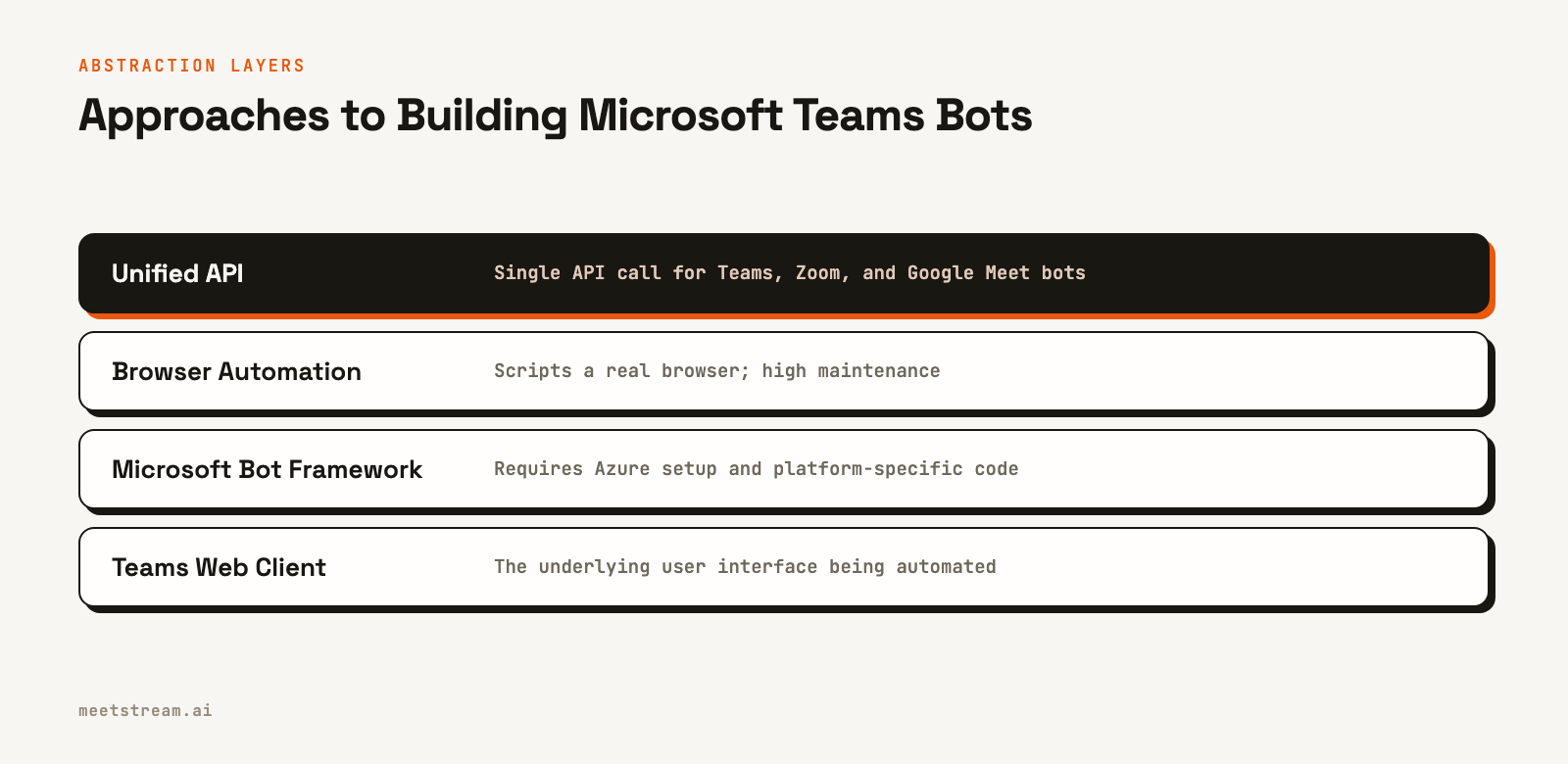
How MeetStream Provides a Unified API for Teams Bots
For developers building scalable applications, a meeting bot API provides a more stable and powerful alternative. MeetStream is an agent-first platform that handles the underlying infrastructure for deploying bots into Teams, Zoom, and Google Meet meetings through a single, unified API.
Instead of managing browser automation scripts, you make a single API call to deploy a bot. Here’s how it works. You send a POST request specifying the meeting link and the bot's name.
curl -X POST "https://api.meetstream.ai/api/v1/bots/create_bot" \
  -H "Authorization: Token <YOUR_API_KEY>" \
  -H "Content-Type: application/json" \
  -d '{
    "meeting_link": "<YOUR_TEAMS_MEETING_LINK>",
    "bot_name": "MeetStream Agent",
    "live_transcription_required": {
      "webhook_url": "https://your-server.com/webhooks/transcript"
    },
    "callback_url": "https://your-server.com/webhooks/bot-status"
  }'
MeetStream manages the entire lifecycle: joining the meeting, handling lobbies, and staying connected. Once in the meeting, it can stream real-time, speaker-attributed transcripts to your webhook. For more advanced use cases, it can also provide live audio streams over a WebSocket, enabling you to build interactive voice agents that can listen and respond in real time. This approach abstracts away the complexity and brittleness of browser automation, letting you focus on your application's core logic.
Conclusion
Building a Microsoft Teams bot is an achievable but nuanced task. For one-off projects or internal tools, the browser automation approach with Playwright offers a direct path to getting a bot into a meeting to capture data. It provides a high degree of control but requires a commitment to ongoing maintenance as the Teams platform evolves.
For product teams building scalable, reliable features on top of meetings, a dedicated API is the more strategic choice. It offloads the infrastructure management and provides richer data streams and interactive capabilities. By handling the platform-specific details for Teams, Zoom, and Google Meet, a unified API lets you build your application once and deploy it anywhere. To get started building a Microsoft Teams bot with our API, see the full API reference.
Frequently Asked Questions
Can you create a bot for Microsoft Teams?
Yes, you can create a bot for Microsoft Teams. The primary methods are using the official Microsoft Bot Framework, which requires Azure setup, or using browser automation tools like Playwright to script a bot that joins meetings through the web client.
What API is used for Microsoft Teams bots?
The official API is part of the Microsoft Bot Framework and Microsoft Graph API, which are best for chat bots and post-meeting data. For live meeting participation, there is no simple public API, which is why developers often use third-party Microsoft Teams bot APIs or build their own browser automation.
How long does it take to build a Teams bot?
A basic proof-of-concept bot using Playwright, like the one in this guide, can be built in a few hours. A production-ready, scalable bot using a managed API like MeetStream can be integrated in under a day, while building a reliable system from scratch on the Bot Framework can take several weeks.
Do Teams bots require an Azure subscription?
If you are building with the official Microsoft Bot Framework, an Azure subscription is required to host and manage the bot resources. If you use a browser automation approach or a third-party API, you do not need an Azure subscription.
Can a bot join a Teams meeting as a guest?
Yes, a bot can join a Teams meeting as a guest, provided the meeting's settings allow guest access. Both the browser automation method and API-driven bots typically join as guests unless they are authenticated with an account within the host's organization.


