
Build a Google Meet Bot with Puppeteer: Complete Guide

You can build a Google Meet bot by using a browser automation library like Puppeteer to script a headless browser. This involves writing code to navigate to the meeting URL, handle the pre-join lobby, and interact with the meeting interface to capture data. The bot effectively acts as a silent participant controlled by your script.
Unlike other major platforms that offer software development kits (SDKs), Google Meet provides no official API for bots. This lack of a formal interface means developers must treat the Google Meet web application as the API, which is a brittle and often frustrating experience. Any change to the front-end code can break a bot that relies on specific button selectors or DOM structures.
Browser automation is the direct, do-it-yourself approach to this problem. It gives you full control but also full responsibility for maintenance and reliability. The alternative is an agent-first voice infrastructure API that provides stable access to meetings and is maintained by a dedicated team.
This guide walks through building a Google Meet bot with Puppeteer, from project setup to scraping live captions. We will also cover the limitations of this method and show an API-based approach for production systems. Let's get into it.
Why Is There No Official Google Meet Bot API?
The core challenge in building a Google Meet bot is the platform's closed nature. There is no public, documented API that allows a server-side application to join a meeting, receive audio and video streams, or access metadata. This stands in contrast to other platforms that provide SDKs for building in-meeting applications.
This design choice forces developers to interact with Google Meet the same way a human user does: through a web browser. The only interface available is the Document Object Model (DOM) of the web application. This means any bot must automate a browser to find and click buttons, read text from the screen, and listen for UI changes.
This approach, often called web scraping or browser automation, is inherently fragile. Google can, and does, update its web interface frequently. A button's class name might change, a layout might be refactored, or the entire login flow could be redesigned. When this happens, any bot hardcoded to the old interface will break without warning.
The Browser Automation Method with Puppeteer
To work around the lack of an API, we can use a library like Puppeteer. Puppeteer is a Node.js library developed by Google that provides a high-level API to control a headless Chrome or Chromium browser. It allows you to programmatically perform most actions you could do manually in a browser.
Here's how it works in practice for a Google Meet bot. Your script launches a browser instance, navigates to the Google login page, and enters credentials for a dedicated bot account. Once authenticated, it navigates to the meeting URL. It then has to find and click the correct sequence of buttons to mute the microphone, turn off the camera, and join the call. Once inside, it can perform actions like enabling captions and scraping the text as it appears on the screen.
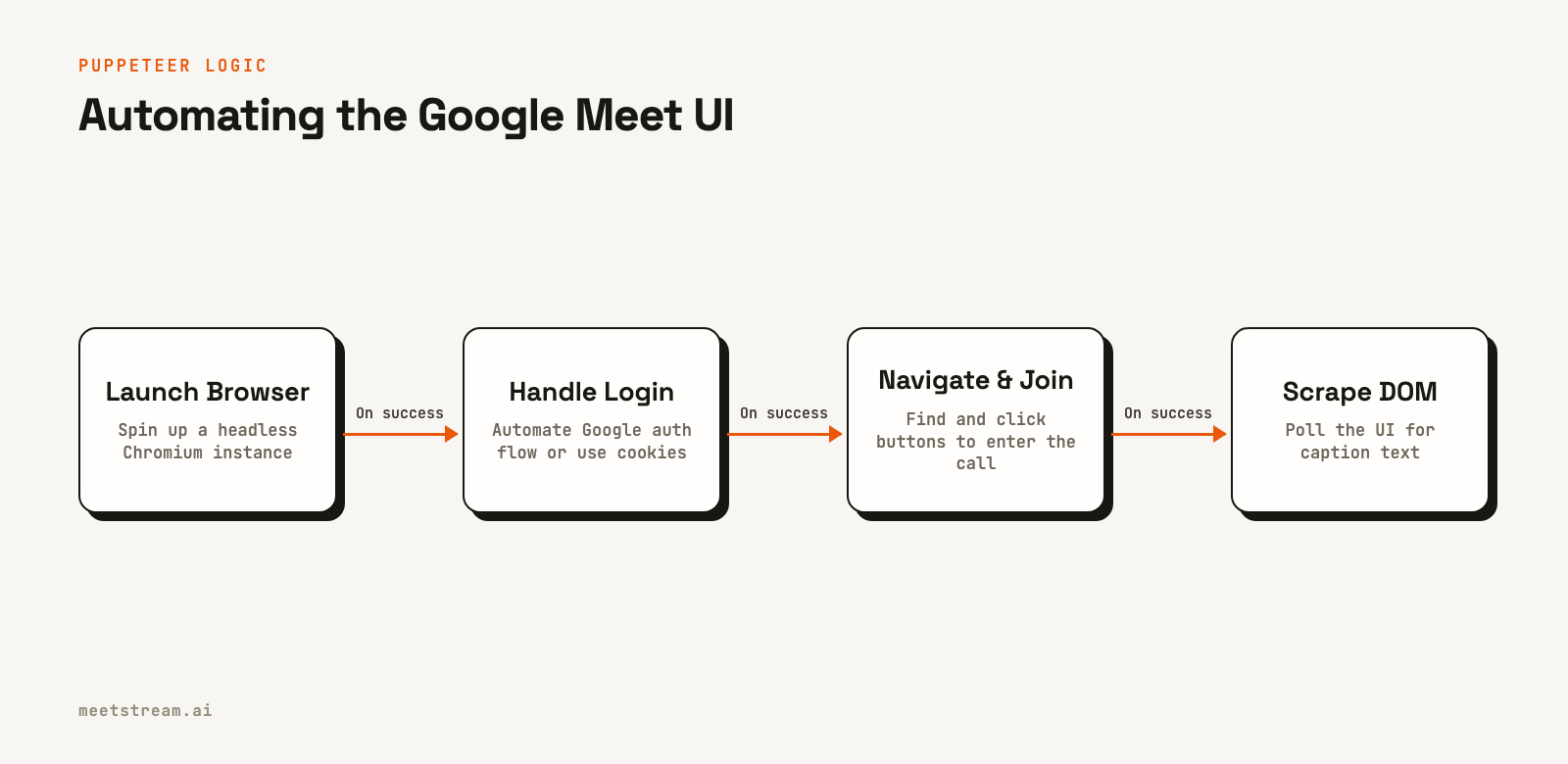
This gives you a functional bot, but it's essentially a screen scraper. It has no direct access to the underlying audio or video streams. To get audio, for example, you would need to use more advanced browser APIs to capture tab audio, which adds another layer of complexity and potential failure points.
How to Build a Google Meet Bot with Puppeteer
This tutorial creates a bot that joins a specified Google Meet call, enables the built-in live captions, and saves the transcript to a local file. Before starting, you will need Node.js (version 18 or higher) and a dedicated Google account for your bot. Using a personal account is not recommended, as repeated automated logins can trigger security flags.
Step 1: Set Up Your Project
First, create a new directory for your project, initialize a Node.js project, and install Puppeteer. This command also downloads a compatible version of Chromium for Puppeteer to control.
mkdir meet-bot
cd meet-bot
npm init -y
npm install puppeteer
Next, create the main file for your bot's code.
touch bot.jsStep 2: Handle Google Authentication
The bot must be signed into a Google account to join a meeting. The script below launches Puppeteer and automates the process of typing an email and password into the Google sign-in form. For production, you would want to avoid this flow on every run by saving and reusing session cookies.
const puppeteer = require('puppeteer');
const fs = require('fs');

const GOOGLE_EMAIL = 'your-bot-account@gmail.com';
const GOOGLE_PASSWORD = 'your-bot-password';

async function loginToGoogle(page) {
  await page.goto('https://accounts.google.com/signin', {
    waitUntil: 'networkidle2'
  });

  // Enter email
  await page.waitForSelector('input[type="email"]');
  await page.type('input[type="email"]', GOOGLE_EMAIL, { delay: 50 });
  await page.click('#identifierNext');

  // Enter password
  await page.waitForSelector('input[type="password"]', { visible: true });
  await page.type('input[type="password"]', GOOGLE_PASSWORD, { delay: 50 });
  await page.click('#passwordNext');

  await page.waitForNavigation({ waitUntil: 'networkidle2' });
  console.log('Logged in successfully.');

  // Save cookies to avoid logging in next time
  const cookies = await page.cookies();
  fs.writeFileSync('cookies.json', JSON.stringify(cookies, null, 2));
  console.log('Session cookies saved.');
}
Step 3: Join the Meeting
After logging in, the bot navigates to the meeting URL. Google Meet presents a "lobby" screen before joining. The script must dismiss any pop-ups, mute the microphone and camera, and then find and click the "Join now" button. The selectors for these buttons can be brittle and may need updating if Google changes the UI.
async function joinMeet(page, meetUrl) {
  await page.goto(meetUrl, { waitUntil: 'networkidle2' });
  console.log('Navigated to meet URL.');

  // Turn off mic and camera
  await page.waitForSelector('div.U26fgb.JRY2Pb.mUbCce.kpROve.yBiuPb.y1zVCf.HNeRed.M9Bg4d');
  const buttons = await page.$$('div.U26fgb.JRY2Pb.mUbCce.kpROve.yBiuPb.y1zVCf.HNeRed.M9Bg4d');
  if (buttons.length >= 2) {
      await buttons[0].click(); // Mute microphone
      await buttons[1].click(); // Turn off camera
  }

  // Click "Join now"
  await page.waitForSelector('button.VfPpkd-LgbsSe.VfPpkd-LgbsSe-OWXEXe-k8QpJ.VfPpkd-LgbsSe-OWXEXe-dgl2Hf.nZPlzc.Ay5kc.l4V7wb.Fxmcue');
  await page.click('button.VfPpkd-LgbsSe.VfPpkd-LgbsSe-OWXEXe-k8QpJ.VfPpkd-LgbsSe-OWXEXe-dgl2Hf.nZPlzc.Ay5kc.l4V7wb.Fxmcue');

  console.log('Successfully joined the meeting.');
}
Step 4: Scrape Live Captions
Once in the meeting, the bot needs to enable captions. This usually involves clicking a "More options" button, then finding the "Turn on captions" menu item. After captions are enabled, the script can poll the DOM at a regular interval, looking for the container where caption text appears. It keeps track of the text it has already seen to only save new lines.
async function captureCaptions(page) {
    // Click "More options" button
    await page.waitForSelector('button[aria-label="More options"]');
    await page.click('button[aria-label="More options"]');

    // Click "Turn on captions"
    // This selector is very specific and likely to break
    await page.waitForSelector('div.KSyTce.iyCAp.Lg3Zxb > div.MocG8c.LMgvRb.SSPGKf.aWv5ic > div.e19J0b.CeoRYc');
    const captionButtons = await page.$$('div.e19J0b.CeoRYc');
    await captionButtons[2].click(); // Assuming it's the 3rd item
    console.log('Captions enabled.');

    let lastTranscript = "";
    const transcriptFile = fs.createWriteStream('transcript.txt', { flags: 'a' });

    setInterval(async () => {
        try {
            const captionsContainer = await page.$('div.a4cQT');
            if (captionsContainer) {
                const currentTranscript = await page.evaluate(el => el.innerText, captionsContainer);
                if (currentTranscript !== lastTranscript) {
                    const newText = currentTranscript.replace(lastTranscript, '').trim();
                    if (newText) {
                        console.log('New caption:', newText);
                        transcriptFile.write(newText + '\n');
                        lastTranscript = currentTranscript;
                    }
                }
            }
        } catch (error) {
            console.error('Error capturing captions:', error);
        }
    }, 1500);
}
This code provides a basic framework. A production version would need more reliable error handling, logic for re-authentication, and a way to manage the bot's lifecycle, such as leaving the call when it ends.
Tradeoffs and Limitations of Puppeteer Bots
While building a Google Meet bot with Puppeteer is possible, it comes with significant tradeoffs, especially for a production application. At MeetStream, we have processed over a million meeting minutes from bots, and we've seen firsthand where this approach fails.
The primary limitation is fragility. Your bot is tightly coupled to the Google Meet front-end design. A simple CSS class name change by Google's developers can break your join flow or caption scraping logic. This requires constant monitoring and frequent maintenance to keep the bot functional.
Second, performance and cost can be issues at scale. Each bot instance runs a full Chromium browser, consuming substantial CPU and memory. Running hundreds of concurrent bots requires a significant and complex infrastructure of servers or container orchestration, which you have to build and manage.
Finally, you are limited to data available on the screen. Capturing clean, per-participant audio streams is very difficult. While Google Meet provides speaker attribution for its captions, you cannot get isolated audio for each person, which is often required for advanced voice AI applications like sales coaching or detailed analytics.
How MeetStream Fits In
Instead of building, scaling, and maintaining a fleet of Puppeteer bots, you can use a dedicated meeting bot API. MeetStream provides a stable, agent-first infrastructure for deploying bots into Google Meet, Zoom, and Microsoft Teams with a single integration. We handle all the underlying browser automation, so your application is decoupled from any UI changes on the platform side.
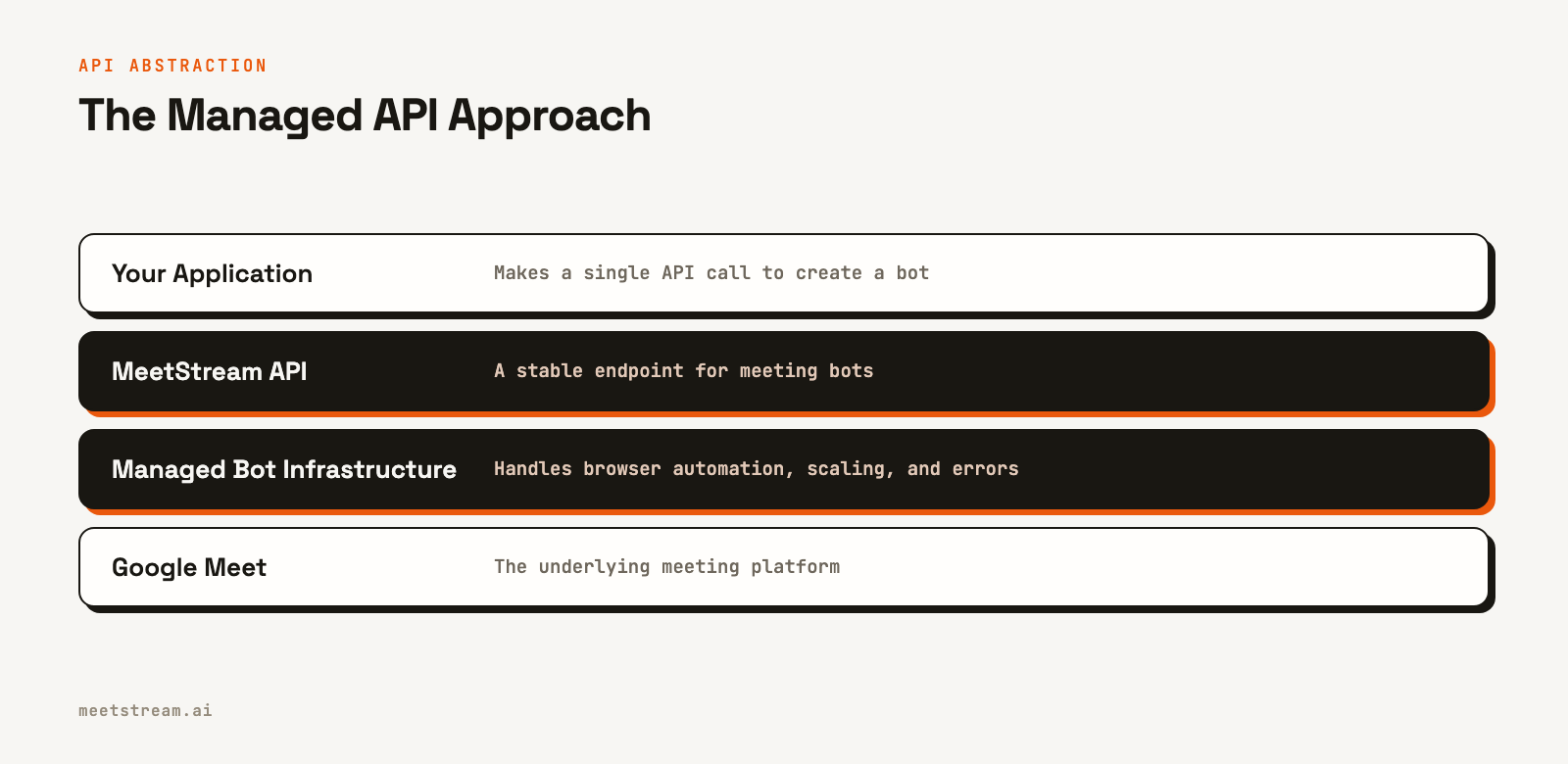
A single API call is all that is needed to send a bot to a meeting. You provide the meeting link and a bot name, and MeetStream manages the rest. The bot joins the call and can provide real-time audio streams, live transcription, and other metadata through simple webhooks and WebSocket connections.
Here is the equivalent of the entire Puppeteer script from this guide, accomplished with one API call to MeetStream:
curl -X POST "https://api.meetstream.ai/api/v1/bots/create_bot" \
  -H "Authorization: Token <YOUR_API_KEY>" \
  -H "Content-Type: application/json" \
  -d '{
    "meeting_link": "<YOUR_MEETING_LINK>",
    "bot_name": "Transcription Bot",
    "live_transcription_required": {
        "webhook_url": "https://your-server.com/webhooks/transcript"
    },
    "video_required": false
  }'
This approach lets you focus on building your application's features, not on the infrastructure to get data out of meetings. It is a more reliable and scalable foundation for any product built on top of online meetings.
Conclusion
Building a Google Meet bot yourself with Puppeteer is an excellent way to understand the challenges of browser automation. It offers total control but comes at the cost of high maintenance and infrastructure complexity. For hobby projects or internal tools, this can be a viable path. However, for a production service that requires reliability and scale, the fragility of a DOM-scraping bot becomes a major liability.
Using a dedicated API like MeetStream abstracts away this complexity. It provides a stable and scalable method for getting a Google Meet bot into a call and streaming out the data you need. This lets your engineering team focus on your product's core value instead of reverse-engineering front-end code. See the full API reference at docs.meetstream.ai.
Related guides
- Build a Google Meet Transcription Bot
- Record Google Meet Programmatically: API Guide with Code
- AI Voice Agents for Zoom, Meet and Teams
- Real-Time Audio Streaming API: Live Meeting Audio over WebSocket
Frequently Asked Questions
Does Google Meet have a bot API?
No, Google Meet does not have an official public API that allows developers to programmatically join meetings or access media streams. The only way to build a bot is by automating a real web browser to interact with the Google Meet user interface.
Can a bot join a Google Meet call?
Yes, a bot can join a Google Meet call by using browser automation tools like Puppeteer or Selenium. The bot script must automate logging into a Google account and handling the pre-meeting lobby to click the "Join now" button, just as a human user would.
How do you automate Google Meet?
You can automate Google Meet using a headless browser library like Puppeteer in a Node.js environment. Your script would programmatically control the browser to perform actions like signing in, navigating to the meeting URL, clicking buttons to join, and scraping on-screen information like captions.
What are the limitations of a Puppeteer bot for Google Meet?
The main limitations are fragility, scalability, and data access. The bot can break whenever Google updates its web UI, running many bots is resource-intensive, and you cannot easily access clean, per-participant audio and video streams, as you are limited to what is available in the browser.