
Build a Google Meet Transcription Bot

You can build a Google Meet transcription bot with a single API call that dispatches an agent into a call to record audio. The MeetStream API sends a bot into Google Meet, Microsoft Teams, or Zoom with one POST request. This provides the core voice infrastructure for building agents that can not only transcribe meetings but also speak and act on what is said during the call.
This approach gives you programmatic access to meeting conversations without building and maintaining the complex infrastructure yourself. For live use cases, the API can stream real-time audio over a WebSocket. For post-call processing, webhooks notify your application when a full, speaker-labeled transcript is ready. This is a direct alternative to Google's native transcription, which is not designed for developer access.
Engineers typically face a choice: build a custom transcription bot from scratch or use a dedicated bot API. The decision involves tradeoffs between control, maintenance, and development time. This article breaks down both paths, explaining what it takes to build a bot yourself and how an API-first approach works in practice.
Google Meet's Native Transcription: What It Does and Doesn't Do
Google Meet includes a native transcription feature for some Google Workspace users. This feature generates a text document that is saved to the meeting host's Google Drive after the call ends. There are also live captions that display text during the meeting but are not saved.
What it requires: A Google Workspace subscription (Business Standard or higher for transcription), the meeting host must enable the feature, and the setting must be permitted by the organization's Workspace administrator.
What it doesn't provide: There is no official Google Meet API for accessing transcript content from a third-party application. While you could technically use the Google Drive API to find and parse the saved document, this requires each user to grant your application broad Drive access. The resulting file is plain text and lacks the structured, timestamped data developers need for analysis.
If your goal is to get structured, speaker-attributed transcript data from an API, the native feature is not a direct solution.
Building a Google Meet Transcription Bot from Scratch
A custom bot that joins Google Meet calls to capture audio is a significant engineering project. The architecture involves several complex components that you must build and maintain.
Browser Automation: A bot needs a headless browser environment, typically using a tool like Puppeteer or Playwright. This runs on a server with a virtual display, like Xvfb on Linux, to automate joining the meeting, handling permission prompts, and managing the session state.
Audio Capture: Getting audio out of a browser process requires custom system configuration. One method uses virtual audio devices, such as PulseAudio virtual sinks on Linux, to route the browser's audio output to a capture device. This is difficult to configure correctly, especially in containerized environments.
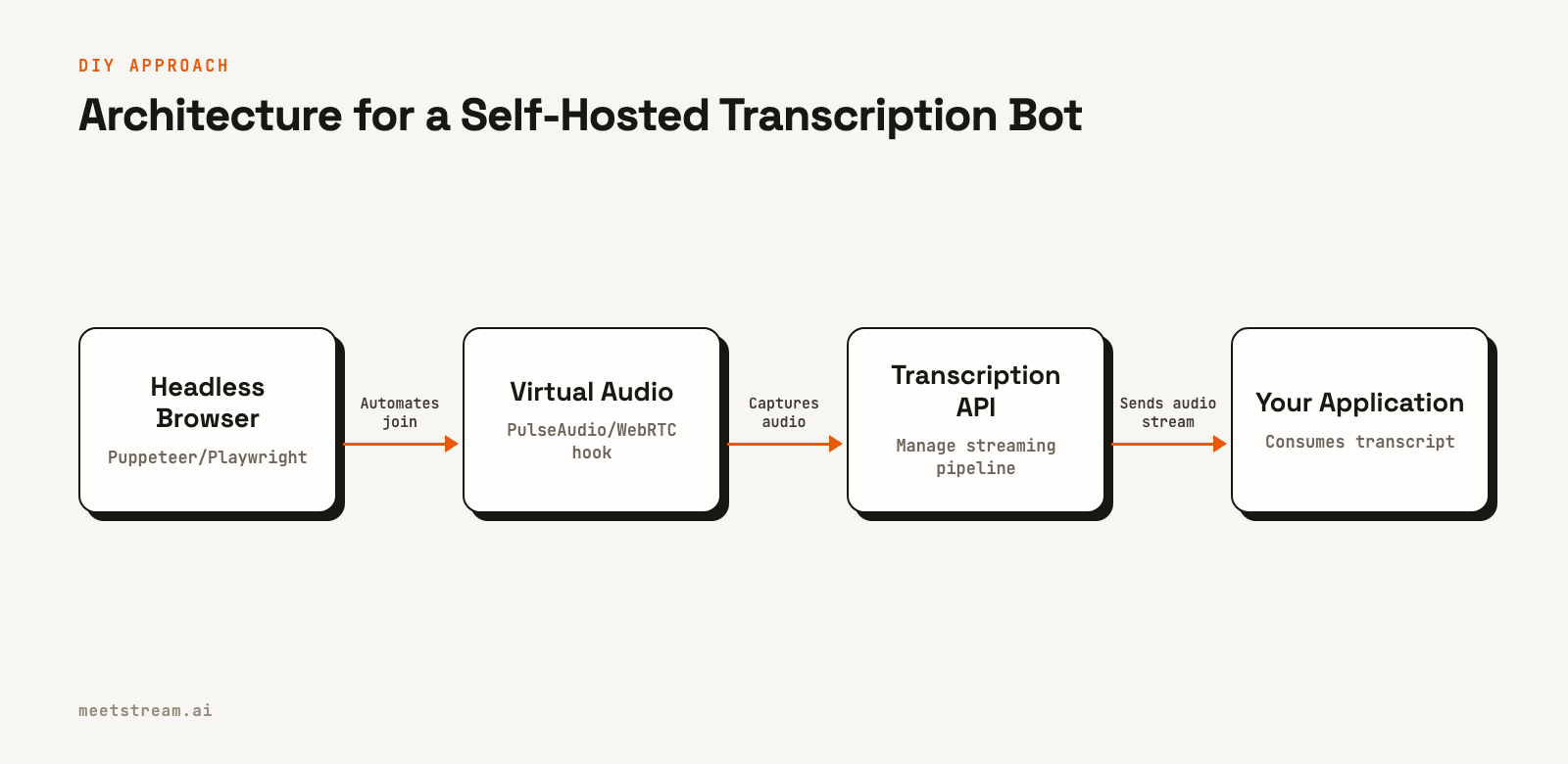
WebRTC Audio Extraction: A more direct method involves injecting JavaScript into the Google Meet session to access the WebRTC audio tracks. This uses the browser's Web Audio API to capture the audio stream. It is more reliable than virtual audio devices but requires constant maintenance to keep up with changes to Google Meet's internal web application structure.
Transcription Pipeline: Once you have a raw audio stream, you must send it to a speech-to-text service. This involves managing the audio chunking, handling connection errors, and implementing retry logic for the entire pipeline.
Speaker Diarization: A raw transcript is not useful without knowing who said what. To achieve speaker diarization, you can try to map captured WebRTC audio tracks to participant names from the Meet UI. If you capture mixed audio, you rely on the transcription provider's diarization, which is less accurate because it lacks the ground truth of participant names.
Infrastructure: Each bot instance consumes significant resources, often 500MB to 1GB of RAM plus CPU per concurrent meeting. Scaling to handle hundreds of concurrent meetings requires a dedicated, auto-scaling server cluster and the operational overhead to manage it.
Maintenance: Google regularly updates the Meet web interface. These changes can break element selectors, authentication flows, or WebRTC implementations, causing your bots to fail without warning. This requires active monitoring and an engineering team ready to fix breakages.
Build vs. API: A Technical Comparison
| Dimension | Build from Scratch | MeetStream API |
|---|---|---|
| Time to First Transcript | 4-12 weeks | Under 1 day |
| Google Meet Setup | None (uses browser automation) | None (works with just a meeting URL) |
| Transcript Format | Depends on your implementation | Speaker-attributed segments with timestamps |
| Speaker Diarization | Complex (requires custom mapping) | Built-in (uses participant names) |
| Infrastructure Cost | High (dedicated compute per bot) | Included in API usage |
| Maintenance Burden | Ongoing (Reacting to Meet UI changes) | Handled by MeetStream |
| Real-Time Streaming | Possible (requires custom WebSocket pipeline) | Built-in via live_transcription_required |
| Multi-Platform Support | Requires separate implementation per platform | Same API for Zoom, Teams, and Meet |
| Transcription Provider Choice | Any provider you integrate | MeetStream, Deepgram, AssemblyAI, JigsawStack, Sarvam, or native captions |
When Building from Scratch Makes Sense
There are valid reasons to build your own Google Meet transcription bot. If your product has highly specific requirements that an API cannot meet, such as capturing separate video streams for each participant or injecting custom audio, a DIY approach offers maximum control.
At very high volumes, the economics might favor a self-hosted solution over a per-meeting API fee, though this requires factoring in engineering and maintenance costs. Additionally, if strict compliance rules prevent meeting audio from passing through any third-party service, a self-hosted bot keeps all data within your infrastructure.
For most teams building applications on top of meeting data, these conditions do not apply. The engineering effort to build and maintain a reliable bot is substantial, and production issues like memory leaks or audio glitches are difficult to debug.
Using the MeetStream API for Google Meet Transcription
With MeetStream, deploying a Google Meet bot is a single API call. Unlike Zoom, which requires an App Marketplace setup, Google Meet integration works immediately with just a meeting link.
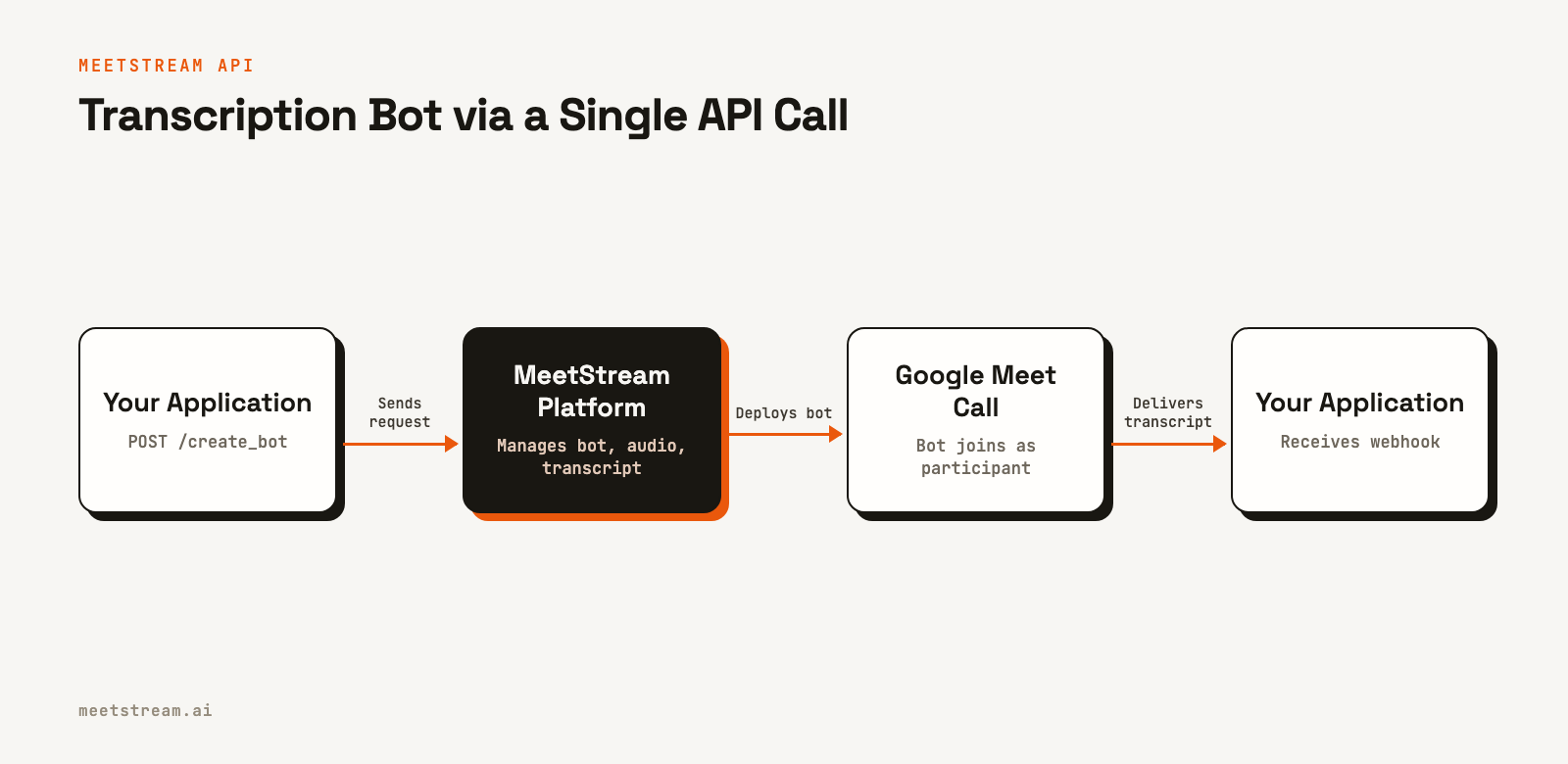
Here is how to send a bot to a Google Meet call and request a transcript from MeetStream's in-house provider.
curl -X POST "https://api.meetstream.ai/api/v1/bots/create_bot" \
  -H "Authorization: Token <YOUR_API_KEY>" \
  -H "Content-Type: application/json" \
  -d '{
    "meeting_link": "https://meet.google.com/abc-defg-hij",
    "bot_name": "Transcription Bot",
    "callback_url": "https://yourapp.com/webhooks/meetstream",
    "video_required": false,
    "recording_config": {
      "transcript": {
        "provider": {
          "meetstream": {}
        }
      }
    }
  }'
The bot joins the call, captures the audio, and posts the full transcript to your callback_url when the transcription.processed webhook event fires. For real-time use cases, you can add the live_transcription_required parameter to receive transcript segments via webhook as they are generated. The full API reference details all configuration options.
Tradeoffs and What to Watch For
The primary limitation of an API is that you are constrained by the parameters it exposes. If you need a capability the API does not offer, you depend on the provider to add it. The bot also appears as a named participant in the meeting, which is visible to everyone. This is standard for any third-party recording tool and can be managed by setting a clear and descriptive bot_name.
While many Google Meet calls are open, some may have join restrictions or require admission from a host. The bot_status field in webhook events like bot.stopped will indicate if a bot failed to join and provide a reason, such as NotAllowed or Denied.
How MeetStream Fits In
MeetStream provides the infrastructure for building AI voice agents that can participate in meetings on Zoom, Google Meet, and Microsoft Teams. A unified API allows you to build your product once and deploy it across all major platforms. Transcription is one of the core capabilities of this platform, providing the raw material for summarization, coaching, and other meeting intelligence features. For Google Meet, the integration is especially simple as it requires no platform-specific setup.
Conclusion
Building a custom Google Meet transcription bot is a complex project requiring expertise in browser automation, audio processing, and scalable infrastructure. It also carries a significant ongoing maintenance burden. For most developers, using a dedicated API like MeetStream is a more direct path. It abstracts the infrastructure, reduces development time from weeks to hours, and provides reliable, structured transcript data for your application.
Get started free at meetstream.ai or see the full API reference at docs.meetstream.ai.
Frequently Asked Questions
Does Google Meet have a transcription API for developers?
No, Google Meet does not offer a public API that provides transcript content to third-party applications. The native transcription feature saves a document to the host's Google Drive, which is not suitable for programmatic access. A meeting transcription API is the standard way for developers to get this data.
How does a Google Meet transcription bot work?
A transcription bot joins a Google Meet call as a participant using browser automation. It captures the meeting's audio stream, processes it through a speech-to-text engine, and uses meeting metadata to label speakers. The final structured transcript is delivered to your application via a webhook.
Do I need Google Workspace for a Meet transcription bot?
No. While Google's native transcription feature requires a Workspace account, a bot-based API does not. The bot joins as a regular participant, so it works with meetings hosted by any Google account type, including free personal accounts.
How accurate is automated Google Meet transcription?
Accuracy depends on the underlying transcription provider and the audio quality of the meeting. Leading providers achieve high accuracy on clear audio. Performance can decrease with heavy background noise, strong accents, or frequent cross-talk. Using per-participant audio can improve accuracy.
What is the difference between live captions and a transcription bot?
Live captions in Google Meet are a real-time display feature for participants and are not saved or accessible via an API. A transcription bot is a developer tool that captures audio to produce a permanent, structured data file with timestamps and speaker labels that an application can process and analyze.


